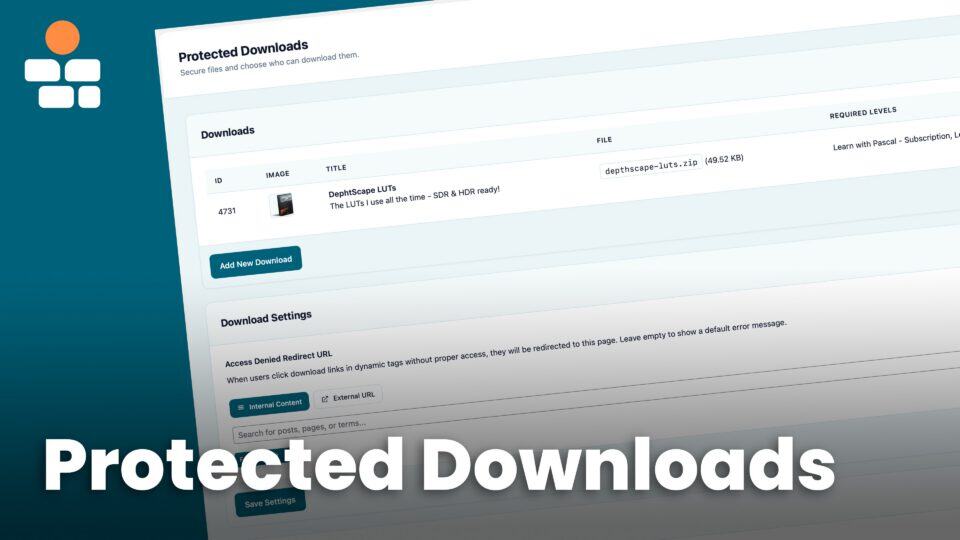
Selling digital products, course materials, or member-only resources requires secure file delivery. BricksMembers’ Protected Downloads system ensures only authorized members can access your files, with comprehensive security features and easy integration with Bricks Builder.
What you’ll learn:
- How protected downloads work (security architecture)
- Creating and managing protected downloads
- Adding download buttons to your pages
- Assigning downloads to posts and structures
- Displaying download lists with query loops
- Tracking download activity
- Best practices for file security
- Configuring cloud storage (S3, Bunny CDN, GCS)
- Troubleshooting common issues
Prerequisites:
- Bricks Builder installed and activated
- BricksMembers installed and activated
- Protected Downloads module enabled
- For User Levels access, at least one user level created
- For Specific Users access, the Enrollments module enabled under BricksMembers → Settings → Modules
Part 1: Understanding Protected Downloads
How It Works
Traditional WordPress file uploads are publicly accessible. Anyone with the URL can download the file, even if they’re not logged in.
Example of insecure file:
https://yoursite.com/wp-content/uploads/2025/01/premium-ebook.pdfAnyone can access this URL directly.
BricksMembers Protected Downloads:
- Local files are stored in the fixed BricksMembers private-storage folder outside the public web root. BricksMembers tries to create it when Protected Downloads is enabled and fails closed when it cannot be established.
- On upgrade to version 1.4.0, BricksMembers quarantines the complete legacy
uploads/brm-protecteddirectory outside the web root and migrates referenced files into per-download private locations before delivery. - Files are served through PHP verification that checks user access
- Every delivery checks the current logged-in user and current download access; legacy query-style links also validate their WordPress nonce
Example of protected file:
https://yoursite.com/?brm_download=123&nonce=abc123def456This legacy query-style URL validates its nonce and still checks the current logged-in user’s access. A copied URL does not grant access to another unauthorized visitor.
Security Features
1. Private Storage and Fallback Server Protection
- Stores local Protected Downloads only in the fixed durable BricksMembers private-storage folder outside the web root, with a copy-ready
BRM_PRIVATE_STORAGE_DIRdefinition shown when the server needs explicit configuration - Fails closed when private storage cannot be established; a public uploads-directory fallback is not used for Protected Downloads
- Prevents directory listing
- Forces all downloads through PHP
2. Access Verification
- Checks if user is logged in
- Verifies the configured access mode: required user levels or an active direct-user enrollment
- Checks download post status (must be published)
- Validates nonce for security
3. File Type Restrictions
Allowed file types:
- Documents: PDF, DOC, DOCX, XLS, XLSX, PPT, PPTX, TXT, RTF, CSV
- Images: JPG, JPEG, PNG, GIF, WEBP
- Audio: MP3, M4A, AAC, WAV, OGG/OGA, FLAC, Opus
- Video: MP4, WebM, OGV, AVI, MOV, WMV, FLV
- Archives: ZIP, RAR, 7Z, TAR, GZ
4. File Size Limit
- Maximum file size: Configurable (default: 100 MB)
- Set in BricksMembers → Protected Downloads → Download Settings
- Prevents server overload and abuse
5. Filename Sanitization
- Removes path traversal attempts (
../,./) - Sanitizes special characters
- Generates unique filenames to prevent conflicts
The admin side is protected too: BricksMembers keeps the Protected Downloads screen under normal administrator access, but uses dedicated internal download capabilities behind the scenes so the downloads module does not interfere with WordPress core admin permissions or other plugins’ menu access.
Part 2: Enabling Protected Downloads
Step 1: Enable the Module
- Go to BricksMembers → Modules
- Find Protected Downloads
- Toggle it ON
- Confirm the change
BricksMembers checks private local storage during activation. If the server needs manual setup, it opens Protected Downloads → Storage Providers automatically so you can copy the exact configuration line and verify it.
Result: The Protected Downloads module is now active.
Step 1.5: Configure Download Settings (Optional)
Customize download behavior:
- Go to BricksMembers → Protected Downloads
- Scroll to the Download Settings card
- Maximum File Size (MB): Set the local protected-file upload limit (default: 100 MB, max: 500 MB). This does not control remote proxy delivery.
- Remote Proxy Maximum File Size (MB): Set the largest remote file PHP proxy mode may relay (default: 500 MB). Increase this only when your PHP, web server, gateway, and storage timeouts can sustain the transfer.
- Remote Delivery Mode: Keep Proxy Through Server for the existing behavior, or choose Direct Signed URL to redirect authorized remote downloads to a short-lived provider URL without sending file bytes through PHP
- Enable Download Logs: Choose whether to track download activity in the database (enabled by default)
- Assignable Post Types: Choose which post types can have protected downloads attached. The selected post types control where the Protected Downloads assignment field appears.
- Access Denied Redirect URL: (Optional) Set where unauthorized users are redirected
- Wait for the settings saved confirmation after changing a field
Local-upload tip: The Maximum File Size (MB) field cannot override your server’s PHP upload limits. If you raise the local upload limit, you may also need to increase upload_max_filesize and post_max_size. Those PHP upload settings do not control remote proxy or direct delivery.
Note: Changes in the Download Settings card save automatically when you change a field. Refresh the page after saving if you want to confirm the Assignable Post Types checkboxes are stored.
Step 1.6: Configure Cloud Storage (Optional)
To use files from cloud storage (Amazon S3, Bunny CDN, or Google Cloud Storage) instead of local uploads:
- Go to BricksMembers → Protected Downloads
- Open the Storage Provider card
- Select your provider (e.g. Bunny CDN) from the dropdown
- Enter credentials: Storage Zone Name, Storage Zone Password (from Bunny FTP & API Access, not your Account API key), Region, CDN Hostname, Token Authentication Key
- For Bunny: set Token Authentication Type to match your pull zone (Advanced/SHA256 or Basic/MD5)
- Click Test Connection, then Save Provider Settings
When creating a download, choose Remote Storage and use Browse Remote Files to select files from your cloud. You can keep the global delivery mode with Use global setting or choose a per-download Proxy through this server or Direct signed URL redirect override. Direct is available only when the selected provider supports signed URLs; S3, Bunny, and GCS do.
For large files: Direct signed URL redirect removes WordPress and PHP from the file-byte path, so the remote proxy’s file-size and worker limits do not apply. BRM still checks the member’s access before issuing the HTTP redirect. The signed location is a temporary bearer link until it expires, so keep the provider’s Download URL Expiry short and make sure the provider rejects unsigned and expired requests. Protected audio/video playback continues to use proxy mode.
Choose the Right Remote Delivery Option
| Option | What happens | When to use it | What to configure |
|---|---|---|---|
| Proxy through this server | BRM keeps the signed provider URL private and relays the file through PHP. | Smaller files or installations where the server must remain in the byte path. | Leave Remote Delivery Mode on Proxy and set Remote Proxy Maximum File Size (MB) high enough for the file. |
| Direct signed URL redirect | After BRM authorizes the user, it sends a temporary HTTP 302 redirect and the provider/CDN sends the file. | Large remote downloads, especially gigabyte-scale course bundles. | Select Direct globally or for the individual download and configure a short provider Download URL Expiry. |
Example for a 2.8 GB file: Direct signed URL redirect is recommended and does not use the proxy limit. If you deliberately keep Proxy mode, set Remote Proxy Maximum File Size (MB) to at least 3072. That only permits BRM to attempt the transfer; it does not prevent PHP, web-server, gateway, or hosting timeouts.
Step 2: Verify Directory Protection
The protected directory is created automatically outside the web root. Verify it before adding production files:
- Open BricksMembers → Protected Downloads → Storage and confirm that private local storage is available
- If setup is required, copy the exact
BRM_PRIVATE_STORAGE_DIRline shown on the Storage Providers screen and paste it above “That’s all, stop editing!” inwp-config.php - Confirm that the displayed downloads path is outside the site’s document root and is included in your server backups
- After upgrading from an older version, purge any CDN or reverse-proxy cache for the retired
/wp-content/uploads/brm-protected/URL prefix
If storage is unavailable: BricksMembers blocks local upload and delivery instead of falling back to a public directory. Copy the ready-made wp-config.php line from the Storage Providers screen, save the file, then click Verify Setup.
Part 3: Creating Protected Downloads
Create protected downloads using the admin interface:
Creating a Download
- Go to BricksMembers → Protected Downloads
- Click Add New Download
- Fill in the details:
- Title: “Premium Course Workbook”
- Description: “A comprehensive workbook for the premium course.”
- File: Click Choose File and select your PDF/ZIP/etc.
- Download Image: (Optional) Choose an image
- Access Mode: Choose User Levels, then check “Premium Member” under Required User Levels
- Click Create Download
Result: The file is uploaded to the protected directory and a download post is created.
Tip: For large files that might timeout during browser uploads, you may need to increase your server’s PHP upload limits (see troubleshooting section below).
Understanding Download Metadata
Each download stores:
- Title: Display name
- Description: Optional description
- File Path: Internal
brm-private/storage key; the filesystem path is not exposed to members - File Name: Original filename
- File Size: Automatically calculated
- Download Key: Unique 32-character key for secure URLs
- Access Mode: Standard level access or a direct assignment to specific users
- Required Levels: User levels needed in User Levels mode
- Download Image: Optional thumbnail

Delivering a Download to One Specific User
Since BricksMembers 1.4.0: A customer can order a custom file, such as a composed piece of music, and receive it in their account when it is ready.
- Enable Protected Downloads and Enrollments. If BricksMembers should send the ready notification, also enable Emails.
- Create the customer-facing downloads page before the first assignment. This is a normal WordPress Page, for example My Downloads, not a hidden page in BricksMembers settings. Edit it with Bricks, add BRM Protected Download in List mode, choose Downloads assigned directly to current user as the Download Source, publish it, and link it from the customer dashboard or account navigation.
- If you want an automatic ready email, create and activate the email workflow described below before assigning the first buyer. Enrollment Activated is a transition event and is not replayed for an assignment that already exists.
- Create or edit the Protected Download when the finished file is ready, then set Access Mode to Specific Users. This mode does not combine with Required User Levels.
- Search for the buyer by name or email, add them under Recipients, and save. BricksMembers creates an active enrollment for that user and download. If the active workflow was configured first, this inactive-to-active transition queues the ready email.
Set Up the Download-Ready Email Before Assigning the Buyer
The Enrollment Activated trigger is available only while Enrollments is active. The Send Email action is available only while Emails is active, and it needs an email template.
- Open BricksMembers → Emails → Templates, create the “your download is ready” template, and add a button or link to the published My Downloads page.
- Open BricksMembers → Automations and click Create Workflow.
- Choose Enrollment Activated as the trigger.
- Add Configure Conditions, then set Check to Resource post type, Rule to Equals, and Compare With to
brm_download. Without this condition, the workflow also matches enrollments for other post types. - Add the Send Email action. Select the prepared Email Template, set Recipient Mode to Single recipient, and set Subscriber Email to User email. In this trigger context, that user is the enrolled buyer.
- Click Save Workflow, test it, and Activate it before adding the buyer under Recipients.
The event runs only when the buyer’s effective access changes from inactive to active. Saving an unchanged recipient again does not resend the email, and assigning the download-editor source does not trigger another activation when a different enrollment source already grants access. If you configured the workflow after the first assignment, send that notification manually. Remove and reassign the buyer only when you intentionally want to revoke and grant access again.
You can save Specific Users mode before choosing a recipient. The download-editor assignment then grants nobody, although a separate active enrollment source can still grant access. Removing a recipient revokes only the download-editor assignment, while any separate enrollment remains untouched. A download supports up to 200 direct recipients; use User Levels or an Automation for larger audiences.
Part 4: Playing Protected Media and Adding Download Buttons
Since BricksMembers 1.4.0, the same Protected Download can be played securely as audio or video and, when desired, offered through an explicit protected download button.
Protected Audio and Video Playback Since Version 1.4.0
Enable both Protected Downloads and Video Tracking. Enable Enrollments as well only when the download uses Specific Users access. The Protected Download remains the canonical file and access record; the BRM Video & Audio element is the player.
- Create or edit a Protected Download and upload the audio or video file, or select its configured private storage provider.
- For one content post, enter
brm-download:123in its BRM Video & Audio field, replacing123with the Protected Download ID. - Add the BRM Video & Audio element to the Bricks template. Supported protected audio formats are MP3, M4A, AAC, WAV, OGG/OGA, FLAC, and Opus; supported protected video formats are MP4, WebM, OGV, and MOV.
- For an account library, query the
brm_downloadpost type, filter Assigned Downloads to downloads assigned directly to the current user, put BRM Video & Audio inside the repeated item, and select Current query loop item under Video source context.
The rendered HTML receives only a short-lived, viewer- and session-bound BricksMembers gateway URL. Local paths, provider object keys, and signed remote origin URLs are not rendered. BricksMembers checks the current login, session, content access, download access, and source fingerprint again for every playback or download request. A copied gateway URL therefore does not work for a logged-out visitor or another session.
The remote origin must still reject unsigned public access; BricksMembers cannot make an already-public bucket or CDN object private. Protected delivery is access control rather than DRM because an authorized browser must receive the media bytes to play them.
If the member should also be able to save the file, add a native Bricks Button or Text Link. Set BricksMembers Action to Protected Media , Download protected media. Choose Current post or query-loop item, or choose Specific protected download and enter its ID. BricksMembers issues a fresh viewer-specific download URL only when the member clicks.
The BRM Protected Download element below remains the correct choice for a normal link, image, or download list. It is not an audio or video player.
Method 1: Single Download Button
Use case: Add a download button to a lesson page.
Steps:
- Edit your page/template with Bricks
- Add a BRM Protected Download element
- Configure:
- Display Mode: Single
- Download: Select the download from the dropdown
- Button/Link Text: “Download Workbook”
- Show Download Image: Yes (optional)
- Show Filename: Yes
- Show File Size: Yes
- Layout Style: Horizontal (image on left, content on right)
- Style the element as needed
Result: A download button that only works for users allowed by the download’s configured access mode.
Method 2: Secure Native Bricks Button or Text Link Since Version 1.4.0
Use case: Add a normal Bricks Button or Text Link that prepares an authorized, viewer-specific download only when it is clicked.
Steps:
- Add a native Bricks Button or Text Link to the protected content page or a
brm_downloadquery-loop item. - Open the element’s Content controls and find BRM Protected Media.
- Set BricksMembers Action to Protected Media , Download protected media.
- Choose Current post or query-loop item when the current context already resolves the protected source.
- Alternatively choose Specific protected download and enter its Protected Download ID.
- Set the button or link label and styling normally. Do not paste a Media Library URL, provider URL, object key, or generated gateway URL into the Bricks Link control.
Result: BricksMembers checks access again on click and then issues a fresh short-lived download URL. Protected Download posts intentionally have no public Single route or permalink, so do not create a public brm_download Single template as a member “view” page.
Method 3: Download List
Use case: Show all available downloads on a “Resources” page.
Steps:
- Create a new page: “Member Resources”
- Edit with Bricks
- Add a BRM Protected Download element
- Configure:
- Display Mode: List
- Number of Downloads: 10
- Hide Inaccessible Downloads: Yes (only show downloads the user can access)
- Show Download Image: Yes
- Show Filename: Yes
- Show File Size: Yes
- Style the element as needed
Result: A list of all downloads the user has access to.
Method 4: Downloads Assigned Directly to the Current User
Since BricksMembers 1.4.0: There is no hidden BricksMembers “account page” setting to find. Create or open a normal WordPress Page, for example My Downloads, and use that page as the downloads area inside your own customer dashboard.
- Go to WordPress → Pages and create or open My Downloads.
- Edit the page with Bricks and add the BRM Protected Download element.
- Set Display Mode to List.
- Set Download Source to Downloads assigned directly to current user.
- Publish the page and add its URL to the customer dashboard, account menu, or the ready-email template.
The source returns only published direct-user downloads the logged-in viewer can access. Logged-out users and users with no matching assignment see the normal empty state; the element does not fall back to recent downloads. The pre-made sections can provide the surrounding dashboard layout, but they do not automatically create or select this page for you.
For a custom card layout, use a native Bricks Posts query loop with post type brm_download, then set Assigned Downloads to Only Downloads Assigned Directly to Current User. Put the secure action inside the loop with the Protected Download element or {brm_download:*} dynamic tags. To play each assigned audio or video file, add BRM Video & Audio inside the repeated item and choose Current query loop item under Video source context. Add the secure native Button/Text Link action from Method 2 when members should also be able to download the file.
Method 5: Downloads Assigned to a Structure
Since version 1.1.12: You can assign existing protected downloads to a whole content structure, not only to individual posts. This is useful for course-wide resource packs, onboarding files, shared worksheets, or bonus downloads that belong to the structure itself.
- Open BricksMembers → Content & Structures and manage the structure you want to edit
- In the structure header, click Downloads
- Search for existing protected downloads and select the files that belong to this structure
- Click Save
To display those files, use the Protected Download element with Download Source set to Downloads assigned to current structure, or create a native Bricks Posts query loop with post type brm_download and Assigned Downloads set to Only Downloads Assigned to Current Structure.
Part 5: Advanced Download Displays
Using Query Loops for Custom Layouts
For complete control over the layout, use a query loop instead of the BRM Protected Download element.
Steps:
- Add a Div element
- Enable Use query loop
- Configure query:
- Query type: Posts
- Post type: Protected Download
- Posts per page: 10
- Order by: Title
- Order: ASC
- Scroll to BricksMembers Query Filters:
- User Level Match: Match (only show accessible downloads)
- Inside the loop, add:
- Image element: Source →
{brm_download:image} - Heading (H3):
Protected Downloads & File Security - Text:
Selling digital products, course materials, or member-only resources requires secure file delivery. BricksMembers’ Protected Downloads system ensures only authorized members can access your files, with comprehensive security features and easy integration with Bricks Builder.
What you’ll learn:
- How protected downloads work (security architecture)
- Creating and managing protected downloads
- Adding download buttons to your pages
- Assigning downloads to posts and structures
- Displaying download lists with query loops
- Tracking download activity
- Best practices for file security
- Configuring cloud storage (S3, Bunny CDN, GCS)
- Troubleshooting common issues
Prerequisites:
- Bricks Builder installed and activated
- BricksMembers installed and activated
- Protected Downloads module enabled
- For User Levels access, at least one user level created
- For Specific Users access, the Enrollments module enabled under BricksMembers → Settings → Modules
Part 1: Understanding Protected Downloads
How It Works
Traditional WordPress file uploads are publicly accessible. Anyone with the URL can download the file, even if they’re not logged in.
Example of insecure file:
https://yoursite.com/wp-content/uploads/2025/01/premium-ebook.pdfAnyone can access this URL directly.
BricksMembers Protected Downloads:
- Local files are stored in the fixed BricksMembers private-storage folder outside the public web root. BricksMembers tries to create it when Protected Downloads is enabled and fails closed when it cannot be established.
- On upgrade to version 1.4.0, BricksMembers quarantines the complete legacy
uploads/brm-protecteddirectory outside the web root and migrates referenced files into per-download private locations before delivery. - Files are served through PHP verification that checks user access
- Every delivery checks the current logged-in user and current download access; legacy query-style links also validate their WordPress nonce
Example of protected file:
https://yoursite.com/?brm_download=123&nonce=abc123def456This legacy query-style URL validates its nonce and still checks the current logged-in user’s access. A copied URL does not grant access to another unauthorized visitor.
Security Features
1. Private Storage and Fallback Server Protection
- Stores local Protected Downloads only in the fixed durable BricksMembers private-storage folder outside the web root, with a copy-ready
BRM_PRIVATE_STORAGE_DIRdefinition shown when the server needs explicit configuration - Fails closed when private storage cannot be established; a public uploads-directory fallback is not used for Protected Downloads
- Prevents directory listing
- Forces all downloads through PHP
2. Access Verification
- Checks if user is logged in
- Verifies the configured access mode: required user levels or an active direct-user enrollment
- Checks download post status (must be published)
- Validates nonce for security
3. File Type Restrictions
Allowed file types:
- Documents: PDF, DOC, DOCX, XLS, XLSX, PPT, PPTX, TXT, RTF, CSV
- Images: JPG, JPEG, PNG, GIF, WEBP
- Audio: MP3, M4A, AAC, WAV, OGG/OGA, FLAC, Opus
- Video: MP4, WebM, OGV, AVI, MOV, WMV, FLV
- Archives: ZIP, RAR, 7Z, TAR, GZ
4. File Size Limit
- Maximum file size: Configurable (default: 100 MB)
- Set in BricksMembers → Protected Downloads → Download Settings
- Prevents server overload and abuse
5. Filename Sanitization
- Removes path traversal attempts (
../,./) - Sanitizes special characters
- Generates unique filenames to prevent conflicts
The admin side is protected too: BricksMembers keeps the Protected Downloads screen under normal administrator access, but uses dedicated internal download capabilities behind the scenes so the downloads module does not interfere with WordPress core admin permissions or other plugins’ menu access.
Part 2: Enabling Protected Downloads
Step 1: Enable the Module
- Go to BricksMembers → Modules
- Find Protected Downloads
- Toggle it ON
- Confirm the change
BricksMembers checks private local storage during activation. If the server needs manual setup, it opens Protected Downloads → Storage Providers automatically so you can copy the exact configuration line and verify it.
Result: The Protected Downloads module is now active.
Step 1.5: Configure Download Settings (Optional)
Customize download behavior:
- Go to BricksMembers → Protected Downloads
- Scroll to the Download Settings card
- Maximum File Size (MB): Set the local protected-file upload limit (default: 100 MB, max: 500 MB). This does not control remote proxy delivery.
- Remote Proxy Maximum File Size (MB): Set the largest remote file PHP proxy mode may relay (default: 500 MB). Increase this only when your PHP, web server, gateway, and storage timeouts can sustain the transfer.
- Remote Delivery Mode: Keep Proxy Through Server for the existing behavior, or choose Direct Signed URL to redirect authorized remote downloads to a short-lived provider URL without sending file bytes through PHP
- Enable Download Logs: Choose whether to track download activity in the database (enabled by default)
- Assignable Post Types: Choose which post types can have protected downloads attached. The selected post types control where the Protected Downloads assignment field appears.
- Access Denied Redirect URL: (Optional) Set where unauthorized users are redirected
- Wait for the settings saved confirmation after changing a field
Local-upload tip: The Maximum File Size (MB) field cannot override your server’s PHP upload limits. If you raise the local upload limit, you may also need to increase
upload_max_filesizeandpost_max_size. Those PHP upload settings do not control remote proxy or direct delivery.Note: Changes in the Download Settings card save automatically when you change a field. Refresh the page after saving if you want to confirm the Assignable Post Types checkboxes are stored.
Step 1.6: Configure Cloud Storage (Optional)
To use files from cloud storage (Amazon S3, Bunny CDN, or Google Cloud Storage) instead of local uploads:
- Go to BricksMembers → Protected Downloads
- Open the Storage Provider card
- Select your provider (e.g. Bunny CDN) from the dropdown
- Enter credentials: Storage Zone Name, Storage Zone Password (from Bunny FTP & API Access, not your Account API key), Region, CDN Hostname, Token Authentication Key
- For Bunny: set Token Authentication Type to match your pull zone (Advanced/SHA256 or Basic/MD5)
- Click Test Connection, then Save Provider Settings
When creating a download, choose Remote Storage and use Browse Remote Files to select files from your cloud. You can keep the global delivery mode with Use global setting or choose a per-download Proxy through this server or Direct signed URL redirect override. Direct is available only when the selected provider supports signed URLs; S3, Bunny, and GCS do.
For large files: Direct signed URL redirect removes WordPress and PHP from the file-byte path, so the remote proxy’s file-size and worker limits do not apply. BRM still checks the member’s access before issuing the HTTP redirect. The signed location is a temporary bearer link until it expires, so keep the provider’s Download URL Expiry short and make sure the provider rejects unsigned and expired requests. Protected audio/video playback continues to use proxy mode.
Choose the Right Remote Delivery Option
Option What happens When to use it What to configure Proxy through this server BRM keeps the signed provider URL private and relays the file through PHP. Smaller files or installations where the server must remain in the byte path. Leave Remote Delivery Mode on Proxy and set Remote Proxy Maximum File Size (MB) high enough for the file. Direct signed URL redirect After BRM authorizes the user, it sends a temporary HTTP 302 redirect and the provider/CDN sends the file. Large remote downloads, especially gigabyte-scale course bundles. Select Direct globally or for the individual download and configure a short provider Download URL Expiry. Example for a 2.8 GB file: Direct signed URL redirect is recommended and does not use the proxy limit. If you deliberately keep Proxy mode, set Remote Proxy Maximum File Size (MB) to at least
3072. That only permits BRM to attempt the transfer; it does not prevent PHP, web-server, gateway, or hosting timeouts.Step 2: Verify Directory Protection
The protected directory is created automatically outside the web root. Verify it before adding production files:
- Open BricksMembers → Protected Downloads → Storage and confirm that private local storage is available
- If setup is required, copy the exact
BRM_PRIVATE_STORAGE_DIRline shown on the Storage Providers screen and paste it above “That’s all, stop editing!” inwp-config.php - Confirm that the displayed downloads path is outside the site’s document root and is included in your server backups
- After upgrading from an older version, purge any CDN or reverse-proxy cache for the retired
/wp-content/uploads/brm-protected/URL prefix
If storage is unavailable: BricksMembers blocks local upload and delivery instead of falling back to a public directory. Copy the ready-made
wp-config.phpline from the Storage Providers screen, save the file, then click Verify Setup.Part 3: Creating Protected Downloads
Create protected downloads using the admin interface:
Creating a Download
- Go to BricksMembers → Protected Downloads
- Click Add New Download
- Fill in the details:
- Title: “Premium Course Workbook”
- Description: “A comprehensive workbook for the premium course.”
- File: Click Choose File and select your PDF/ZIP/etc.
- Download Image: (Optional) Choose an image
- Access Mode: Choose User Levels, then check “Premium Member” under Required User Levels
- Click Create Download
Result: The file is uploaded to the protected directory and a download post is created.
Tip: For large files that might timeout during browser uploads, you may need to increase your server’s PHP upload limits (see troubleshooting section below).
Understanding Download Metadata
Each download stores:
- Title: Display name
- Description: Optional description
- File Path: Internal
brm-private/storage key; the filesystem path is not exposed to members - File Name: Original filename
- File Size: Automatically calculated
- Download Key: Unique 32-character key for secure URLs
- Access Mode: Standard level access or a direct assignment to specific users
- Required Levels: User levels needed in User Levels mode
- Download Image: Optional thumbnail
Shows the protected file source and access controls inside the download editor. Delivering a Download to One Specific User
Since BricksMembers 1.4.0: A customer can order a custom file, such as a composed piece of music, and receive it in their account when it is ready.
- Enable Protected Downloads and Enrollments. If BricksMembers should send the ready notification, also enable Emails.
- Create the customer-facing downloads page before the first assignment. This is a normal WordPress Page, for example My Downloads, not a hidden page in BricksMembers settings. Edit it with Bricks, add BRM Protected Download in List mode, choose Downloads assigned directly to current user as the Download Source, publish it, and link it from the customer dashboard or account navigation.
- If you want an automatic ready email, create and activate the email workflow described below before assigning the first buyer. Enrollment Activated is a transition event and is not replayed for an assignment that already exists.
- Create or edit the Protected Download when the finished file is ready, then set Access Mode to Specific Users. This mode does not combine with Required User Levels.
- Search for the buyer by name or email, add them under Recipients, and save. BricksMembers creates an active enrollment for that user and download. If the active workflow was configured first, this inactive-to-active transition queues the ready email.
Set Up the Download-Ready Email Before Assigning the Buyer
The Enrollment Activated trigger is available only while Enrollments is active. The Send Email action is available only while Emails is active, and it needs an email template.
- Open BricksMembers → Emails → Templates, create the “your download is ready” template, and add a button or link to the published My Downloads page.
- Open BricksMembers → Automations and click Create Workflow.
- Choose Enrollment Activated as the trigger.
- Add Configure Conditions, then set Check to Resource post type, Rule to Equals, and Compare With to
brm_download. Without this condition, the workflow also matches enrollments for other post types. - Add the Send Email action. Select the prepared Email Template, set Recipient Mode to Single recipient, and set Subscriber Email to User email. In this trigger context, that user is the enrolled buyer.
- Click Save Workflow, test it, and Activate it before adding the buyer under Recipients.
The event runs only when the buyer’s effective access changes from inactive to active. Saving an unchanged recipient again does not resend the email, and assigning the download-editor source does not trigger another activation when a different enrollment source already grants access. If you configured the workflow after the first assignment, send that notification manually. Remove and reassign the buyer only when you intentionally want to revoke and grant access again.
You can save Specific Users mode before choosing a recipient. The download-editor assignment then grants nobody, although a separate active enrollment source can still grant access. Removing a recipient revokes only the download-editor assignment, while any separate enrollment remains untouched. A download supports up to 200 direct recipients; use User Levels or an Automation for larger audiences.
Part 4: Playing Protected Media and Adding Download Buttons
Since BricksMembers 1.4.0, the same Protected Download can be played securely as audio or video and, when desired, offered through an explicit protected download button.
Protected Audio and Video Playback Since Version 1.4.0
Enable both Protected Downloads and Video Tracking. Enable Enrollments as well only when the download uses Specific Users access. The Protected Download remains the canonical file and access record; the BRM Video & Audio element is the player.
- Create or edit a Protected Download and upload the audio or video file, or select its configured private storage provider.
- For one content post, enter
brm-download:123in its BRM Video & Audio field, replacing123with the Protected Download ID. - Add the BRM Video & Audio element to the Bricks template. Supported protected audio formats are MP3, M4A, AAC, WAV, OGG/OGA, FLAC, and Opus; supported protected video formats are MP4, WebM, OGV, and MOV.
- For an account library, query the
brm_downloadpost type, filter Assigned Downloads to downloads assigned directly to the current user, put BRM Video & Audio inside the repeated item, and select Current query loop item under Video source context.
The rendered HTML receives only a short-lived, viewer- and session-bound BricksMembers gateway URL. Local paths, provider object keys, and signed remote origin URLs are not rendered. BricksMembers checks the current login, session, content access, download access, and source fingerprint again for every playback or download request. A copied gateway URL therefore does not work for a logged-out visitor or another session.
The remote origin must still reject unsigned public access; BricksMembers cannot make an already-public bucket or CDN object private. Protected delivery is access control rather than DRM because an authorized browser must receive the media bytes to play them.
If the member should also be able to save the file, add a native Bricks Button or Text Link. Set BricksMembers Action to Protected Media , Download protected media. Choose Current post or query-loop item, or choose Specific protected download and enter its ID. BricksMembers issues a fresh viewer-specific download URL only when the member clicks.
The BRM Protected Download element below remains the correct choice for a normal link, image, or download list. It is not an audio or video player.
Method 1: Single Download Button
Use case: Add a download button to a lesson page.
Steps:
- Edit your page/template with Bricks
- Add a BRM Protected Download element
- Configure:
- Display Mode: Single
- Download: Select the download from the dropdown
- Button/Link Text: “Download Workbook”
- Show Download Image: Yes (optional)
- Show Filename: Yes
- Show File Size: Yes
- Layout Style: Horizontal (image on left, content on right)
- Style the element as needed
Result: A download button that only works for users allowed by the download’s configured access mode.
Method 2: Secure Native Bricks Button or Text Link Since Version 1.4.0
Use case: Add a normal Bricks Button or Text Link that prepares an authorized, viewer-specific download only when it is clicked.
Steps:
- Add a native Bricks Button or Text Link to the protected content page or a
brm_downloadquery-loop item. - Open the element’s Content controls and find BRM Protected Media.
- Set BricksMembers Action to Protected Media , Download protected media.
- Choose Current post or query-loop item when the current context already resolves the protected source.
- Alternatively choose Specific protected download and enter its Protected Download ID.
- Set the button or link label and styling normally. Do not paste a Media Library URL, provider URL, object key, or generated gateway URL into the Bricks Link control.
Result: BricksMembers checks access again on click and then issues a fresh short-lived download URL. Protected Download posts intentionally have no public Single route or permalink, so do not create a public
brm_downloadSingle template as a member “view” page.Method 3: Download List
Use case: Show all available downloads on a “Resources” page.
Steps:
- Create a new page: “Member Resources”
- Edit with Bricks
- Add a BRM Protected Download element
- Configure:
- Display Mode: List
- Number of Downloads: 10
- Hide Inaccessible Downloads: Yes (only show downloads the user can access)
- Show Download Image: Yes
- Show Filename: Yes
- Show File Size: Yes
- Style the element as needed
Result: A list of all downloads the user has access to.
Method 4: Downloads Assigned Directly to the Current User
Since BricksMembers 1.4.0: There is no hidden BricksMembers “account page” setting to find. Create or open a normal WordPress Page, for example My Downloads, and use that page as the downloads area inside your own customer dashboard.
- Go to WordPress → Pages and create or open My Downloads.
- Edit the page with Bricks and add the BRM Protected Download element.
- Set Display Mode to List.
- Set Download Source to Downloads assigned directly to current user.
- Publish the page and add its URL to the customer dashboard, account menu, or the ready-email template.
The source returns only published direct-user downloads the logged-in viewer can access. Logged-out users and users with no matching assignment see the normal empty state; the element does not fall back to recent downloads. The pre-made sections can provide the surrounding dashboard layout, but they do not automatically create or select this page for you.
For a custom card layout, use a native Bricks Posts query loop with post type
brm_download, then set Assigned Downloads to Only Downloads Assigned Directly to Current User. Put the secure action inside the loop with the Protected Download element or{brm_download:*}dynamic tags. To play each assigned audio or video file, add BRM Video & Audio inside the repeated item and choose Current query loop item under Video source context. Add the secure native Button/Text Link action from Method 2 when members should also be able to download the file.Method 5: Downloads Assigned to a Structure
Since version 1.1.12: You can assign existing protected downloads to a whole content structure, not only to individual posts. This is useful for course-wide resource packs, onboarding files, shared worksheets, or bonus downloads that belong to the structure itself.
- Open BricksMembers → Content & Structures and manage the structure you want to edit
- In the structure header, click Downloads
- Search for existing protected downloads and select the files that belong to this structure
- Click Save
To display those files, use the Protected Download element with Download Source set to Downloads assigned to current structure, or create a native Bricks Posts query loop with post type
brm_downloadand Assigned Downloads set to Only Downloads Assigned to Current Structure.Part 5: Advanced Download Displays
Using Query Loops for Custom Layouts
For complete control over the layout, use a query loop instead of the BRM Protected Download element.
Steps:
- Add a Div element
- Enable Use query loop
- Configure query:
- Query type: Posts
- Post type: Protected Download
- Posts per page: 10
- Order by: Title
- Order: ASC
- Scroll to BricksMembers Query Filters:
- User Level Match: Match (only show accessible downloads)
- Inside the loop, add:
- Image element: Source →
{brm_download:image} - Heading (H3):
Protected Downloads & File Security - Text:
Selling digital products, course materials, or member-only resources requires secure file delivery. BricksMembers’ Protected Downloads system ensures only authorized members can access your files, with comprehensive security features and easy integration with Bricks Builder.
What you’ll learn:
- How protected downloads work (security architecture)
- Creating and managing protected downloads
- Adding download buttons to your pages
- Assigning downloads to posts and structures
- Displaying download lists with query loops
- Tracking download activity
- Best practices for file security
- Configuring cloud storage (S3, Bunny CDN, GCS)
- Troubleshooting common issues
Prerequisites:
- Bricks Builder installed and activated
- BricksMembers installed and activated
- Protected Downloads module enabled
- For User Levels access, at least one user level created
- For Specific Users access, the Enrollments module enabled under BricksMembers → Settings → Modules
Part 1: Understanding Protected Downloads
How It Works
Traditional WordPress file uploads are publicly accessible. Anyone with the URL can download the file, even if they’re not logged in.
Example of insecure file:
https://yoursite.com/wp-content/uploads/2025/01/premium-ebook.pdfAnyone can access this URL directly.
BricksMembers Protected Downloads:
- Local files are stored in the fixed BricksMembers private-storage folder outside the public web root. BricksMembers tries to create it when Protected Downloads is enabled and fails closed when it cannot be established.
- On upgrade to version 1.4.0, BricksMembers quarantines the complete legacy
uploads/brm-protecteddirectory outside the web root and migrates referenced files into per-download private locations before delivery. - Files are served through PHP verification that checks user access
- Every delivery checks the current logged-in user and current download access; legacy query-style links also validate their WordPress nonce
Example of protected file:
https://yoursite.com/?brm_download=123&nonce=abc123def456This legacy query-style URL validates its nonce and still checks the current logged-in user’s access. A copied URL does not grant access to another unauthorized visitor.
Security Features
1. Private Storage and Fallback Server Protection
- Stores local Protected Downloads only in the fixed durable BricksMembers private-storage folder outside the web root, with a copy-ready
BRM_PRIVATE_STORAGE_DIRdefinition shown when the server needs explicit configuration - Fails closed when private storage cannot be established; a public uploads-directory fallback is not used for Protected Downloads
- Prevents directory listing
- Forces all downloads through PHP
2. Access Verification
- Checks if user is logged in
- Verifies the configured access mode: required user levels or an active direct-user enrollment
- Checks download post status (must be published)
- Validates nonce for security
3. File Type Restrictions
Allowed file types:
- Documents: PDF, DOC, DOCX, XLS, XLSX, PPT, PPTX, TXT, RTF, CSV
- Images: JPG, JPEG, PNG, GIF, WEBP
- Audio: MP3, M4A, AAC, WAV, OGG/OGA, FLAC, Opus
- Video: MP4, WebM, OGV, AVI, MOV, WMV, FLV
- Archives: ZIP, RAR, 7Z, TAR, GZ
4. File Size Limit
- Maximum file size: Configurable (default: 100 MB)
- Set in BricksMembers → Protected Downloads → Download Settings
- Prevents server overload and abuse
5. Filename Sanitization
- Removes path traversal attempts (
../,./) - Sanitizes special characters
- Generates unique filenames to prevent conflicts
The admin side is protected too: BricksMembers keeps the Protected Downloads screen under normal administrator access, but uses dedicated internal download capabilities behind the scenes so the downloads module does not interfere with WordPress core admin permissions or other plugins’ menu access.
Part 2: Enabling Protected Downloads
Step 1: Enable the Module
- Go to BricksMembers → Modules
- Find Protected Downloads
- Toggle it ON
- Confirm the change
BricksMembers checks private local storage during activation. If the server needs manual setup, it opens Protected Downloads → Storage Providers automatically so you can copy the exact configuration line and verify it.
Result: The Protected Downloads module is now active.
Step 1.5: Configure Download Settings (Optional)
Customize download behavior:
- Go to BricksMembers → Protected Downloads
- Scroll to the Download Settings card
- Maximum File Size (MB): Set the local protected-file upload limit (default: 100 MB, max: 500 MB). This does not control remote proxy delivery.
- Remote Proxy Maximum File Size (MB): Set the largest remote file PHP proxy mode may relay (default: 500 MB). Increase this only when your PHP, web server, gateway, and storage timeouts can sustain the transfer.
- Remote Delivery Mode: Keep Proxy Through Server for the existing behavior, or choose Direct Signed URL to redirect authorized remote downloads to a short-lived provider URL without sending file bytes through PHP
- Enable Download Logs: Choose whether to track download activity in the database (enabled by default)
- Assignable Post Types: Choose which post types can have protected downloads attached. The selected post types control where the Protected Downloads assignment field appears.
- Access Denied Redirect URL: (Optional) Set where unauthorized users are redirected
- Wait for the settings saved confirmation after changing a field
Local-upload tip: The Maximum File Size (MB) field cannot override your server’s PHP upload limits. If you raise the local upload limit, you may also need to increase
upload_max_filesizeandpost_max_size. Those PHP upload settings do not control remote proxy or direct delivery.Note: Changes in the Download Settings card save automatically when you change a field. Refresh the page after saving if you want to confirm the Assignable Post Types checkboxes are stored.
Step 1.6: Configure Cloud Storage (Optional)
To use files from cloud storage (Amazon S3, Bunny CDN, or Google Cloud Storage) instead of local uploads:
- Go to BricksMembers → Protected Downloads
- Open the Storage Provider card
- Select your provider (e.g. Bunny CDN) from the dropdown
- Enter credentials: Storage Zone Name, Storage Zone Password (from Bunny FTP & API Access, not your Account API key), Region, CDN Hostname, Token Authentication Key
- For Bunny: set Token Authentication Type to match your pull zone (Advanced/SHA256 or Basic/MD5)
- Click Test Connection, then Save Provider Settings
When creating a download, choose Remote Storage and use Browse Remote Files to select files from your cloud. You can keep the global delivery mode with Use global setting or choose a per-download Proxy through this server or Direct signed URL redirect override. Direct is available only when the selected provider supports signed URLs; S3, Bunny, and GCS do.
For large files: Direct signed URL redirect removes WordPress and PHP from the file-byte path, so the remote proxy’s file-size and worker limits do not apply. BRM still checks the member’s access before issuing the HTTP redirect. The signed location is a temporary bearer link until it expires, so keep the provider’s Download URL Expiry short and make sure the provider rejects unsigned and expired requests. Protected audio/video playback continues to use proxy mode.
Choose the Right Remote Delivery Option
Option What happens When to use it What to configure Proxy through this server BRM keeps the signed provider URL private and relays the file through PHP. Smaller files or installations where the server must remain in the byte path. Leave Remote Delivery Mode on Proxy and set Remote Proxy Maximum File Size (MB) high enough for the file. Direct signed URL redirect After BRM authorizes the user, it sends a temporary HTTP 302 redirect and the provider/CDN sends the file. Large remote downloads, especially gigabyte-scale course bundles. Select Direct globally or for the individual download and configure a short provider Download URL Expiry. Example for a 2.8 GB file: Direct signed URL redirect is recommended and does not use the proxy limit. If you deliberately keep Proxy mode, set Remote Proxy Maximum File Size (MB) to at least
3072. That only permits BRM to attempt the transfer; it does not prevent PHP, web-server, gateway, or hosting timeouts.Step 2: Verify Directory Protection
The protected directory is created automatically outside the web root. Verify it before adding production files:
- Open BricksMembers → Protected Downloads → Storage and confirm that private local storage is available
- If setup is required, copy the exact
BRM_PRIVATE_STORAGE_DIRline shown on the Storage Providers screen and paste it above “That’s all, stop editing!” inwp-config.php - Confirm that the displayed downloads path is outside the site’s document root and is included in your server backups
- After upgrading from an older version, purge any CDN or reverse-proxy cache for the retired
/wp-content/uploads/brm-protected/URL prefix
If storage is unavailable: BricksMembers blocks local upload and delivery instead of falling back to a public directory. Copy the ready-made
wp-config.phpline from the Storage Providers screen, save the file, then click Verify Setup.Part 3: Creating Protected Downloads
Create protected downloads using the admin interface:
Creating a Download
- Go to BricksMembers → Protected Downloads
- Click Add New Download
- Fill in the details:
- Title: “Premium Course Workbook”
- Description: “A comprehensive workbook for the premium course.”
- File: Click Choose File and select your PDF/ZIP/etc.
- Download Image: (Optional) Choose an image
- Access Mode: Choose User Levels, then check “Premium Member” under Required User Levels
- Click Create Download
Result: The file is uploaded to the protected directory and a download post is created.
Tip: For large files that might timeout during browser uploads, you may need to increase your server’s PHP upload limits (see troubleshooting section below).
Understanding Download Metadata
Each download stores:
- Title: Display name
- Description: Optional description
- File Path: Internal
brm-private/storage key; the filesystem path is not exposed to members - File Name: Original filename
- File Size: Automatically calculated
- Download Key: Unique 32-character key for secure URLs
- Access Mode: Standard level access or a direct assignment to specific users
- Required Levels: User levels needed in User Levels mode
- Download Image: Optional thumbnail
Shows the protected file source and access controls inside the download editor. Delivering a Download to One Specific User
Since BricksMembers 1.4.0: A customer can order a custom file, such as a composed piece of music, and receive it in their account when it is ready.
- Enable Protected Downloads and Enrollments. If BricksMembers should send the ready notification, also enable Emails.
- Create the customer-facing downloads page before the first assignment. This is a normal WordPress Page, for example My Downloads, not a hidden page in BricksMembers settings. Edit it with Bricks, add BRM Protected Download in List mode, choose Downloads assigned directly to current user as the Download Source, publish it, and link it from the customer dashboard or account navigation.
- If you want an automatic ready email, create and activate the email workflow described below before assigning the first buyer. Enrollment Activated is a transition event and is not replayed for an assignment that already exists.
- Create or edit the Protected Download when the finished file is ready, then set Access Mode to Specific Users. This mode does not combine with Required User Levels.
- Search for the buyer by name or email, add them under Recipients, and save. BricksMembers creates an active enrollment for that user and download. If the active workflow was configured first, this inactive-to-active transition queues the ready email.
Set Up the Download-Ready Email Before Assigning the Buyer
The Enrollment Activated trigger is available only while Enrollments is active. The Send Email action is available only while Emails is active, and it needs an email template.
- Open BricksMembers → Emails → Templates, create the “your download is ready” template, and add a button or link to the published My Downloads page.
- Open BricksMembers → Automations and click Create Workflow.
- Choose Enrollment Activated as the trigger.
- Add Configure Conditions, then set Check to Resource post type, Rule to Equals, and Compare With to
brm_download. Without this condition, the workflow also matches enrollments for other post types. - Add the Send Email action. Select the prepared Email Template, set Recipient Mode to Single recipient, and set Subscriber Email to User email. In this trigger context, that user is the enrolled buyer.
- Click Save Workflow, test it, and Activate it before adding the buyer under Recipients.
The event runs only when the buyer’s effective access changes from inactive to active. Saving an unchanged recipient again does not resend the email, and assigning the download-editor source does not trigger another activation when a different enrollment source already grants access. If you configured the workflow after the first assignment, send that notification manually. Remove and reassign the buyer only when you intentionally want to revoke and grant access again.
You can save Specific Users mode before choosing a recipient. The download-editor assignment then grants nobody, although a separate active enrollment source can still grant access. Removing a recipient revokes only the download-editor assignment, while any separate enrollment remains untouched. A download supports up to 200 direct recipients; use User Levels or an Automation for larger audiences.
Part 4: Playing Protected Media and Adding Download Buttons
Since BricksMembers 1.4.0, the same Protected Download can be played securely as audio or video and, when desired, offered through an explicit protected download button.
Protected Audio and Video Playback Since Version 1.4.0
Enable both Protected Downloads and Video Tracking. Enable Enrollments as well only when the download uses Specific Users access. The Protected Download remains the canonical file and access record; the BRM Video & Audio element is the player.
- Create or edit a Protected Download and upload the audio or video file, or select its configured private storage provider.
- For one content post, enter
brm-download:123in its BRM Video & Audio field, replacing123with the Protected Download ID. - Add the BRM Video & Audio element to the Bricks template. Supported protected audio formats are MP3, M4A, AAC, WAV, OGG/OGA, FLAC, and Opus; supported protected video formats are MP4, WebM, OGV, and MOV.
- For an account library, query the
brm_downloadpost type, filter Assigned Downloads to downloads assigned directly to the current user, put BRM Video & Audio inside the repeated item, and select Current query loop item under Video source context.
The rendered HTML receives only a short-lived, viewer- and session-bound BricksMembers gateway URL. Local paths, provider object keys, and signed remote origin URLs are not rendered. BricksMembers checks the current login, session, content access, download access, and source fingerprint again for every playback or download request. A copied gateway URL therefore does not work for a logged-out visitor or another session.
The remote origin must still reject unsigned public access; BricksMembers cannot make an already-public bucket or CDN object private. Protected delivery is access control rather than DRM because an authorized browser must receive the media bytes to play them.
If the member should also be able to save the file, add a native Bricks Button or Text Link. Set BricksMembers Action to Protected Media , Download protected media. Choose Current post or query-loop item, or choose Specific protected download and enter its ID. BricksMembers issues a fresh viewer-specific download URL only when the member clicks.
The BRM Protected Download element below remains the correct choice for a normal link, image, or download list. It is not an audio or video player.
Method 1: Single Download Button
Use case: Add a download button to a lesson page.
Steps:
- Edit your page/template with Bricks
- Add a BRM Protected Download element
- Configure:
- Display Mode: Single
- Download: Select the download from the dropdown
- Button/Link Text: “Download Workbook”
- Show Download Image: Yes (optional)
- Show Filename: Yes
- Show File Size: Yes
- Layout Style: Horizontal (image on left, content on right)
- Style the element as needed
Result: A download button that only works for users allowed by the download’s configured access mode.
Method 2: Secure Native Bricks Button or Text Link Since Version 1.4.0
Use case: Add a normal Bricks Button or Text Link that prepares an authorized, viewer-specific download only when it is clicked.
Steps:
- Add a native Bricks Button or Text Link to the protected content page or a
brm_downloadquery-loop item. - Open the element’s Content controls and find BRM Protected Media.
- Set BricksMembers Action to Protected Media , Download protected media.
- Choose Current post or query-loop item when the current context already resolves the protected source.
- Alternatively choose Specific protected download and enter its Protected Download ID.
- Set the button or link label and styling normally. Do not paste a Media Library URL, provider URL, object key, or generated gateway URL into the Bricks Link control.
Result: BricksMembers checks access again on click and then issues a fresh short-lived download URL. Protected Download posts intentionally have no public Single route or permalink, so do not create a public
brm_downloadSingle template as a member “view” page.Method 3: Download List
Use case: Show all available downloads on a “Resources” page.
Steps:
- Create a new page: “Member Resources”
- Edit with Bricks
- Add a BRM Protected Download element
- Configure:
- Display Mode: List
- Number of Downloads: 10
- Hide Inaccessible Downloads: Yes (only show downloads the user can access)
- Show Download Image: Yes
- Show Filename: Yes
- Show File Size: Yes
- Style the element as needed
Result: A list of all downloads the user has access to.
Method 4: Downloads Assigned Directly to the Current User
Since BricksMembers 1.4.0: There is no hidden BricksMembers “account page” setting to find. Create or open a normal WordPress Page, for example My Downloads, and use that page as the downloads area inside your own customer dashboard.
- Go to WordPress → Pages and create or open My Downloads.
- Edit the page with Bricks and add the BRM Protected Download element.
- Set Display Mode to List.
- Set Download Source to Downloads assigned directly to current user.
- Publish the page and add its URL to the customer dashboard, account menu, or the ready-email template.
The source returns only published direct-user downloads the logged-in viewer can access. Logged-out users and users with no matching assignment see the normal empty state; the element does not fall back to recent downloads. The pre-made sections can provide the surrounding dashboard layout, but they do not automatically create or select this page for you.
For a custom card layout, use a native Bricks Posts query loop with post type
brm_download, then set Assigned Downloads to Only Downloads Assigned Directly to Current User. Put the secure action inside the loop with the Protected Download element or{brm_download:*}dynamic tags. To play each assigned audio or video file, add BRM Video & Audio inside the repeated item and choose Current query loop item under Video source context. Add the secure native Button/Text Link action from Method 2 when members should also be able to download the file.Method 5: Downloads Assigned to a Structure
Since version 1.1.12: You can assign existing protected downloads to a whole content structure, not only to individual posts. This is useful for course-wide resource packs, onboarding files, shared worksheets, or bonus downloads that belong to the structure itself.
- Open BricksMembers → Content & Structures and manage the structure you want to edit
- In the structure header, click Downloads
- Search for existing protected downloads and select the files that belong to this structure
- Click Save
To display those files, use the Protected Download element with Download Source set to Downloads assigned to current structure, or create a native Bricks Posts query loop with post type
brm_downloadand Assigned Downloads set to Only Downloads Assigned to Current Structure.Part 5: Advanced Download Displays
Using Query Loops for Custom Layouts
For complete control over the layout, use a query loop instead of the BRM Protected Download element.
Steps:
- Add a Div element
- Enable Use query loop
- Configure query:
- Query type: Posts
- Post type: Protected Download
- Posts per page: 10
- Order by: Title
- Order: ASC
- Scroll to BricksMembers Query Filters:
- User Level Match: Match (only show accessible downloads)
- Inside the loop, add:
- Image element: Source →
{brm_download:image} - Heading (H3):
Protected Downloads & File Security - Text:
Selling digital products, course materials, or member-only resources requires secure file delivery. BricksMembers’ Protected Downloads system ensures only authorized members can access your files, with comprehensive security features and easy integration with Bricks Builder.
What you’ll learn:
- How protected downloads work (security architecture)
- Creating and managing protected downloads
- Adding download buttons to your pages
- Assigning downloads to posts and structures
- Displaying download lists with query loops
- Tracking download activity
- Best practices for file security
- Configuring cloud storage (S3, Bunny CDN, GCS)
- Troubleshooting common issues
Prerequisites:
- Bricks Builder installed and activated
- BricksMembers installed and activated
- Protected Downloads module enabled
- For User Levels access, at least one user level created
- For Specific Users access, the Enrollments module enabled under BricksMembers → Settings → Modules
Part 1: Understanding Protected Downloads
How It Works
Traditional WordPress file uploads are publicly accessible. Anyone with the URL can download the file, even if they’re not logged in.
Example of insecure file:
https://yoursite.com/wp-content/uploads/2025/01/premium-ebook.pdfAnyone can access this URL directly.
BricksMembers Protected Downloads:
- Local files are stored in the fixed BricksMembers private-storage folder outside the public web root. BricksMembers tries to create it when Protected Downloads is enabled and fails closed when it cannot be established.
- On upgrade to version 1.4.0, BricksMembers quarantines the complete legacy
uploads/brm-protecteddirectory outside the web root and migrates referenced files into per-download private locations before delivery. - Files are served through PHP verification that checks user access
- Every delivery checks the current logged-in user and current download access; legacy query-style links also validate their WordPress nonce
Example of protected file:
https://yoursite.com/?brm_download=123&nonce=abc123def456This legacy query-style URL validates its nonce and still checks the current logged-in user’s access. A copied URL does not grant access to another unauthorized visitor.
Security Features
1. Private Storage and Fallback Server Protection
- Stores local Protected Downloads only in the fixed durable BricksMembers private-storage folder outside the web root, with a copy-ready
BRM_PRIVATE_STORAGE_DIRdefinition shown when the server needs explicit configuration - Fails closed when private storage cannot be established; a public uploads-directory fallback is not used for Protected Downloads
- Prevents directory listing
- Forces all downloads through PHP
2. Access Verification
- Checks if user is logged in
- Verifies the configured access mode: required user levels or an active direct-user enrollment
- Checks download post status (must be published)
- Validates nonce for security
3. File Type Restrictions
Allowed file types:
- Documents: PDF, DOC, DOCX, XLS, XLSX, PPT, PPTX, TXT, RTF, CSV
- Images: JPG, JPEG, PNG, GIF, WEBP
- Audio: MP3, M4A, AAC, WAV, OGG/OGA, FLAC, Opus
- Video: MP4, WebM, OGV, AVI, MOV, WMV, FLV
- Archives: ZIP, RAR, 7Z, TAR, GZ
4. File Size Limit
- Maximum file size: Configurable (default: 100 MB)
- Set in BricksMembers → Protected Downloads → Download Settings
- Prevents server overload and abuse
5. Filename Sanitization
- Removes path traversal attempts (
../,./) - Sanitizes special characters
- Generates unique filenames to prevent conflicts
The admin side is protected too: BricksMembers keeps the Protected Downloads screen under normal administrator access, but uses dedicated internal download capabilities behind the scenes so the downloads module does not interfere with WordPress core admin permissions or other plugins’ menu access.
Part 2: Enabling Protected Downloads
Step 1: Enable the Module
- Go to BricksMembers → Modules
- Find Protected Downloads
- Toggle it ON
- Confirm the change
BricksMembers checks private local storage during activation. If the server needs manual setup, it opens Protected Downloads → Storage Providers automatically so you can copy the exact configuration line and verify it.
Result: The Protected Downloads module is now active.
Step 1.5: Configure Download Settings (Optional)
Customize download behavior:
- Go to BricksMembers → Protected Downloads
- Scroll to the Download Settings card
- Maximum File Size (MB): Set the local protected-file upload limit (default: 100 MB, max: 500 MB). This does not control remote proxy delivery.
- Remote Proxy Maximum File Size (MB): Set the largest remote file PHP proxy mode may relay (default: 500 MB). Increase this only when your PHP, web server, gateway, and storage timeouts can sustain the transfer.
- Remote Delivery Mode: Keep Proxy Through Server for the existing behavior, or choose Direct Signed URL to redirect authorized remote downloads to a short-lived provider URL without sending file bytes through PHP
- Enable Download Logs: Choose whether to track download activity in the database (enabled by default)
- Assignable Post Types: Choose which post types can have protected downloads attached. The selected post types control where the Protected Downloads assignment field appears.
- Access Denied Redirect URL: (Optional) Set where unauthorized users are redirected
- Wait for the settings saved confirmation after changing a field
Local-upload tip: The Maximum File Size (MB) field cannot override your server’s PHP upload limits. If you raise the local upload limit, you may also need to increase
upload_max_filesizeandpost_max_size. Those PHP upload settings do not control remote proxy or direct delivery.Note: Changes in the Download Settings card save automatically when you change a field. Refresh the page after saving if you want to confirm the Assignable Post Types checkboxes are stored.
Step 1.6: Configure Cloud Storage (Optional)
To use files from cloud storage (Amazon S3, Bunny CDN, or Google Cloud Storage) instead of local uploads:
- Go to BricksMembers → Protected Downloads
- Open the Storage Provider card
- Select your provider (e.g. Bunny CDN) from the dropdown
- Enter credentials: Storage Zone Name, Storage Zone Password (from Bunny FTP & API Access, not your Account API key), Region, CDN Hostname, Token Authentication Key
- For Bunny: set Token Authentication Type to match your pull zone (Advanced/SHA256 or Basic/MD5)
- Click Test Connection, then Save Provider Settings
When creating a download, choose Remote Storage and use Browse Remote Files to select files from your cloud. You can keep the global delivery mode with Use global setting or choose a per-download Proxy through this server or Direct signed URL redirect override. Direct is available only when the selected provider supports signed URLs; S3, Bunny, and GCS do.
For large files: Direct signed URL redirect removes WordPress and PHP from the file-byte path, so the remote proxy’s file-size and worker limits do not apply. BRM still checks the member’s access before issuing the HTTP redirect. The signed location is a temporary bearer link until it expires, so keep the provider’s Download URL Expiry short and make sure the provider rejects unsigned and expired requests. Protected audio/video playback continues to use proxy mode.
Choose the Right Remote Delivery Option
Option What happens When to use it What to configure Proxy through this server BRM keeps the signed provider URL private and relays the file through PHP. Smaller files or installations where the server must remain in the byte path. Leave Remote Delivery Mode on Proxy and set Remote Proxy Maximum File Size (MB) high enough for the file. Direct signed URL redirect After BRM authorizes the user, it sends a temporary HTTP 302 redirect and the provider/CDN sends the file. Large remote downloads, especially gigabyte-scale course bundles. Select Direct globally or for the individual download and configure a short provider Download URL Expiry. Example for a 2.8 GB file: Direct signed URL redirect is recommended and does not use the proxy limit. If you deliberately keep Proxy mode, set Remote Proxy Maximum File Size (MB) to at least
3072. That only permits BRM to attempt the transfer; it does not prevent PHP, web-server, gateway, or hosting timeouts.Step 2: Verify Directory Protection
The protected directory is created automatically outside the web root. Verify it before adding production files:
- Open BricksMembers → Protected Downloads → Storage and confirm that private local storage is available
- If setup is required, copy the exact
BRM_PRIVATE_STORAGE_DIRline shown on the Storage Providers screen and paste it above “That’s all, stop editing!” inwp-config.php - Confirm that the displayed downloads path is outside the site’s document root and is included in your server backups
- After upgrading from an older version, purge any CDN or reverse-proxy cache for the retired
/wp-content/uploads/brm-protected/URL prefix
If storage is unavailable: BricksMembers blocks local upload and delivery instead of falling back to a public directory. Copy the ready-made
wp-config.phpline from the Storage Providers screen, save the file, then click Verify Setup.Part 3: Creating Protected Downloads
Create protected downloads using the admin interface:
Creating a Download
- Go to BricksMembers → Protected Downloads
- Click Add New Download
- Fill in the details:
- Title: “Premium Course Workbook”
- Description: “A comprehensive workbook for the premium course.”
- File: Click Choose File and select your PDF/ZIP/etc.
- Download Image: (Optional) Choose an image
- Access Mode: Choose User Levels, then check “Premium Member” under Required User Levels
- Click Create Download
Result: The file is uploaded to the protected directory and a download post is created.
Tip: For large files that might timeout during browser uploads, you may need to increase your server’s PHP upload limits (see troubleshooting section below).
Understanding Download Metadata
Each download stores:
- Title: Display name
- Description: Optional description
- File Path: Internal
brm-private/storage key; the filesystem path is not exposed to members - File Name: Original filename
- File Size: Automatically calculated
- Download Key: Unique 32-character key for secure URLs
- Access Mode: Standard level access or a direct assignment to specific users
- Required Levels: User levels needed in User Levels mode
- Download Image: Optional thumbnail
Shows the protected file source and access controls inside the download editor. Delivering a Download to One Specific User
Since BricksMembers 1.4.0: A customer can order a custom file, such as a composed piece of music, and receive it in their account when it is ready.
- Enable Protected Downloads and Enrollments. If BricksMembers should send the ready notification, also enable Emails.
- Create the customer-facing downloads page before the first assignment. This is a normal WordPress Page, for example My Downloads, not a hidden page in BricksMembers settings. Edit it with Bricks, add BRM Protected Download in List mode, choose Downloads assigned directly to current user as the Download Source, publish it, and link it from the customer dashboard or account navigation.
- If you want an automatic ready email, create and activate the email workflow described below before assigning the first buyer. Enrollment Activated is a transition event and is not replayed for an assignment that already exists.
- Create or edit the Protected Download when the finished file is ready, then set Access Mode to Specific Users. This mode does not combine with Required User Levels.
- Search for the buyer by name or email, add them under Recipients, and save. BricksMembers creates an active enrollment for that user and download. If the active workflow was configured first, this inactive-to-active transition queues the ready email.
Set Up the Download-Ready Email Before Assigning the Buyer
The Enrollment Activated trigger is available only while Enrollments is active. The Send Email action is available only while Emails is active, and it needs an email template.
- Open BricksMembers → Emails → Templates, create the “your download is ready” template, and add a button or link to the published My Downloads page.
- Open BricksMembers → Automations and click Create Workflow.
- Choose Enrollment Activated as the trigger.
- Add Configure Conditions, then set Check to Resource post type, Rule to Equals, and Compare With to
brm_download. Without this condition, the workflow also matches enrollments for other post types. - Add the Send Email action. Select the prepared Email Template, set Recipient Mode to Single recipient, and set Subscriber Email to User email. In this trigger context, that user is the enrolled buyer.
- Click Save Workflow, test it, and Activate it before adding the buyer under Recipients.
The event runs only when the buyer’s effective access changes from inactive to active. Saving an unchanged recipient again does not resend the email, and assigning the download-editor source does not trigger another activation when a different enrollment source already grants access. If you configured the workflow after the first assignment, send that notification manually. Remove and reassign the buyer only when you intentionally want to revoke and grant access again.
You can save Specific Users mode before choosing a recipient. The download-editor assignment then grants nobody, although a separate active enrollment source can still grant access. Removing a recipient revokes only the download-editor assignment, while any separate enrollment remains untouched. A download supports up to 200 direct recipients; use User Levels or an Automation for larger audiences.
Part 4: Playing Protected Media and Adding Download Buttons
Since BricksMembers 1.4.0, the same Protected Download can be played securely as audio or video and, when desired, offered through an explicit protected download button.
Protected Audio and Video Playback Since Version 1.4.0
Enable both Protected Downloads and Video Tracking. Enable Enrollments as well only when the download uses Specific Users access. The Protected Download remains the canonical file and access record; the BRM Video & Audio element is the player.
- Create or edit a Protected Download and upload the audio or video file, or select its configured private storage provider.
- For one content post, enter
brm-download:123in its BRM Video & Audio field, replacing123with the Protected Download ID. - Add the BRM Video & Audio element to the Bricks template. Supported protected audio formats are MP3, M4A, AAC, WAV, OGG/OGA, FLAC, and Opus; supported protected video formats are MP4, WebM, OGV, and MOV.
- For an account library, query the
brm_downloadpost type, filter Assigned Downloads to downloads assigned directly to the current user, put BRM Video & Audio inside the repeated item, and select Current query loop item under Video source context.
The rendered HTML receives only a short-lived, viewer- and session-bound BricksMembers gateway URL. Local paths, provider object keys, and signed remote origin URLs are not rendered. BricksMembers checks the current login, session, content access, download access, and source fingerprint again for every playback or download request. A copied gateway URL therefore does not work for a logged-out visitor or another session.
The remote origin must still reject unsigned public access; BricksMembers cannot make an already-public bucket or CDN object private. Protected delivery is access control rather than DRM because an authorized browser must receive the media bytes to play them.
If the member should also be able to save the file, add a native Bricks Button or Text Link. Set BricksMembers Action to Protected Media , Download protected media. Choose Current post or query-loop item, or choose Specific protected download and enter its ID. BricksMembers issues a fresh viewer-specific download URL only when the member clicks.
The BRM Protected Download element below remains the correct choice for a normal link, image, or download list. It is not an audio or video player.
Method 1: Single Download Button
Use case: Add a download button to a lesson page.
Steps:
- Edit your page/template with Bricks
- Add a BRM Protected Download element
- Configure:
- Display Mode: Single
- Download: Select the download from the dropdown
- Button/Link Text: “Download Workbook”
- Show Download Image: Yes (optional)
- Show Filename: Yes
- Show File Size: Yes
- Layout Style: Horizontal (image on left, content on right)
- Style the element as needed
Result: A download button that only works for users allowed by the download’s configured access mode.
Method 2: Secure Native Bricks Button or Text Link Since Version 1.4.0
Use case: Add a normal Bricks Button or Text Link that prepares an authorized, viewer-specific download only when it is clicked.
Steps:
- Add a native Bricks Button or Text Link to the protected content page or a
brm_downloadquery-loop item. - Open the element’s Content controls and find BRM Protected Media.
- Set BricksMembers Action to Protected Media , Download protected media.
- Choose Current post or query-loop item when the current context already resolves the protected source.
- Alternatively choose Specific protected download and enter its Protected Download ID.
- Set the button or link label and styling normally. Do not paste a Media Library URL, provider URL, object key, or generated gateway URL into the Bricks Link control.
Result: BricksMembers checks access again on click and then issues a fresh short-lived download URL. Protected Download posts intentionally have no public Single route or permalink, so do not create a public
brm_downloadSingle template as a member “view” page.Method 3: Download List
Use case: Show all available downloads on a “Resources” page.
Steps:
- Create a new page: “Member Resources”
- Edit with Bricks
- Add a BRM Protected Download element
- Configure:
- Display Mode: List
- Number of Downloads: 10
- Hide Inaccessible Downloads: Yes (only show downloads the user can access)
- Show Download Image: Yes
- Show Filename: Yes
- Show File Size: Yes
- Style the element as needed
Result: A list of all downloads the user has access to.
Method 4: Downloads Assigned Directly to the Current User
Since BricksMembers 1.4.0: There is no hidden BricksMembers “account page” setting to find. Create or open a normal WordPress Page, for example My Downloads, and use that page as the downloads area inside your own customer dashboard.
- Go to WordPress → Pages and create or open My Downloads.
- Edit the page with Bricks and add the BRM Protected Download element.
- Set Display Mode to List.
- Set Download Source to Downloads assigned directly to current user.
- Publish the page and add its URL to the customer dashboard, account menu, or the ready-email template.
The source returns only published direct-user downloads the logged-in viewer can access. Logged-out users and users with no matching assignment see the normal empty state; the element does not fall back to recent downloads. The pre-made sections can provide the surrounding dashboard layout, but they do not automatically create or select this page for you.
For a custom card layout, use a native Bricks Posts query loop with post type
brm_download, then set Assigned Downloads to Only Downloads Assigned Directly to Current User. Put the secure action inside the loop with the Protected Download element or{brm_download:*}dynamic tags. To play each assigned audio or video file, add BRM Video & Audio inside the repeated item and choose Current query loop item under Video source context. Add the secure native Button/Text Link action from Method 2 when members should also be able to download the file.Method 5: Downloads Assigned to a Structure
Since version 1.1.12: You can assign existing protected downloads to a whole content structure, not only to individual posts. This is useful for course-wide resource packs, onboarding files, shared worksheets, or bonus downloads that belong to the structure itself.
- Open BricksMembers → Content & Structures and manage the structure you want to edit
- In the structure header, click Downloads
- Search for existing protected downloads and select the files that belong to this structure
- Click Save
To display those files, use the Protected Download element with Download Source set to Downloads assigned to current structure, or create a native Bricks Posts query loop with post type
brm_downloadand Assigned Downloads set to Only Downloads Assigned to Current Structure.Part 5: Advanced Download Displays
Using Query Loops for Custom Layouts
For complete control over the layout, use a query loop instead of the BRM Protected Download element.
Steps:
- Add a Div element
- Enable Use query loop
- Configure query:
- Query type: Posts
- Post type: Protected Download
- Posts per page: 10
- Order by: Title
- Order: ASC
- Scroll to BricksMembers Query Filters:
- User Level Match: Match (only show accessible downloads)
- Inside the loop, add:
- Image element: Source →
{brm_download:image} - Heading (H3):
Protected Downloads & File Security - Text:
Selling digital products, course materials, or member-only resources requires secure file delivery. BricksMembers’ Protected Downloads system ensures only authorized members can access your files, with comprehensive security features and easy integration with Bricks Builder.
What you’ll learn:
- How protected downloads work (security architecture)
- Creating and managing protected downloads
- Adding download buttons to your pages
- Assigning downloads to posts and structures
- Displaying download lists with query loops
- Tracking download activity
- Best practices for file security
- Configuring cloud storage (S3, Bunny CDN, GCS)
- Troubleshooting common issues
Prerequisites:
- Bricks Builder installed and activated
- BricksMembers installed and activated
- Protected Downloads module enabled
- For User Levels access, at least one user level created
- For Specific Users access, the Enrollments module enabled under BricksMembers → Settings → Modules
Part 1: Understanding Protected Downloads
How It Works
Traditional WordPress file uploads are publicly accessible. Anyone with the URL can download the file, even if they’re not logged in.
Example of insecure file:
https://yoursite.com/wp-content/uploads/2025/01/premium-ebook.pdfAnyone can access this URL directly.
BricksMembers Protected Downloads:
- Local files are stored in the fixed BricksMembers private-storage folder outside the public web root. BricksMembers tries to create it when Protected Downloads is enabled and fails closed when it cannot be established.
- On upgrade to version 1.4.0, BricksMembers quarantines the complete legacy
uploads/brm-protecteddirectory outside the web root and migrates referenced files into per-download private locations before delivery. - Files are served through PHP verification that checks user access
- Every delivery checks the current logged-in user and current download access; legacy query-style links also validate their WordPress nonce
Example of protected file:
https://yoursite.com/?brm_download=123&nonce=abc123def456This legacy query-style URL validates its nonce and still checks the current logged-in user’s access. A copied URL does not grant access to another unauthorized visitor.
Security Features
1. Private Storage and Fallback Server Protection
- Stores local Protected Downloads only in the fixed durable BricksMembers private-storage folder outside the web root, with a copy-ready
BRM_PRIVATE_STORAGE_DIRdefinition shown when the server needs explicit configuration - Fails closed when private storage cannot be established; a public uploads-directory fallback is not used for Protected Downloads
- Prevents directory listing
- Forces all downloads through PHP
2. Access Verification
- Checks if user is logged in
- Verifies the configured access mode: required user levels or an active direct-user enrollment
- Checks download post status (must be published)
- Validates nonce for security
3. File Type Restrictions
Allowed file types:
- Documents: PDF, DOC, DOCX, XLS, XLSX, PPT, PPTX, TXT, RTF, CSV
- Images: JPG, JPEG, PNG, GIF, WEBP
- Audio: MP3, M4A, AAC, WAV, OGG/OGA, FLAC, Opus
- Video: MP4, WebM, OGV, AVI, MOV, WMV, FLV
- Archives: ZIP, RAR, 7Z, TAR, GZ
4. File Size Limit
- Maximum file size: Configurable (default: 100 MB)
- Set in BricksMembers → Protected Downloads → Download Settings
- Prevents server overload and abuse
5. Filename Sanitization
- Removes path traversal attempts (
../,./) - Sanitizes special characters
- Generates unique filenames to prevent conflicts
The admin side is protected too: BricksMembers keeps the Protected Downloads screen under normal administrator access, but uses dedicated internal download capabilities behind the scenes so the downloads module does not interfere with WordPress core admin permissions or other plugins’ menu access.
Part 2: Enabling Protected Downloads
Step 1: Enable the Module
- Go to BricksMembers → Modules
- Find Protected Downloads
- Toggle it ON
- Confirm the change
BricksMembers checks private local storage during activation. If the server needs manual setup, it opens Protected Downloads → Storage Providers automatically so you can copy the exact configuration line and verify it.
Result: The Protected Downloads module is now active.
Step 1.5: Configure Download Settings (Optional)
Customize download behavior:
- Go to BricksMembers → Protected Downloads
- Scroll to the Download Settings card
- Maximum File Size (MB): Set the local protected-file upload limit (default: 100 MB, max: 500 MB). This does not control remote proxy delivery.
- Remote Proxy Maximum File Size (MB): Set the largest remote file PHP proxy mode may relay (default: 500 MB). Increase this only when your PHP, web server, gateway, and storage timeouts can sustain the transfer.
- Remote Delivery Mode: Keep Proxy Through Server for the existing behavior, or choose Direct Signed URL to redirect authorized remote downloads to a short-lived provider URL without sending file bytes through PHP
- Enable Download Logs: Choose whether to track download activity in the database (enabled by default)
- Assignable Post Types: Choose which post types can have protected downloads attached. The selected post types control where the Protected Downloads assignment field appears.
- Access Denied Redirect URL: (Optional) Set where unauthorized users are redirected
- Wait for the settings saved confirmation after changing a field
Local-upload tip: The Maximum File Size (MB) field cannot override your server’s PHP upload limits. If you raise the local upload limit, you may also need to increase
upload_max_filesizeandpost_max_size. Those PHP upload settings do not control remote proxy or direct delivery.Note: Changes in the Download Settings card save automatically when you change a field. Refresh the page after saving if you want to confirm the Assignable Post Types checkboxes are stored.
Step 1.6: Configure Cloud Storage (Optional)
To use files from cloud storage (Amazon S3, Bunny CDN, or Google Cloud Storage) instead of local uploads:
- Go to BricksMembers → Protected Downloads
- Open the Storage Provider card
- Select your provider (e.g. Bunny CDN) from the dropdown
- Enter credentials: Storage Zone Name, Storage Zone Password (from Bunny FTP & API Access, not your Account API key), Region, CDN Hostname, Token Authentication Key
- For Bunny: set Token Authentication Type to match your pull zone (Advanced/SHA256 or Basic/MD5)
- Click Test Connection, then Save Provider Settings
When creating a download, choose Remote Storage and use Browse Remote Files to select files from your cloud. You can keep the global delivery mode with Use global setting or choose a per-download Proxy through this server or Direct signed URL redirect override. Direct is available only when the selected provider supports signed URLs; S3, Bunny, and GCS do.
For large files: Direct signed URL redirect removes WordPress and PHP from the file-byte path, so the remote proxy’s file-size and worker limits do not apply. BRM still checks the member’s access before issuing the HTTP redirect. The signed location is a temporary bearer link until it expires, so keep the provider’s Download URL Expiry short and make sure the provider rejects unsigned and expired requests. Protected audio/video playback continues to use proxy mode.
Choose the Right Remote Delivery Option
Option What happens When to use it What to configure Proxy through this server BRM keeps the signed provider URL private and relays the file through PHP. Smaller files or installations where the server must remain in the byte path. Leave Remote Delivery Mode on Proxy and set Remote Proxy Maximum File Size (MB) high enough for the file. Direct signed URL redirect After BRM authorizes the user, it sends a temporary HTTP 302 redirect and the provider/CDN sends the file. Large remote downloads, especially gigabyte-scale course bundles. Select Direct globally or for the individual download and configure a short provider Download URL Expiry. Example for a 2.8 GB file: Direct signed URL redirect is recommended and does not use the proxy limit. If you deliberately keep Proxy mode, set Remote Proxy Maximum File Size (MB) to at least
3072. That only permits BRM to attempt the transfer; it does not prevent PHP, web-server, gateway, or hosting timeouts.Step 2: Verify Directory Protection
The protected directory is created automatically outside the web root. Verify it before adding production files:
- Open BricksMembers → Protected Downloads → Storage and confirm that private local storage is available
- If setup is required, copy the exact
BRM_PRIVATE_STORAGE_DIRline shown on the Storage Providers screen and paste it above “That’s all, stop editing!” inwp-config.php - Confirm that the displayed downloads path is outside the site’s document root and is included in your server backups
- After upgrading from an older version, purge any CDN or reverse-proxy cache for the retired
/wp-content/uploads/brm-protected/URL prefix
If storage is unavailable: BricksMembers blocks local upload and delivery instead of falling back to a public directory. Copy the ready-made
wp-config.phpline from the Storage Providers screen, save the file, then click Verify Setup.Part 3: Creating Protected Downloads
Create protected downloads using the admin interface:
Creating a Download
- Go to BricksMembers → Protected Downloads
- Click Add New Download
- Fill in the details:
- Title: “Premium Course Workbook”
- Description: “A comprehensive workbook for the premium course.”
- File: Click Choose File and select your PDF/ZIP/etc.
- Download Image: (Optional) Choose an image
- Access Mode: Choose User Levels, then check “Premium Member” under Required User Levels
- Click Create Download
Result: The file is uploaded to the protected directory and a download post is created.
Tip: For large files that might timeout during browser uploads, you may need to increase your server’s PHP upload limits (see troubleshooting section below).
Understanding Download Metadata
Each download stores:
- Title: Display name
- Description: Optional description
- File Path: Internal
brm-private/storage key; the filesystem path is not exposed to members - File Name: Original filename
- File Size: Automatically calculated
- Download Key: Unique 32-character key for secure URLs
- Access Mode: Standard level access or a direct assignment to specific users
- Required Levels: User levels needed in User Levels mode
- Download Image: Optional thumbnail
Shows the protected file source and access controls inside the download editor. Delivering a Download to One Specific User
Since BricksMembers 1.4.0: A customer can order a custom file, such as a composed piece of music, and receive it in their account when it is ready.
- Enable Protected Downloads and Enrollments. If BricksMembers should send the ready notification, also enable Emails.
- Create the customer-facing downloads page before the first assignment. This is a normal WordPress Page, for example My Downloads, not a hidden page in BricksMembers settings. Edit it with Bricks, add BRM Protected Download in List mode, choose Downloads assigned directly to current user as the Download Source, publish it, and link it from the customer dashboard or account navigation.
- If you want an automatic ready email, create and activate the email workflow described below before assigning the first buyer. Enrollment Activated is a transition event and is not replayed for an assignment that already exists.
- Create or edit the Protected Download when the finished file is ready, then set Access Mode to Specific Users. This mode does not combine with Required User Levels.
- Search for the buyer by name or email, add them under Recipients, and save. BricksMembers creates an active enrollment for that user and download. If the active workflow was configured first, this inactive-to-active transition queues the ready email.
Set Up the Download-Ready Email Before Assigning the Buyer
The Enrollment Activated trigger is available only while Enrollments is active. The Send Email action is available only while Emails is active, and it needs an email template.
- Open BricksMembers → Emails → Templates, create the “your download is ready” template, and add a button or link to the published My Downloads page.
- Open BricksMembers → Automations and click Create Workflow.
- Choose Enrollment Activated as the trigger.
- Add Configure Conditions, then set Check to Resource post type, Rule to Equals, and Compare With to
brm_download. Without this condition, the workflow also matches enrollments for other post types. - Add the Send Email action. Select the prepared Email Template, set Recipient Mode to Single recipient, and set Subscriber Email to User email. In this trigger context, that user is the enrolled buyer.
- Click Save Workflow, test it, and Activate it before adding the buyer under Recipients.
The event runs only when the buyer’s effective access changes from inactive to active. Saving an unchanged recipient again does not resend the email, and assigning the download-editor source does not trigger another activation when a different enrollment source already grants access. If you configured the workflow after the first assignment, send that notification manually. Remove and reassign the buyer only when you intentionally want to revoke and grant access again.
You can save Specific Users mode before choosing a recipient. The download-editor assignment then grants nobody, although a separate active enrollment source can still grant access. Removing a recipient revokes only the download-editor assignment, while any separate enrollment remains untouched. A download supports up to 200 direct recipients; use User Levels or an Automation for larger audiences.
Part 4: Playing Protected Media and Adding Download Buttons
Since BricksMembers 1.4.0, the same Protected Download can be played securely as audio or video and, when desired, offered through an explicit protected download button.
Protected Audio and Video Playback Since Version 1.4.0
Enable both Protected Downloads and Video Tracking. Enable Enrollments as well only when the download uses Specific Users access. The Protected Download remains the canonical file and access record; the BRM Video & Audio element is the player.
- Create or edit a Protected Download and upload the audio or video file, or select its configured private storage provider.
- For one content post, enter
brm-download:123in its BRM Video & Audio field, replacing123with the Protected Download ID. - Add the BRM Video & Audio element to the Bricks template. Supported protected audio formats are MP3, M4A, AAC, WAV, OGG/OGA, FLAC, and Opus; supported protected video formats are MP4, WebM, OGV, and MOV.
- For an account library, query the
brm_downloadpost type, filter Assigned Downloads to downloads assigned directly to the current user, put BRM Video & Audio inside the repeated item, and select Current query loop item under Video source context.
The rendered HTML receives only a short-lived, viewer- and session-bound BricksMembers gateway URL. Local paths, provider object keys, and signed remote origin URLs are not rendered. BricksMembers checks the current login, session, content access, download access, and source fingerprint again for every playback or download request. A copied gateway URL therefore does not work for a logged-out visitor or another session.
The remote origin must still reject unsigned public access; BricksMembers cannot make an already-public bucket or CDN object private. Protected delivery is access control rather than DRM because an authorized browser must receive the media bytes to play them.
If the member should also be able to save the file, add a native Bricks Button or Text Link. Set BricksMembers Action to Protected Media , Download protected media. Choose Current post or query-loop item, or choose Specific protected download and enter its ID. BricksMembers issues a fresh viewer-specific download URL only when the member clicks.
The BRM Protected Download element below remains the correct choice for a normal link, image, or download list. It is not an audio or video player.
Method 1: Single Download Button
Use case: Add a download button to a lesson page.
Steps:
- Edit your page/template with Bricks
- Add a BRM Protected Download element
- Configure:
- Display Mode: Single
- Download: Select the download from the dropdown
- Button/Link Text: “Download Workbook”
- Show Download Image: Yes (optional)
- Show Filename: Yes
- Show File Size: Yes
- Layout Style: Horizontal (image on left, content on right)
- Style the element as needed
Result: A download button that only works for users allowed by the download’s configured access mode.
Method 2: Secure Native Bricks Button or Text Link Since Version 1.4.0
Use case: Add a normal Bricks Button or Text Link that prepares an authorized, viewer-specific download only when it is clicked.
Steps:
- Add a native Bricks Button or Text Link to the protected content page or a
brm_downloadquery-loop item. - Open the element’s Content controls and find BRM Protected Media.
- Set BricksMembers Action to Protected Media , Download protected media.
- Choose Current post or query-loop item when the current context already resolves the protected source.
- Alternatively choose Specific protected download and enter its Protected Download ID.
- Set the button or link label and styling normally. Do not paste a Media Library URL, provider URL, object key, or generated gateway URL into the Bricks Link control.
Result: BricksMembers checks access again on click and then issues a fresh short-lived download URL. Protected Download posts intentionally have no public Single route or permalink, so do not create a public
brm_downloadSingle template as a member “view” page.Method 3: Download List
Use case: Show all available downloads on a “Resources” page.
Steps:
- Create a new page: “Member Resources”
- Edit with Bricks
- Add a BRM Protected Download element
- Configure:
- Display Mode: List
- Number of Downloads: 10
- Hide Inaccessible Downloads: Yes (only show downloads the user can access)
- Show Download Image: Yes
- Show Filename: Yes
- Show File Size: Yes
- Style the element as needed
Result: A list of all downloads the user has access to.
Method 4: Downloads Assigned Directly to the Current User
Since BricksMembers 1.4.0: There is no hidden BricksMembers “account page” setting to find. Create or open a normal WordPress Page, for example My Downloads, and use that page as the downloads area inside your own customer dashboard.
- Go to WordPress → Pages and create or open My Downloads.
- Edit the page with Bricks and add the BRM Protected Download element.
- Set Display Mode to List.
- Set Download Source to Downloads assigned directly to current user.
- Publish the page and add its URL to the customer dashboard, account menu, or the ready-email template.
The source returns only published direct-user downloads the logged-in viewer can access. Logged-out users and users with no matching assignment see the normal empty state; the element does not fall back to recent downloads. The pre-made sections can provide the surrounding dashboard layout, but they do not automatically create or select this page for you.
For a custom card layout, use a native Bricks Posts query loop with post type
brm_download, then set Assigned Downloads to Only Downloads Assigned Directly to Current User. Put the secure action inside the loop with the Protected Download element or{brm_download:*}dynamic tags. To play each assigned audio or video file, add BRM Video & Audio inside the repeated item and choose Current query loop item under Video source context. Add the secure native Button/Text Link action from Method 2 when members should also be able to download the file.Method 5: Downloads Assigned to a Structure
Since version 1.1.12: You can assign existing protected downloads to a whole content structure, not only to individual posts. This is useful for course-wide resource packs, onboarding files, shared worksheets, or bonus downloads that belong to the structure itself.
- Open BricksMembers → Content & Structures and manage the structure you want to edit
- In the structure header, click Downloads
- Search for existing protected downloads and select the files that belong to this structure
- Click Save
To display those files, use the Protected Download element with Download Source set to Downloads assigned to current structure, or create a native Bricks Posts query loop with post type
brm_downloadand Assigned Downloads set to Only Downloads Assigned to Current Structure.Part 5: Advanced Download Displays
Using Query Loops for Custom Layouts
For complete control over the layout, use a query loop instead of the BRM Protected Download element.
Steps:
- Add a Div element
- Enable Use query loop
- Configure query:
- Query type: Posts
- Post type: Protected Download
- Posts per page: 10
- Order by: Title
- Order: ASC
- Scroll to BricksMembers Query Filters:
- User Level Match: Match (only show accessible downloads)
- Inside the loop, add:
- Image element: Source →
{brm_download:image} - Heading (H3):
Protected Downloads & File Security - Text:
Selling digital products, course materials, or member-only resources requires secure file delivery. BricksMembers’ Protected Downloads system ensures only authorized members can access your files, with comprehensive security features and easy integration with Bricks Builder.
What you’ll learn:
- How protected downloads work (security architecture)
- Creating and managing protected downloads
- Adding download buttons to your pages
- Assigning downloads to posts and structures
- Displaying download lists with query loops
- Tracking download activity
- Best practices for file security
- Configuring cloud storage (S3, Bunny CDN, GCS)
- Troubleshooting common issues
Prerequisites:
- Bricks Builder installed and activated
- BricksMembers installed and activated
- Protected Downloads module enabled
- For User Levels access, at least one user level created
- For Specific Users access, the Enrollments module enabled under BricksMembers → Settings → Modules
Part 1: Understanding Protected Downloads
How It Works
Traditional WordPress file uploads are publicly accessible. Anyone with the URL can download the file, even if they’re not logged in.
Example of insecure file:
https://yoursite.com/wp-content/uploads/2025/01/premium-ebook.pdfAnyone can access this URL directly.
BricksMembers Protected Downloads:
- Local files are stored in the fixed BricksMembers private-storage folder outside the public web root. BricksMembers tries to create it when Protected Downloads is enabled and fails closed when it cannot be established.
- On upgrade to version 1.4.0, BricksMembers quarantines the complete legacy
uploads/brm-protecteddirectory outside the web root and migrates referenced files into per-download private locations before delivery. - Files are served through PHP verification that checks user access
- Every delivery checks the current logged-in user and current download access; legacy query-style links also validate their WordPress nonce
Example of protected file:
https://yoursite.com/?brm_download=123&nonce=abc123def456This legacy query-style URL validates its nonce and still checks the current logged-in user’s access. A copied URL does not grant access to another unauthorized visitor.
Security Features
1. Private Storage and Fallback Server Protection
- Stores local Protected Downloads only in the fixed durable BricksMembers private-storage folder outside the web root, with a copy-ready
BRM_PRIVATE_STORAGE_DIRdefinition shown when the server needs explicit configuration - Fails closed when private storage cannot be established; a public uploads-directory fallback is not used for Protected Downloads
- Prevents directory listing
- Forces all downloads through PHP
2. Access Verification
- Checks if user is logged in
- Verifies the configured access mode: required user levels or an active direct-user enrollment
- Checks download post status (must be published)
- Validates nonce for security
3. File Type Restrictions
Allowed file types:
- Documents: PDF, DOC, DOCX, XLS, XLSX, PPT, PPTX, TXT, RTF, CSV
- Images: JPG, JPEG, PNG, GIF, WEBP
- Audio: MP3, M4A, AAC, WAV, OGG/OGA, FLAC, Opus
- Video: MP4, WebM, OGV, AVI, MOV, WMV, FLV
- Archives: ZIP, RAR, 7Z, TAR, GZ
4. File Size Limit
- Maximum file size: Configurable (default: 100 MB)
- Set in BricksMembers → Protected Downloads → Download Settings
- Prevents server overload and abuse
5. Filename Sanitization
- Removes path traversal attempts (
../,./) - Sanitizes special characters
- Generates unique filenames to prevent conflicts
The admin side is protected too: BricksMembers keeps the Protected Downloads screen under normal administrator access, but uses dedicated internal download capabilities behind the scenes so the downloads module does not interfere with WordPress core admin permissions or other plugins’ menu access.
Part 2: Enabling Protected Downloads
Step 1: Enable the Module
- Go to BricksMembers → Modules
- Find Protected Downloads
- Toggle it ON
- Confirm the change
BricksMembers checks private local storage during activation. If the server needs manual setup, it opens Protected Downloads → Storage Providers automatically so you can copy the exact configuration line and verify it.
Result: The Protected Downloads module is now active.
Step 1.5: Configure Download Settings (Optional)
Customize download behavior:
- Go to BricksMembers → Protected Downloads
- Scroll to the Download Settings card
- Maximum File Size (MB): Set the local protected-file upload limit (default: 100 MB, max: 500 MB). This does not control remote proxy delivery.
- Remote Proxy Maximum File Size (MB): Set the largest remote file PHP proxy mode may relay (default: 500 MB). Increase this only when your PHP, web server, gateway, and storage timeouts can sustain the transfer.
- Remote Delivery Mode: Keep Proxy Through Server for the existing behavior, or choose Direct Signed URL to redirect authorized remote downloads to a short-lived provider URL without sending file bytes through PHP
- Enable Download Logs: Choose whether to track download activity in the database (enabled by default)
- Assignable Post Types: Choose which post types can have protected downloads attached. The selected post types control where the Protected Downloads assignment field appears.
- Access Denied Redirect URL: (Optional) Set where unauthorized users are redirected
- Wait for the settings saved confirmation after changing a field
Local-upload tip: The Maximum File Size (MB) field cannot override your server’s PHP upload limits. If you raise the local upload limit, you may also need to increase
upload_max_filesizeandpost_max_size. Those PHP upload settings do not control remote proxy or direct delivery.Note: Changes in the Download Settings card save automatically when you change a field. Refresh the page after saving if you want to confirm the Assignable Post Types checkboxes are stored.
Step 1.6: Configure Cloud Storage (Optional)
To use files from cloud storage (Amazon S3, Bunny CDN, or Google Cloud Storage) instead of local uploads:
- Go to BricksMembers → Protected Downloads
- Open the Storage Provider card
- Select your provider (e.g. Bunny CDN) from the dropdown
- Enter credentials: Storage Zone Name, Storage Zone Password (from Bunny FTP & API Access, not your Account API key), Region, CDN Hostname, Token Authentication Key
- For Bunny: set Token Authentication Type to match your pull zone (Advanced/SHA256 or Basic/MD5)
- Click Test Connection, then Save Provider Settings
When creating a download, choose Remote Storage and use Browse Remote Files to select files from your cloud. You can keep the global delivery mode with Use global setting or choose a per-download Proxy through this server or Direct signed URL redirect override. Direct is available only when the selected provider supports signed URLs; S3, Bunny, and GCS do.
For large files: Direct signed URL redirect removes WordPress and PHP from the file-byte path, so the remote proxy’s file-size and worker limits do not apply. BRM still checks the member’s access before issuing the HTTP redirect. The signed location is a temporary bearer link until it expires, so keep the provider’s Download URL Expiry short and make sure the provider rejects unsigned and expired requests. Protected audio/video playback continues to use proxy mode.
Choose the Right Remote Delivery Option
Option What happens When to use it What to configure Proxy through this server BRM keeps the signed provider URL private and relays the file through PHP. Smaller files or installations where the server must remain in the byte path. Leave Remote Delivery Mode on Proxy and set Remote Proxy Maximum File Size (MB) high enough for the file. Direct signed URL redirect After BRM authorizes the user, it sends a temporary HTTP 302 redirect and the provider/CDN sends the file. Large remote downloads, especially gigabyte-scale course bundles. Select Direct globally or for the individual download and configure a short provider Download URL Expiry. Example for a 2.8 GB file: Direct signed URL redirect is recommended and does not use the proxy limit. If you deliberately keep Proxy mode, set Remote Proxy Maximum File Size (MB) to at least
3072. That only permits BRM to attempt the transfer; it does not prevent PHP, web-server, gateway, or hosting timeouts.Step 2: Verify Directory Protection
The protected directory is created automatically outside the web root. Verify it before adding production files:
- Open BricksMembers → Protected Downloads → Storage and confirm that private local storage is available
- If setup is required, copy the exact
BRM_PRIVATE_STORAGE_DIRline shown on the Storage Providers screen and paste it above “That’s all, stop editing!” inwp-config.php - Confirm that the displayed downloads path is outside the site’s document root and is included in your server backups
- After upgrading from an older version, purge any CDN or reverse-proxy cache for the retired
/wp-content/uploads/brm-protected/URL prefix
If storage is unavailable: BricksMembers blocks local upload and delivery instead of falling back to a public directory. Copy the ready-made
wp-config.phpline from the Storage Providers screen, save the file, then click Verify Setup.Part 3: Creating Protected Downloads
Create protected downloads using the admin interface:
Creating a Download
- Go to BricksMembers → Protected Downloads
- Click Add New Download
- Fill in the details:
- Title: “Premium Course Workbook”
- Description: “A comprehensive workbook for the premium course.”
- File: Click Choose File and select your PDF/ZIP/etc.
- Download Image: (Optional) Choose an image
- Access Mode: Choose User Levels, then check “Premium Member” under Required User Levels
- Click Create Download
Result: The file is uploaded to the protected directory and a download post is created.
Tip: For large files that might timeout during browser uploads, you may need to increase your server’s PHP upload limits (see troubleshooting section below).
Understanding Download Metadata
Each download stores:
- Title: Display name
- Description: Optional description
- File Path: Internal
brm-private/storage key; the filesystem path is not exposed to members - File Name: Original filename
- File Size: Automatically calculated
- Download Key: Unique 32-character key for secure URLs
- Access Mode: Standard level access or a direct assignment to specific users
- Required Levels: User levels needed in User Levels mode
- Download Image: Optional thumbnail
Shows the protected file source and access controls inside the download editor. Delivering a Download to One Specific User
Since BricksMembers 1.4.0: A customer can order a custom file, such as a composed piece of music, and receive it in their account when it is ready.
- Enable Protected Downloads and Enrollments. If BricksMembers should send the ready notification, also enable Emails.
- Create the customer-facing downloads page before the first assignment. This is a normal WordPress Page, for example My Downloads, not a hidden page in BricksMembers settings. Edit it with Bricks, add BRM Protected Download in List mode, choose Downloads assigned directly to current user as the Download Source, publish it, and link it from the customer dashboard or account navigation.
- If you want an automatic ready email, create and activate the email workflow described below before assigning the first buyer. Enrollment Activated is a transition event and is not replayed for an assignment that already exists.
- Create or edit the Protected Download when the finished file is ready, then set Access Mode to Specific Users. This mode does not combine with Required User Levels.
- Search for the buyer by name or email, add them under Recipients, and save. BricksMembers creates an active enrollment for that user and download. If the active workflow was configured first, this inactive-to-active transition queues the ready email.
Set Up the Download-Ready Email Before Assigning the Buyer
The Enrollment Activated trigger is available only while Enrollments is active. The Send Email action is available only while Emails is active, and it needs an email template.
- Open BricksMembers → Emails → Templates, create the “your download is ready” template, and add a button or link to the published My Downloads page.
- Open BricksMembers → Automations and click Create Workflow.
- Choose Enrollment Activated as the trigger.
- Add Configure Conditions, then set Check to Resource post type, Rule to Equals, and Compare With to
brm_download. Without this condition, the workflow also matches enrollments for other post types. - Add the Send Email action. Select the prepared Email Template, set Recipient Mode to Single recipient, and set Subscriber Email to User email. In this trigger context, that user is the enrolled buyer.
- Click Save Workflow, test it, and Activate it before adding the buyer under Recipients.
The event runs only when the buyer’s effective access changes from inactive to active. Saving an unchanged recipient again does not resend the email, and assigning the download-editor source does not trigger another activation when a different enrollment source already grants access. If you configured the workflow after the first assignment, send that notification manually. Remove and reassign the buyer only when you intentionally want to revoke and grant access again.
You can save Specific Users mode before choosing a recipient. The download-editor assignment then grants nobody, although a separate active enrollment source can still grant access. Removing a recipient revokes only the download-editor assignment, while any separate enrollment remains untouched. A download supports up to 200 direct recipients; use User Levels or an Automation for larger audiences.
Part 4: Playing Protected Media and Adding Download Buttons
Since BricksMembers 1.4.0, the same Protected Download can be played securely as audio or video and, when desired, offered through an explicit protected download button.
Protected Audio and Video Playback Since Version 1.4.0
Enable both Protected Downloads and Video Tracking. Enable Enrollments as well only when the download uses Specific Users access. The Protected Download remains the canonical file and access record; the BRM Video & Audio element is the player.
- Create or edit a Protected Download and upload the audio or video file, or select its configured private storage provider.
- For one content post, enter
brm-download:123in its BRM Video & Audio field, replacing123with the Protected Download ID. - Add the BRM Video & Audio element to the Bricks template. Supported protected audio formats are MP3, M4A, AAC, WAV, OGG/OGA, FLAC, and Opus; supported protected video formats are MP4, WebM, OGV, and MOV.
- For an account library, query the
brm_downloadpost type, filter Assigned Downloads to downloads assigned directly to the current user, put BRM Video & Audio inside the repeated item, and select Current query loop item under Video source context.
The rendered HTML receives only a short-lived, viewer- and session-bound BricksMembers gateway URL. Local paths, provider object keys, and signed remote origin URLs are not rendered. BricksMembers checks the current login, session, content access, download access, and source fingerprint again for every playback or download request. A copied gateway URL therefore does not work for a logged-out visitor or another session.
The remote origin must still reject unsigned public access; BricksMembers cannot make an already-public bucket or CDN object private. Protected delivery is access control rather than DRM because an authorized browser must receive the media bytes to play them.
If the member should also be able to save the file, add a native Bricks Button or Text Link. Set BricksMembers Action to Protected Media , Download protected media. Choose Current post or query-loop item, or choose Specific protected download and enter its ID. BricksMembers issues a fresh viewer-specific download URL only when the member clicks.
The BRM Protected Download element below remains the correct choice for a normal link, image, or download list. It is not an audio or video player.
Method 1: Single Download Button
Use case: Add a download button to a lesson page.
Steps:
- Edit your page/template with Bricks
- Add a BRM Protected Download element
- Configure:
- Display Mode: Single
- Download: Select the download from the dropdown
- Button/Link Text: “Download Workbook”
- Show Download Image: Yes (optional)
- Show Filename: Yes
- Show File Size: Yes
- Layout Style: Horizontal (image on left, content on right)
- Style the element as needed
Result: A download button that only works for users allowed by the download’s configured access mode.
Method 2: Secure Native Bricks Button or Text Link Since Version 1.4.0
Use case: Add a normal Bricks Button or Text Link that prepares an authorized, viewer-specific download only when it is clicked.
Steps:
- Add a native Bricks Button or Text Link to the protected content page or a
brm_downloadquery-loop item. - Open the element’s Content controls and find BRM Protected Media.
- Set BricksMembers Action to Protected Media , Download protected media.
- Choose Current post or query-loop item when the current context already resolves the protected source.
- Alternatively choose Specific protected download and enter its Protected Download ID.
- Set the button or link label and styling normally. Do not paste a Media Library URL, provider URL, object key, or generated gateway URL into the Bricks Link control.
Result: BricksMembers checks access again on click and then issues a fresh short-lived download URL. Protected Download posts intentionally have no public Single route or permalink, so do not create a public
brm_downloadSingle template as a member “view” page.Method 3: Download List
Use case: Show all available downloads on a “Resources” page.
Steps:
- Create a new page: “Member Resources”
- Edit with Bricks
- Add a BRM Protected Download element
- Configure:
- Display Mode: List
- Number of Downloads: 10
- Hide Inaccessible Downloads: Yes (only show downloads the user can access)
- Show Download Image: Yes
- Show Filename: Yes
- Show File Size: Yes
- Style the element as needed
Result: A list of all downloads the user has access to.
Method 4: Downloads Assigned Directly to the Current User
Since BricksMembers 1.4.0: There is no hidden BricksMembers “account page” setting to find. Create or open a normal WordPress Page, for example My Downloads, and use that page as the downloads area inside your own customer dashboard.
- Go to WordPress → Pages and create or open My Downloads.
- Edit the page with Bricks and add the BRM Protected Download element.
- Set Display Mode to List.
- Set Download Source to Downloads assigned directly to current user.
- Publish the page and add its URL to the customer dashboard, account menu, or the ready-email template.
The source returns only published direct-user downloads the logged-in viewer can access. Logged-out users and users with no matching assignment see the normal empty state; the element does not fall back to recent downloads. The pre-made sections can provide the surrounding dashboard layout, but they do not automatically create or select this page for you.
For a custom card layout, use a native Bricks Posts query loop with post type
brm_download, then set Assigned Downloads to Only Downloads Assigned Directly to Current User. Put the secure action inside the loop with the Protected Download element or{brm_download:*}dynamic tags. To play each assigned audio or video file, add BRM Video & Audio inside the repeated item and choose Current query loop item under Video source context. Add the secure native Button/Text Link action from Method 2 when members should also be able to download the file.Method 5: Downloads Assigned to a Structure
Since version 1.1.12: You can assign existing protected downloads to a whole content structure, not only to individual posts. This is useful for course-wide resource packs, onboarding files, shared worksheets, or bonus downloads that belong to the structure itself.
- Open BricksMembers → Content & Structures and manage the structure you want to edit
- In the structure header, click Downloads
- Search for existing protected downloads and select the files that belong to this structure
- Click Save
To display those files, use the Protected Download element with Download Source set to Downloads assigned to current structure, or create a native Bricks Posts query loop with post type
brm_downloadand Assigned Downloads set to Only Downloads Assigned to Current Structure.Part 5: Advanced Download Displays
Using Query Loops for Custom Layouts
For complete control over the layout, use a query loop instead of the BRM Protected Download element.
Steps:
- Add a Div element
- Enable Use query loop
- Configure query:
- Query type: Posts
- Post type: Protected Download
- Posts per page: 10
- Order by: Title
- Order: ASC
- Scroll to BricksMembers Query Filters:
- User Level Match: Match (only show accessible downloads)
- Inside the loop, add:
- Image element: Source →
{brm_download:image} - Heading (H3):
Protected Downloads & File Security - Text:
Selling digital products, course materials, or member-only resources requires secure file delivery. BricksMembers’ Protected Downloads system ensures only authorized members can access your files, with comprehensive security features and easy integration with Bricks Builder.
What you’ll learn:
- How protected downloads work (security architecture)
- Creating and managing protected downloads
- Adding download buttons to your pages
- Assigning downloads to posts and structures
- Displaying download lists with query loops
- Tracking download activity
- Best practices for file security
- Configuring cloud storage (S3, Bunny CDN, GCS)
- Troubleshooting common issues
Prerequisites:
- Bricks Builder installed and activated
- BricksMembers installed and activated
- Protected Downloads module enabled
- For User Levels access, at least one user level created
- For Specific Users access, the Enrollments module enabled under BricksMembers → Settings → Modules
Part 1: Understanding Protected Downloads
How It Works
Traditional WordPress file uploads are publicly accessible. Anyone with the URL can download the file, even if they’re not logged in.
Example of insecure file:
https://yoursite.com/wp-content/uploads/2025/01/premium-ebook.pdfAnyone can access this URL directly.
BricksMembers Protected Downloads:
- Local files are stored in the fixed BricksMembers private-storage folder outside the public web root. BricksMembers tries to create it when Protected Downloads is enabled and fails closed when it cannot be established.
- On upgrade to version 1.4.0, BricksMembers quarantines the complete legacy
uploads/brm-protecteddirectory outside the web root and migrates referenced files into per-download private locations before delivery. - Files are served through PHP verification that checks user access
- Every delivery checks the current logged-in user and current download access; legacy query-style links also validate their WordPress nonce
Example of protected file:
https://yoursite.com/?brm_download=123&nonce=abc123def456This legacy query-style URL validates its nonce and still checks the current logged-in user’s access. A copied URL does not grant access to another unauthorized visitor.
Security Features
1. Private Storage and Fallback Server Protection
- Stores local Protected Downloads only in the fixed durable BricksMembers private-storage folder outside the web root, with a copy-ready
BRM_PRIVATE_STORAGE_DIRdefinition shown when the server needs explicit configuration - Fails closed when private storage cannot be established; a public uploads-directory fallback is not used for Protected Downloads
- Prevents directory listing
- Forces all downloads through PHP
2. Access Verification
- Checks if user is logged in
- Verifies the configured access mode: required user levels or an active direct-user enrollment
- Checks download post status (must be published)
- Validates nonce for security
3. File Type Restrictions
Allowed file types:
- Documents: PDF, DOC, DOCX, XLS, XLSX, PPT, PPTX, TXT, RTF, CSV
- Images: JPG, JPEG, PNG, GIF, WEBP
- Audio: MP3, M4A, AAC, WAV, OGG/OGA, FLAC, Opus
- Video: MP4, WebM, OGV, AVI, MOV, WMV, FLV
- Archives: ZIP, RAR, 7Z, TAR, GZ
4. File Size Limit
- Maximum file size: Configurable (default: 100 MB)
- Set in BricksMembers → Protected Downloads → Download Settings
- Prevents server overload and abuse
5. Filename Sanitization
- Removes path traversal attempts (
../,./) - Sanitizes special characters
- Generates unique filenames to prevent conflicts
The admin side is protected too: BricksMembers keeps the Protected Downloads screen under normal administrator access, but uses dedicated internal download capabilities behind the scenes so the downloads module does not interfere with WordPress core admin permissions or other plugins’ menu access.
Part 2: Enabling Protected Downloads
Step 1: Enable the Module
- Go to BricksMembers → Modules
- Find Protected Downloads
- Toggle it ON
- Confirm the change
BricksMembers checks private local storage during activation. If the server needs manual setup, it opens Protected Downloads → Storage Providers automatically so you can copy the exact configuration line and verify it.
Result: The Protected Downloads module is now active.
Step 1.5: Configure Download Settings (Optional)
Customize download behavior:
- Go to BricksMembers → Protected Downloads
- Scroll to the Download Settings card
- Maximum File Size (MB): Set the local protected-file upload limit (default: 100 MB, max: 500 MB). This does not control remote proxy delivery.
- Remote Proxy Maximum File Size (MB): Set the largest remote file PHP proxy mode may relay (default: 500 MB). Increase this only when your PHP, web server, gateway, and storage timeouts can sustain the transfer.
- Remote Delivery Mode: Keep Proxy Through Server for the existing behavior, or choose Direct Signed URL to redirect authorized remote downloads to a short-lived provider URL without sending file bytes through PHP
- Enable Download Logs: Choose whether to track download activity in the database (enabled by default)
- Assignable Post Types: Choose which post types can have protected downloads attached. The selected post types control where the Protected Downloads assignment field appears.
- Access Denied Redirect URL: (Optional) Set where unauthorized users are redirected
- Wait for the settings saved confirmation after changing a field
Local-upload tip: The Maximum File Size (MB) field cannot override your server’s PHP upload limits. If you raise the local upload limit, you may also need to increase
upload_max_filesizeandpost_max_size. Those PHP upload settings do not control remote proxy or direct delivery.Note: Changes in the Download Settings card save automatically when you change a field. Refresh the page after saving if you want to confirm the Assignable Post Types checkboxes are stored.
Step 1.6: Configure Cloud Storage (Optional)
To use files from cloud storage (Amazon S3, Bunny CDN, or Google Cloud Storage) instead of local uploads:
- Go to BricksMembers → Protected Downloads
- Open the Storage Provider card
- Select your provider (e.g. Bunny CDN) from the dropdown
- Enter credentials: Storage Zone Name, Storage Zone Password (from Bunny FTP & API Access, not your Account API key), Region, CDN Hostname, Token Authentication Key
- For Bunny: set Token Authentication Type to match your pull zone (Advanced/SHA256 or Basic/MD5)
- Click Test Connection, then Save Provider Settings
When creating a download, choose Remote Storage and use Browse Remote Files to select files from your cloud. You can keep the global delivery mode with Use global setting or choose a per-download Proxy through this server or Direct signed URL redirect override. Direct is available only when the selected provider supports signed URLs; S3, Bunny, and GCS do.
For large files: Direct signed URL redirect removes WordPress and PHP from the file-byte path, so the remote proxy’s file-size and worker limits do not apply. BRM still checks the member’s access before issuing the HTTP redirect. The signed location is a temporary bearer link until it expires, so keep the provider’s Download URL Expiry short and make sure the provider rejects unsigned and expired requests. Protected audio/video playback continues to use proxy mode.
Choose the Right Remote Delivery Option
Option What happens When to use it What to configure Proxy through this server BRM keeps the signed provider URL private and relays the file through PHP. Smaller files or installations where the server must remain in the byte path. Leave Remote Delivery Mode on Proxy and set Remote Proxy Maximum File Size (MB) high enough for the file. Direct signed URL redirect After BRM authorizes the user, it sends a temporary HTTP 302 redirect and the provider/CDN sends the file. Large remote downloads, especially gigabyte-scale course bundles. Select Direct globally or for the individual download and configure a short provider Download URL Expiry. Example for a 2.8 GB file: Direct signed URL redirect is recommended and does not use the proxy limit. If you deliberately keep Proxy mode, set Remote Proxy Maximum File Size (MB) to at least
3072. That only permits BRM to attempt the transfer; it does not prevent PHP, web-server, gateway, or hosting timeouts.Step 2: Verify Directory Protection
The protected directory is created automatically outside the web root. Verify it before adding production files:
- Open BricksMembers → Protected Downloads → Storage and confirm that private local storage is available
- If setup is required, copy the exact
BRM_PRIVATE_STORAGE_DIRline shown on the Storage Providers screen and paste it above “That’s all, stop editing!” inwp-config.php - Confirm that the displayed downloads path is outside the site’s document root and is included in your server backups
- After upgrading from an older version, purge any CDN or reverse-proxy cache for the retired
/wp-content/uploads/brm-protected/URL prefix
If storage is unavailable: BricksMembers blocks local upload and delivery instead of falling back to a public directory. Copy the ready-made
wp-config.phpline from the Storage Providers screen, save the file, then click Verify Setup.Part 3: Creating Protected Downloads
Create protected downloads using the admin interface:
Creating a Download
- Go to BricksMembers → Protected Downloads
- Click Add New Download
- Fill in the details:
- Title: “Premium Course Workbook”
- Description: “A comprehensive workbook for the premium course.”
- File: Click Choose File and select your PDF/ZIP/etc.
- Download Image: (Optional) Choose an image
- Access Mode: Choose User Levels, then check “Premium Member” under Required User Levels
- Click Create Download
Result: The file is uploaded to the protected directory and a download post is created.
Tip: For large files that might timeout during browser uploads, you may need to increase your server’s PHP upload limits (see troubleshooting section below).
Understanding Download Metadata
Each download stores:
- Title: Display name
- Description: Optional description
- File Path: Internal
brm-private/storage key; the filesystem path is not exposed to members - File Name: Original filename
- File Size: Automatically calculated
- Download Key: Unique 32-character key for secure URLs
- Access Mode: Standard level access or a direct assignment to specific users
- Required Levels: User levels needed in User Levels mode
- Download Image: Optional thumbnail
Shows the protected file source and access controls inside the download editor. Delivering a Download to One Specific User
Since BricksMembers 1.4.0: A customer can order a custom file, such as a composed piece of music, and receive it in their account when it is ready.
- Enable Protected Downloads and Enrollments. If BricksMembers should send the ready notification, also enable Emails.
- Create the customer-facing downloads page before the first assignment. This is a normal WordPress Page, for example My Downloads, not a hidden page in BricksMembers settings. Edit it with Bricks, add BRM Protected Download in List mode, choose Downloads assigned directly to current user as the Download Source, publish it, and link it from the customer dashboard or account navigation.
- If you want an automatic ready email, create and activate the email workflow described below before assigning the first buyer. Enrollment Activated is a transition event and is not replayed for an assignment that already exists.
- Create or edit the Protected Download when the finished file is ready, then set Access Mode to Specific Users. This mode does not combine with Required User Levels.
- Search for the buyer by name or email, add them under Recipients, and save. BricksMembers creates an active enrollment for that user and download. If the active workflow was configured first, this inactive-to-active transition queues the ready email.
Set Up the Download-Ready Email Before Assigning the Buyer
The Enrollment Activated trigger is available only while Enrollments is active. The Send Email action is available only while Emails is active, and it needs an email template.
- Open BricksMembers → Emails → Templates, create the “your download is ready” template, and add a button or link to the published My Downloads page.
- Open BricksMembers → Automations and click Create Workflow.
- Choose Enrollment Activated as the trigger.
- Add Configure Conditions, then set Check to Resource post type, Rule to Equals, and Compare With to
brm_download. Without this condition, the workflow also matches enrollments for other post types. - Add the Send Email action. Select the prepared Email Template, set Recipient Mode to Single recipient, and set Subscriber Email to User email. In this trigger context, that user is the enrolled buyer.
- Click Save Workflow, test it, and Activate it before adding the buyer under Recipients.
The event runs only when the buyer’s effective access changes from inactive to active. Saving an unchanged recipient again does not resend the email, and assigning the download-editor source does not trigger another activation when a different enrollment source already grants access. If you configured the workflow after the first assignment, send that notification manually. Remove and reassign the buyer only when you intentionally want to revoke and grant access again.
You can save Specific Users mode before choosing a recipient. The download-editor assignment then grants nobody, although a separate active enrollment source can still grant access. Removing a recipient revokes only the download-editor assignment, while any separate enrollment remains untouched. A download supports up to 200 direct recipients; use User Levels or an Automation for larger audiences.
Part 4: Playing Protected Media and Adding Download Buttons
Since BricksMembers 1.4.0, the same Protected Download can be played securely as audio or video and, when desired, offered through an explicit protected download button.
Protected Audio and Video Playback Since Version 1.4.0
Enable both Protected Downloads and Video Tracking. Enable Enrollments as well only when the download uses Specific Users access. The Protected Download remains the canonical file and access record; the BRM Video & Audio element is the player.
- Create or edit a Protected Download and upload the audio or video file, or select its configured private storage provider.
- For one content post, enter
brm-download:123in its BRM Video & Audio field, replacing123with the Protected Download ID. - Add the BRM Video & Audio element to the Bricks template. Supported protected audio formats are MP3, M4A, AAC, WAV, OGG/OGA, FLAC, and Opus; supported protected video formats are MP4, WebM, OGV, and MOV.
- For an account library, query the
brm_downloadpost type, filter Assigned Downloads to downloads assigned directly to the current user, put BRM Video & Audio inside the repeated item, and select Current query loop item under Video source context.
The rendered HTML receives only a short-lived, viewer- and session-bound BricksMembers gateway URL. Local paths, provider object keys, and signed remote origin URLs are not rendered. BricksMembers checks the current login, session, content access, download access, and source fingerprint again for every playback or download request. A copied gateway URL therefore does not work for a logged-out visitor or another session.
The remote origin must still reject unsigned public access; BricksMembers cannot make an already-public bucket or CDN object private. Protected delivery is access control rather than DRM because an authorized browser must receive the media bytes to play them.
If the member should also be able to save the file, add a native Bricks Button or Text Link. Set BricksMembers Action to Protected Media , Download protected media. Choose Current post or query-loop item, or choose Specific protected download and enter its ID. BricksMembers issues a fresh viewer-specific download URL only when the member clicks.
The BRM Protected Download element below remains the correct choice for a normal link, image, or download list. It is not an audio or video player.
Method 1: Single Download Button
Use case: Add a download button to a lesson page.
Steps:
- Edit your page/template with Bricks
- Add a BRM Protected Download element
- Configure:
- Display Mode: Single
- Download: Select the download from the dropdown
- Button/Link Text: “Download Workbook”
- Show Download Image: Yes (optional)
- Show Filename: Yes
- Show File Size: Yes
- Layout Style: Horizontal (image on left, content on right)
- Style the element as needed
Result: A download button that only works for users allowed by the download’s configured access mode.
Method 2: Secure Native Bricks Button or Text Link Since Version 1.4.0
Use case: Add a normal Bricks Button or Text Link that prepares an authorized, viewer-specific download only when it is clicked.
Steps:
- Add a native Bricks Button or Text Link to the protected content page or a
brm_downloadquery-loop item. - Open the element’s Content controls and find BRM Protected Media.
- Set BricksMembers Action to Protected Media , Download protected media.
- Choose Current post or query-loop item when the current context already resolves the protected source.
- Alternatively choose Specific protected download and enter its Protected Download ID.
- Set the button or link label and styling normally. Do not paste a Media Library URL, provider URL, object key, or generated gateway URL into the Bricks Link control.
Result: BricksMembers checks access again on click and then issues a fresh short-lived download URL. Protected Download posts intentionally have no public Single route or permalink, so do not create a public
brm_downloadSingle template as a member “view” page.Method 3: Download List
Use case: Show all available downloads on a “Resources” page.
Steps:
- Create a new page: “Member Resources”
- Edit with Bricks
- Add a BRM Protected Download element
- Configure:
- Display Mode: List
- Number of Downloads: 10
- Hide Inaccessible Downloads: Yes (only show downloads the user can access)
- Show Download Image: Yes
- Show Filename: Yes
- Show File Size: Yes
- Style the element as needed
Result: A list of all downloads the user has access to.
Method 4: Downloads Assigned Directly to the Current User
Since BricksMembers 1.4.0: There is no hidden BricksMembers “account page” setting to find. Create or open a normal WordPress Page, for example My Downloads, and use that page as the downloads area inside your own customer dashboard.
- Go to WordPress → Pages and create or open My Downloads.
- Edit the page with Bricks and add the BRM Protected Download element.
- Set Display Mode to List.
- Set Download Source to Downloads assigned directly to current user.
- Publish the page and add its URL to the customer dashboard, account menu, or the ready-email template.
The source returns only published direct-user downloads the logged-in viewer can access. Logged-out users and users with no matching assignment see the normal empty state; the element does not fall back to recent downloads. The pre-made sections can provide the surrounding dashboard layout, but they do not automatically create or select this page for you.
For a custom card layout, use a native Bricks Posts query loop with post type
brm_download, then set Assigned Downloads to Only Downloads Assigned Directly to Current User. Put the secure action inside the loop with the Protected Download element or{brm_download:*}dynamic tags. To play each assigned audio or video file, add BRM Video & Audio inside the repeated item and choose Current query loop item under Video source context. Add the secure native Button/Text Link action from Method 2 when members should also be able to download the file.Method 5: Downloads Assigned to a Structure
Since version 1.1.12: You can assign existing protected downloads to a whole content structure, not only to individual posts. This is useful for course-wide resource packs, onboarding files, shared worksheets, or bonus downloads that belong to the structure itself.
- Open BricksMembers → Content & Structures and manage the structure you want to edit
- In the structure header, click Downloads
- Search for existing protected downloads and select the files that belong to this structure
- Click Save
To display those files, use the Protected Download element with Download Source set to Downloads assigned to current structure, or create a native Bricks Posts query loop with post type
brm_downloadand Assigned Downloads set to Only Downloads Assigned to Current Structure.Part 5: Advanced Download Displays
Using Query Loops for Custom Layouts
For complete control over the layout, use a query loop instead of the BRM Protected Download element.
Steps:
- Add a Div element
- Enable Use query loop
- Configure query:
- Query type: Posts
- Post type: Protected Download
- Posts per page: 10
- Order by: Title
- Order: ASC
- Scroll to BricksMembers Query Filters:
- User Level Match: Match (only show accessible downloads)
- Inside the loop, add:
- Image element: Source →
{brm_download:image} - Heading (H3):
Protected Downloads & File Security - Text:
Selling digital products, course materials, or member-only resources requires secure file delivery. BricksMembers’ Protected Downloads system ensures only authorized members can access your files, with comprehensive security features and easy integration with Bricks Builder.
What you’ll learn:
- How protected downloads work (security architecture)
- Creating and managing protected downloads
- Adding download buttons to your pages
- Assigning downloads to posts and structures
- Displaying download lists with query loops
- Tracking download activity
- Best practices for file security
- Configuring cloud storage (S3, Bunny CDN, GCS)
- Troubleshooting common issues
Prerequisites:
- Bricks Builder installed and activated
- BricksMembers installed and activated
- Protected Downloads module enabled
- For User Levels access, at least one user level created
- For Specific Users access, the Enrollments module enabled under BricksMembers → Settings → Modules
Part 1: Understanding Protected Downloads
How It Works
Traditional WordPress file uploads are publicly accessible. Anyone with the URL can download the file, even if they’re not logged in.
Example of insecure file:
https://yoursite.com/wp-content/uploads/2025/01/premium-ebook.pdfAnyone can access this URL directly.
BricksMembers Protected Downloads:
- Local files are stored in the fixed BricksMembers private-storage folder outside the public web root. BricksMembers tries to create it when Protected Downloads is enabled and fails closed when it cannot be established.
- On upgrade to version 1.4.0, BricksMembers quarantines the complete legacy
uploads/brm-protecteddirectory outside the web root and migrates referenced files into per-download private locations before delivery. - Files are served through PHP verification that checks user access
- Every delivery checks the current logged-in user and current download access; legacy query-style links also validate their WordPress nonce
Example of protected file:
https://yoursite.com/?brm_download=123&nonce=abc123def456This legacy query-style URL validates its nonce and still checks the current logged-in user’s access. A copied URL does not grant access to another unauthorized visitor.
Security Features
1. Private Storage and Fallback Server Protection
- Stores local Protected Downloads only in the fixed durable BricksMembers private-storage folder outside the web root, with a copy-ready
BRM_PRIVATE_STORAGE_DIRdefinition shown when the server needs explicit configuration - Fails closed when private storage cannot be established; a public uploads-directory fallback is not used for Protected Downloads
- Prevents directory listing
- Forces all downloads through PHP
2. Access Verification
- Checks if user is logged in
- Verifies the configured access mode: required user levels or an active direct-user enrollment
- Checks download post status (must be published)
- Validates nonce for security
3. File Type Restrictions
Allowed file types:
- Documents: PDF, DOC, DOCX, XLS, XLSX, PPT, PPTX, TXT, RTF, CSV
- Images: JPG, JPEG, PNG, GIF, WEBP
- Audio: MP3, M4A, AAC, WAV, OGG/OGA, FLAC, Opus
- Video: MP4, WebM, OGV, AVI, MOV, WMV, FLV
- Archives: ZIP, RAR, 7Z, TAR, GZ
4. File Size Limit
- Maximum file size: Configurable (default: 100 MB)
- Set in BricksMembers → Protected Downloads → Download Settings
- Prevents server overload and abuse
5. Filename Sanitization
- Removes path traversal attempts (
../,./) - Sanitizes special characters
- Generates unique filenames to prevent conflicts
The admin side is protected too: BricksMembers keeps the Protected Downloads screen under normal administrator access, but uses dedicated internal download capabilities behind the scenes so the downloads module does not interfere with WordPress core admin permissions or other plugins’ menu access.
Part 2: Enabling Protected Downloads
Step 1: Enable the Module
- Go to BricksMembers → Modules
- Find Protected Downloads
- Toggle it ON
- Confirm the change
BricksMembers checks private local storage during activation. If the server needs manual setup, it opens Protected Downloads → Storage Providers automatically so you can copy the exact configuration line and verify it.
Result: The Protected Downloads module is now active.
Step 1.5: Configure Download Settings (Optional)
Customize download behavior:
- Go to BricksMembers → Protected Downloads
- Scroll to the Download Settings card
- Maximum File Size (MB): Set the local protected-file upload limit (default: 100 MB, max: 500 MB). This does not control remote proxy delivery.
- Remote Proxy Maximum File Size (MB): Set the largest remote file PHP proxy mode may relay (default: 500 MB). Increase this only when your PHP, web server, gateway, and storage timeouts can sustain the transfer.
- Remote Delivery Mode: Keep Proxy Through Server for the existing behavior, or choose Direct Signed URL to redirect authorized remote downloads to a short-lived provider URL without sending file bytes through PHP
- Enable Download Logs: Choose whether to track download activity in the database (enabled by default)
- Assignable Post Types: Choose which post types can have protected downloads attached. The selected post types control where the Protected Downloads assignment field appears.
- Access Denied Redirect URL: (Optional) Set where unauthorized users are redirected
- Wait for the settings saved confirmation after changing a field
Local-upload tip: The Maximum File Size (MB) field cannot override your server’s PHP upload limits. If you raise the local upload limit, you may also need to increase
upload_max_filesizeandpost_max_size. Those PHP upload settings do not control remote proxy or direct delivery.Note: Changes in the Download Settings card save automatically when you change a field. Refresh the page after saving if you want to confirm the Assignable Post Types checkboxes are stored.
Step 1.6: Configure Cloud Storage (Optional)
To use files from cloud storage (Amazon S3, Bunny CDN, or Google Cloud Storage) instead of local uploads:
- Go to BricksMembers → Protected Downloads
- Open the Storage Provider card
- Select your provider (e.g. Bunny CDN) from the dropdown
- Enter credentials: Storage Zone Name, Storage Zone Password (from Bunny FTP & API Access, not your Account API key), Region, CDN Hostname, Token Authentication Key
- For Bunny: set Token Authentication Type to match your pull zone (Advanced/SHA256 or Basic/MD5)
- Click Test Connection, then Save Provider Settings
When creating a download, choose Remote Storage and use Browse Remote Files to select files from your cloud. You can keep the global delivery mode with Use global setting or choose a per-download Proxy through this server or Direct signed URL redirect override. Direct is available only when the selected provider supports signed URLs; S3, Bunny, and GCS do.
For large files: Direct signed URL redirect removes WordPress and PHP from the file-byte path, so the remote proxy’s file-size and worker limits do not apply. BRM still checks the member’s access before issuing the HTTP redirect. The signed location is a temporary bearer link until it expires, so keep the provider’s Download URL Expiry short and make sure the provider rejects unsigned and expired requests. Protected audio/video playback continues to use proxy mode.
Choose the Right Remote Delivery Option
Option What happens When to use it What to configure Proxy through this server BRM keeps the signed provider URL private and relays the file through PHP. Smaller files or installations where the server must remain in the byte path. Leave Remote Delivery Mode on Proxy and set Remote Proxy Maximum File Size (MB) high enough for the file. Direct signed URL redirect After BRM authorizes the user, it sends a temporary HTTP 302 redirect and the provider/CDN sends the file. Large remote downloads, especially gigabyte-scale course bundles. Select Direct globally or for the individual download and configure a short provider Download URL Expiry. Example for a 2.8 GB file: Direct signed URL redirect is recommended and does not use the proxy limit. If you deliberately keep Proxy mode, set Remote Proxy Maximum File Size (MB) to at least
3072. That only permits BRM to attempt the transfer; it does not prevent PHP, web-server, gateway, or hosting timeouts.Step 2: Verify Directory Protection
The protected directory is created automatically outside the web root. Verify it before adding production files:
- Open BricksMembers → Protected Downloads → Storage and confirm that private local storage is available
- If setup is required, copy the exact
BRM_PRIVATE_STORAGE_DIRline shown on the Storage Providers screen and paste it above “That’s all, stop editing!” inwp-config.php - Confirm that the displayed downloads path is outside the site’s document root and is included in your server backups
- After upgrading from an older version, purge any CDN or reverse-proxy cache for the retired
/wp-content/uploads/brm-protected/URL prefix
If storage is unavailable: BricksMembers blocks local upload and delivery instead of falling back to a public directory. Copy the ready-made
wp-config.phpline from the Storage Providers screen, save the file, then click Verify Setup.Part 3: Creating Protected Downloads
Create protected downloads using the admin interface:
Creating a Download
- Go to BricksMembers → Protected Downloads
- Click Add New Download
- Fill in the details:
- Title: “Premium Course Workbook”
- Description: “A comprehensive workbook for the premium course.”
- File: Click Choose File and select your PDF/ZIP/etc.
- Download Image: (Optional) Choose an image
- Access Mode: Choose User Levels, then check “Premium Member” under Required User Levels
- Click Create Download
Result: The file is uploaded to the protected directory and a download post is created.
Tip: For large files that might timeout during browser uploads, you may need to increase your server’s PHP upload limits (see troubleshooting section below).
Understanding Download Metadata
Each download stores:
- Title: Display name
- Description: Optional description
- File Path: Internal
brm-private/storage key; the filesystem path is not exposed to members - File Name: Original filename
- File Size: Automatically calculated
- Download Key: Unique 32-character key for secure URLs
- Access Mode: Standard level access or a direct assignment to specific users
- Required Levels: User levels needed in User Levels mode
- Download Image: Optional thumbnail
Shows the protected file source and access controls inside the download editor. Delivering a Download to One Specific User
Since BricksMembers 1.4.0: A customer can order a custom file, such as a composed piece of music, and receive it in their account when it is ready.
- Enable Protected Downloads and Enrollments. If BricksMembers should send the ready notification, also enable Emails.
- Create the customer-facing downloads page before the first assignment. This is a normal WordPress Page, for example My Downloads, not a hidden page in BricksMembers settings. Edit it with Bricks, add BRM Protected Download in List mode, choose Downloads assigned directly to current user as the Download Source, publish it, and link it from the customer dashboard or account navigation.
- If you want an automatic ready email, create and activate the email workflow described below before assigning the first buyer. Enrollment Activated is a transition event and is not replayed for an assignment that already exists.
- Create or edit the Protected Download when the finished file is ready, then set Access Mode to Specific Users. This mode does not combine with Required User Levels.
- Search for the buyer by name or email, add them under Recipients, and save. BricksMembers creates an active enrollment for that user and download. If the active workflow was configured first, this inactive-to-active transition queues the ready email.
Set Up the Download-Ready Email Before Assigning the Buyer
The Enrollment Activated trigger is available only while Enrollments is active. The Send Email action is available only while Emails is active, and it needs an email template.
- Open BricksMembers → Emails → Templates, create the “your download is ready” template, and add a button or link to the published My Downloads page.
- Open BricksMembers → Automations and click Create Workflow.
- Choose Enrollment Activated as the trigger.
- Add Configure Conditions, then set Check to Resource post type, Rule to Equals, and Compare With to
brm_download. Without this condition, the workflow also matches enrollments for other post types. - Add the Send Email action. Select the prepared Email Template, set Recipient Mode to Single recipient, and set Subscriber Email to User email. In this trigger context, that user is the enrolled buyer.
- Click Save Workflow, test it, and Activate it before adding the buyer under Recipients.
The event runs only when the buyer’s effective access changes from inactive to active. Saving an unchanged recipient again does not resend the email, and assigning the download-editor source does not trigger another activation when a different enrollment source already grants access. If you configured the workflow after the first assignment, send that notification manually. Remove and reassign the buyer only when you intentionally want to revoke and grant access again.
You can save Specific Users mode before choosing a recipient. The download-editor assignment then grants nobody, although a separate active enrollment source can still grant access. Removing a recipient revokes only the download-editor assignment, while any separate enrollment remains untouched. A download supports up to 200 direct recipients; use User Levels or an Automation for larger audiences.
Part 4: Playing Protected Media and Adding Download Buttons
Since BricksMembers 1.4.0, the same Protected Download can be played securely as audio or video and, when desired, offered through an explicit protected download button.
Protected Audio and Video Playback Since Version 1.4.0
Enable both Protected Downloads and Video Tracking. Enable Enrollments as well only when the download uses Specific Users access. The Protected Download remains the canonical file and access record; the BRM Video & Audio element is the player.
- Create or edit a Protected Download and upload the audio or video file, or select its configured private storage provider.
- For one content post, enter
brm-download:123in its BRM Video & Audio field, replacing123with the Protected Download ID. - Add the BRM Video & Audio element to the Bricks template. Supported protected audio formats are MP3, M4A, AAC, WAV, OGG/OGA, FLAC, and Opus; supported protected video formats are MP4, WebM, OGV, and MOV.
- For an account library, query the
brm_downloadpost type, filter Assigned Downloads to downloads assigned directly to the current user, put BRM Video & Audio inside the repeated item, and select Current query loop item under Video source context.
The rendered HTML receives only a short-lived, viewer- and session-bound BricksMembers gateway URL. Local paths, provider object keys, and signed remote origin URLs are not rendered. BricksMembers checks the current login, session, content access, download access, and source fingerprint again for every playback or download request. A copied gateway URL therefore does not work for a logged-out visitor or another session.
The remote origin must still reject unsigned public access; BricksMembers cannot make an already-public bucket or CDN object private. Protected delivery is access control rather than DRM because an authorized browser must receive the media bytes to play them.
If the member should also be able to save the file, add a native Bricks Button or Text Link. Set BricksMembers Action to Protected Media , Download protected media. Choose Current post or query-loop item, or choose Specific protected download and enter its ID. BricksMembers issues a fresh viewer-specific download URL only when the member clicks.
The BRM Protected Download element below remains the correct choice for a normal link, image, or download list. It is not an audio or video player.
Method 1: Single Download Button
Use case: Add a download button to a lesson page.
Steps:
- Edit your page/template with Bricks
- Add a BRM Protected Download element
- Configure:
- Display Mode: Single
- Download: Select the download from the dropdown
- Button/Link Text: “Download Workbook”
- Show Download Image: Yes (optional)
- Show Filename: Yes
- Show File Size: Yes
- Layout Style: Horizontal (image on left, content on right)
- Style the element as needed
Result: A download button that only works for users allowed by the download’s configured access mode.
Method 2: Secure Native Bricks Button or Text Link Since Version 1.4.0
Use case: Add a normal Bricks Button or Text Link that prepares an authorized, viewer-specific download only when it is clicked.
Steps:
- Add a native Bricks Button or Text Link to the protected content page or a
brm_downloadquery-loop item. - Open the element’s Content controls and find BRM Protected Media.
- Set BricksMembers Action to Protected Media , Download protected media.
- Choose Current post or query-loop item when the current context already resolves the protected source.
- Alternatively choose Specific protected download and enter its Protected Download ID.
- Set the button or link label and styling normally. Do not paste a Media Library URL, provider URL, object key, or generated gateway URL into the Bricks Link control.
Result: BricksMembers checks access again on click and then issues a fresh short-lived download URL. Protected Download posts intentionally have no public Single route or permalink, so do not create a public
brm_downloadSingle template as a member “view” page.Method 3: Download List
Use case: Show all available downloads on a “Resources” page.
Steps:
- Create a new page: “Member Resources”
- Edit with Bricks
- Add a BRM Protected Download element
- Configure:
- Display Mode: List
- Number of Downloads: 10
- Hide Inaccessible Downloads: Yes (only show downloads the user can access)
- Show Download Image: Yes
- Show Filename: Yes
- Show File Size: Yes
- Style the element as needed
Result: A list of all downloads the user has access to.
Method 4: Downloads Assigned Directly to the Current User
Since BricksMembers 1.4.0: There is no hidden BricksMembers “account page” setting to find. Create or open a normal WordPress Page, for example My Downloads, and use that page as the downloads area inside your own customer dashboard.
- Go to WordPress → Pages and create or open My Downloads.
- Edit the page with Bricks and add the BRM Protected Download element.
- Set Display Mode to List.
- Set Download Source to Downloads assigned directly to current user.
- Publish the page and add its URL to the customer dashboard, account menu, or the ready-email template.
The source returns only published direct-user downloads the logged-in viewer can access. Logged-out users and users with no matching assignment see the normal empty state; the element does not fall back to recent downloads. The pre-made sections can provide the surrounding dashboard layout, but they do not automatically create or select this page for you.
For a custom card layout, use a native Bricks Posts query loop with post type
brm_download, then set Assigned Downloads to Only Downloads Assigned Directly to Current User. Put the secure action inside the loop with the Protected Download element or{brm_download:*}dynamic tags. To play each assigned audio or video file, add BRM Video & Audio inside the repeated item and choose Current query loop item under Video source context. Add the secure native Button/Text Link action from Method 2 when members should also be able to download the file.Method 5: Downloads Assigned to a Structure
Since version 1.1.12: You can assign existing protected downloads to a whole content structure, not only to individual posts. This is useful for course-wide resource packs, onboarding files, shared worksheets, or bonus downloads that belong to the structure itself.
- Open BricksMembers → Content & Structures and manage the structure you want to edit
- In the structure header, click Downloads
- Search for existing protected downloads and select the files that belong to this structure
- Click Save
To display those files, use the Protected Download element with Download Source set to Downloads assigned to current structure, or create a native Bricks Posts query loop with post type
brm_downloadand Assigned Downloads set to Only Downloads Assigned to Current Structure.Part 5: Advanced Download Displays
Using Query Loops for Custom Layouts
For complete control over the layout, use a query loop instead of the BRM Protected Download element.
Steps:
- Add a Div element
- Enable Use query loop
- Configure query:
- Query type: Posts
- Post type: Protected Download
- Posts per page: 10
- Order by: Title
- Order: ASC
- Scroll to BricksMembers Query Filters:
- User Level Match: Match (only show accessible downloads)
- Inside the loop, add:
- Image element: Source →
{brm_download:image} - Heading (H3):
{post_title} - Text:
{post_content} - Text: “File size: {brm_download:size}”
- Text: “File type: {brm_download:file_type}”
- Button: “Download” → Link:
{brm_download:url}
- Image element: Source →
Result: A fully customized download grid.
Conditional Download Access
Show different content based on whether the user has access.
Steps:
- Add a Container
- Add a BRM Protected Download element or a Query Loop like above inside
- Add another Container (outside the first)
- Inside the second container, add a Text element: “Upgrade to Premium to access this download”
- Add a Button: “Upgrade Now”
- Go to Conditions tab on the second container
- Add condition: BricksMembers → User level match → is → No
- Do the same for the first container with BricksMembers → User level match → is → Yes
Result: Users with access see the download button. Users without access see an upgrade message.
Part 6: Download Tracking
BricksMembers can track download counts and log download activity for each protected file.
Viewing Download Statistics
- Go to BricksMembers → Protected Downloads
- Each download shows a Downloads column with the total download count
What’s tracked:
- Total Downloads: How many times the file has been downloaded (stored in post meta
_brm_download_count) - Download logs (Optional): If enabled in settings, each download is logged to the
brm_download_logsdatabase table with user ID, download ID, timestamp, IP address, and user agent
Enable/Disable Logging:
- Go to BricksMembers → Protected Downloads
- Scroll to Download Settings
- Toggle Enable Download Logs on or off
- Wait for the settings saved confirmation
Note: The total download count is always tracked. The optional logging adds detailed records (user, IP, timestamp) for compliance or analytics. Disable it if you don’t need this data or want to reduce database usage.
Use cases:
- Identify popular resources
- Measure content engagement
- Justify content creation efforts
Part 7: Best Practices
Practice 1: Use Descriptive Filenames
Bad:
file1.pdf,document.zipGood:
wordpress-beginners-workbook.pdf,premium-course-templates.zipWhy: Users know what they’re downloading, and it’s easier to manage.
Practice 2: Compress Large Files
Before uploading:
- Compress files to zips to save space
- ZIP multiple files together
- Optimize images before including in PDFs
Benefits:
- Faster downloads for users
- Less server bandwidth usage
- Stays under your configured file size limit
Practice 3: Add Thumbnails
Always add a download image:
- Makes the download list more visually appealing
- Helps users identify content quickly
- Increases perceived value
Practice 4: Test Download Links
After creating a download:
- Log out
- Log in as a test user with the required level
- Click the download button
- Verify the file downloads correctly
- Log in as a user WITHOUT the required level
- Verify they see an access denied message
Part 8: Common Issues and Solutions
Issue 1: Download Returns 404 Error
Cause: Rewrite rules not flushed.
Solution:
- Use the rewrite flush tool under the global Settings maintenance tools, or resave the affected download so BRM schedules a rewrite flush
- This refreshes the secure download routes
- Try the download again
Issue 2: File Not Found Error
Cause: File doesn’t exist in the protected directory.
Solution:
- Go to BricksMembers → Protected Downloads
- Edit the download
- Re-upload the file
Issue 3: Access Denied for Authorized Users
Cause: The user does not satisfy the download’s configured access mode. In User Levels mode, the level assignment may be missing; in Specific Users mode, the user may not be selected or Enrollments may be disabled.
Solution:
- Go to BricksMembers → Protected Downloads and edit the download
- Check whether Access Mode is User Levels or Specific Users
- For User Levels, verify the user has one of the selected Required User Levels
- For Specific Users, enable Enrollments under BricksMembers → Settings → Modules, then verify the user appears under Recipients and save the download
Issue 4: Direct URL Access Works (Security Breach)
Cause: The link is a direct Media Library/public provider URL, the remote origin permits unsigned reads, or an old public URL is still cached outside WordPress.
Solution:
- Confirm the player or download uses a real Protected Download rather than a direct WordPress Media Library or arbitrary external URL
- For S3/GCS, deny unsigned public object reads; for Bunny or another CDN, require its private/token-authenticated origin configuration
- Purge CDN/reverse-proxy caches for old
/wp-content/uploads/brm-protected/URLs after upgrading - Open the Protected Downloads Storage tab. If migration is blocked, fix the reported private-storage problem before allowing member access
Issue 5: Large Files Timeout During Upload
Cause: PHP upload limits or execution time limits.
Solution: Increase PHP Limits
Add to
wp-config.php:@ini_set('upload_max_filesize', '100M'); @ini_set('post_max_size', '100M'); @ini_set('max_execution_time', '300');Issue 6: Remote File Is Too Large for Proxy Delivery
Symptoms: The frontend says “This protected file cannot be delivered securely by the configured server,” or the log contains
brm_download_proxy_file_size_invalid.Cause: The remote file is larger than Remote Proxy Maximum File Size (MB).
Solution:
- For a large remote download, open BricksMembers → Protected Downloads → Download Settings and change Remote Delivery Mode to Direct signed URL redirect. You can also edit only that download and select the Direct override.
- If the provider supports Direct mode, no proxy-size increase is required. S3, Bunny, and GCS support it.
- If you intentionally keep Proxy mode, raise Remote Proxy Maximum File Size (MB) above the actual file size. For a 2.8 GB file, use at least
3072. - Test the complete download. Raising the BRM limit cannot override PHP, gateway, reverse-proxy, or hosting timeouts.
Issue 7: Download Button Shows for Unauthorized Users
Cause: Conditions not set correctly.
Solution:
- If using the BRM Protected Download element, it automatically hides for unauthorized users
- If using a custom button, add condition: BricksMembers → User level match → is → Yes
- Or use the
{brm_download:url}dynamic tag with a condition that checks if it’s not empty
Part 9: Advanced Use Cases
Use Case 1: Integration with Progress Tracking
Add downloads to lesson pages that users can access after completing the lesson.
Steps:
- Add a BRM Progress Checkbox element to the lesson page
- Add a BRM Protected Download element below it
- Users mark the lesson complete, then download the workbook
Use Case 2: Integration with Webhooks
Automatically grant access to downloads when users purchase.
Steps:
- Create a user level: “Course Buyer”
- Assign this level to all course downloads
- Set up a webhook from your payment processor
- Map the product to the “Course Buyer” level
Result: When users purchase, they automatically get access to all downloads.
Summary
You’ve learned how to:
- ✅ Understand how protected downloads work (security architecture)
- ✅ Enable and configure the Protected Downloads module
- ✅ Create and manage protected downloads
- ✅ Add download buttons and lists to pages with Bricks Builder
- ✅ Use query loops for custom download displays
- ✅ Track download activity
- ✅ Follow best practices for file security
- ✅ Troubleshoot common download issues
- ✅ Implement advanced use cases (drip releases, bundles)
- ✅ Integrate downloads with other BricksMembers features
Your digital products and member resources are now secure and accessible only to authorized members!
- Text: “File size: {brm_download:size}”
- Text: “File type: {brm_download:file_type}”
- Button: “Download” → Link:
{brm_download:url}
- Image element: Source →
Result: A fully customized download grid.
Conditional Download Access
Show different content based on whether the user has access.
Steps:
- Add a Container
- Add a BRM Protected Download element or a Query Loop like above inside
- Add another Container (outside the first)
- Inside the second container, add a Text element: “Upgrade to Premium to access this download”
- Add a Button: “Upgrade Now”
- Go to Conditions tab on the second container
- Add condition: BricksMembers → User level match → is → No
- Do the same for the first container with BricksMembers → User level match → is → Yes
Result: Users with access see the download button. Users without access see an upgrade message.
Part 6: Download Tracking
BricksMembers can track download counts and log download activity for each protected file.
Viewing Download Statistics
- Go to BricksMembers → Protected Downloads
- Each download shows a Downloads column with the total download count
What’s tracked:
- Total Downloads: How many times the file has been downloaded (stored in post meta
_brm_download_count) - Download logs (Optional): If enabled in settings, each download is logged to the
brm_download_logsdatabase table with user ID, download ID, timestamp, IP address, and user agent
Enable/Disable Logging:
- Go to BricksMembers → Protected Downloads
- Scroll to Download Settings
- Toggle Enable Download Logs on or off
- Wait for the settings saved confirmation
Note: The total download count is always tracked. The optional logging adds detailed records (user, IP, timestamp) for compliance or analytics. Disable it if you don’t need this data or want to reduce database usage.
Use cases:
- Identify popular resources
- Measure content engagement
- Justify content creation efforts
Part 7: Best Practices
Practice 1: Use Descriptive Filenames
Bad:
file1.pdf,document.zipGood:
wordpress-beginners-workbook.pdf,premium-course-templates.zipWhy: Users know what they’re downloading, and it’s easier to manage.
Practice 2: Compress Large Files
Before uploading:
- Compress files to zips to save space
- ZIP multiple files together
- Optimize images before including in PDFs
Benefits:
- Faster downloads for users
- Less server bandwidth usage
- Stays under your configured file size limit
Practice 3: Add Thumbnails
Always add a download image:
- Makes the download list more visually appealing
- Helps users identify content quickly
- Increases perceived value
Practice 4: Test Download Links
After creating a download:
- Log out
- Log in as a test user with the required level
- Click the download button
- Verify the file downloads correctly
- Log in as a user WITHOUT the required level
- Verify they see an access denied message
Part 8: Common Issues and Solutions
Issue 1: Download Returns 404 Error
Cause: Rewrite rules not flushed.
Solution:
- Use the rewrite flush tool under the global Settings maintenance tools, or resave the affected download so BRM schedules a rewrite flush
- This refreshes the secure download routes
- Try the download again
Issue 2: File Not Found Error
Cause: File doesn’t exist in the protected directory.
Solution:
- Go to BricksMembers → Protected Downloads
- Edit the download
- Re-upload the file
Issue 3: Access Denied for Authorized Users
Cause: The user does not satisfy the download’s configured access mode. In User Levels mode, the level assignment may be missing; in Specific Users mode, the user may not be selected or Enrollments may be disabled.
Solution:
- Go to BricksMembers → Protected Downloads and edit the download
- Check whether Access Mode is User Levels or Specific Users
- For User Levels, verify the user has one of the selected Required User Levels
- For Specific Users, enable Enrollments under BricksMembers → Settings → Modules, then verify the user appears under Recipients and save the download
Issue 4: Direct URL Access Works (Security Breach)
Cause: The link is a direct Media Library/public provider URL, the remote origin permits unsigned reads, or an old public URL is still cached outside WordPress.
Solution:
- Confirm the player or download uses a real Protected Download rather than a direct WordPress Media Library or arbitrary external URL
- For S3/GCS, deny unsigned public object reads; for Bunny or another CDN, require its private/token-authenticated origin configuration
- Purge CDN/reverse-proxy caches for old
/wp-content/uploads/brm-protected/URLs after upgrading - Open the Protected Downloads Storage tab. If migration is blocked, fix the reported private-storage problem before allowing member access
Issue 5: Large Files Timeout During Upload
Cause: PHP upload limits or execution time limits.
Solution: Increase PHP Limits
Add to
wp-config.php:@ini_set('upload_max_filesize', '100M'); @ini_set('post_max_size', '100M'); @ini_set('max_execution_time', '300');Issue 6: Remote File Is Too Large for Proxy Delivery
Symptoms: The frontend says “This protected file cannot be delivered securely by the configured server,” or the log contains
brm_download_proxy_file_size_invalid.Cause: The remote file is larger than Remote Proxy Maximum File Size (MB).
Solution:
- For a large remote download, open BricksMembers → Protected Downloads → Download Settings and change Remote Delivery Mode to Direct signed URL redirect. You can also edit only that download and select the Direct override.
- If the provider supports Direct mode, no proxy-size increase is required. S3, Bunny, and GCS support it.
- If you intentionally keep Proxy mode, raise Remote Proxy Maximum File Size (MB) above the actual file size. For a 2.8 GB file, use at least
3072. - Test the complete download. Raising the BRM limit cannot override PHP, gateway, reverse-proxy, or hosting timeouts.
Issue 7: Download Button Shows for Unauthorized Users
Cause: Conditions not set correctly.
Solution:
- If using the BRM Protected Download element, it automatically hides for unauthorized users
- If using a custom button, add condition: BricksMembers → User level match → is → Yes
- Or use the
{brm_download:url}dynamic tag with a condition that checks if it’s not empty
Part 9: Advanced Use Cases
Use Case 1: Integration with Progress Tracking
Add downloads to lesson pages that users can access after completing the lesson.
Steps:
- Add a BRM Progress Checkbox element to the lesson page
- Add a BRM Protected Download element below it
- Users mark the lesson complete, then download the workbook
Use Case 2: Integration with Webhooks
Automatically grant access to downloads when users purchase.
Steps:
- Create a user level: “Course Buyer”
- Assign this level to all course downloads
- Set up a webhook from your payment processor
- Map the product to the “Course Buyer” level
Result: When users purchase, they automatically get access to all downloads.
Summary
You’ve learned how to:
- ✅ Understand how protected downloads work (security architecture)
- ✅ Enable and configure the Protected Downloads module
- ✅ Create and manage protected downloads
- ✅ Add download buttons and lists to pages with Bricks Builder
- ✅ Use query loops for custom download displays
- ✅ Track download activity
- ✅ Follow best practices for file security
- ✅ Troubleshoot common download issues
- ✅ Implement advanced use cases (drip releases, bundles)
- ✅ Integrate downloads with other BricksMembers features
Your digital products and member resources are now secure and accessible only to authorized members!
- Text: “File size: {brm_download:size}”
- Text: “File type: {brm_download:file_type}”
- Button: “Download” → Link:
{brm_download:url}
- Image element: Source →
Result: A fully customized download grid.
Conditional Download Access
Show different content based on whether the user has access.
Steps:
- Add a Container
- Add a BRM Protected Download element or a Query Loop like above inside
- Add another Container (outside the first)
- Inside the second container, add a Text element: “Upgrade to Premium to access this download”
- Add a Button: “Upgrade Now”
- Go to Conditions tab on the second container
- Add condition: BricksMembers → User level match → is → No
- Do the same for the first container with BricksMembers → User level match → is → Yes
Result: Users with access see the download button. Users without access see an upgrade message.
Part 6: Download Tracking
BricksMembers can track download counts and log download activity for each protected file.
Viewing Download Statistics
- Go to BricksMembers → Protected Downloads
- Each download shows a Downloads column with the total download count
What’s tracked:
- Total Downloads: How many times the file has been downloaded (stored in post meta
_brm_download_count) - Download logs (Optional): If enabled in settings, each download is logged to the
brm_download_logsdatabase table with user ID, download ID, timestamp, IP address, and user agent
Enable/Disable Logging:
- Go to BricksMembers → Protected Downloads
- Scroll to Download Settings
- Toggle Enable Download Logs on or off
- Wait for the settings saved confirmation
Note: The total download count is always tracked. The optional logging adds detailed records (user, IP, timestamp) for compliance or analytics. Disable it if you don’t need this data or want to reduce database usage.
Use cases:
- Identify popular resources
- Measure content engagement
- Justify content creation efforts
Part 7: Best Practices
Practice 1: Use Descriptive Filenames
Bad:
file1.pdf,document.zipGood:
wordpress-beginners-workbook.pdf,premium-course-templates.zipWhy: Users know what they’re downloading, and it’s easier to manage.
Practice 2: Compress Large Files
Before uploading:
- Compress files to zips to save space
- ZIP multiple files together
- Optimize images before including in PDFs
Benefits:
- Faster downloads for users
- Less server bandwidth usage
- Stays under your configured file size limit
Practice 3: Add Thumbnails
Always add a download image:
- Makes the download list more visually appealing
- Helps users identify content quickly
- Increases perceived value
Practice 4: Test Download Links
After creating a download:
- Log out
- Log in as a test user with the required level
- Click the download button
- Verify the file downloads correctly
- Log in as a user WITHOUT the required level
- Verify they see an access denied message
Part 8: Common Issues and Solutions
Issue 1: Download Returns 404 Error
Cause: Rewrite rules not flushed.
Solution:
- Use the rewrite flush tool under the global Settings maintenance tools, or resave the affected download so BRM schedules a rewrite flush
- This refreshes the secure download routes
- Try the download again
Issue 2: File Not Found Error
Cause: File doesn’t exist in the protected directory.
Solution:
- Go to BricksMembers → Protected Downloads
- Edit the download
- Re-upload the file
Issue 3: Access Denied for Authorized Users
Cause: The user does not satisfy the download’s configured access mode. In User Levels mode, the level assignment may be missing; in Specific Users mode, the user may not be selected or Enrollments may be disabled.
Solution:
- Go to BricksMembers → Protected Downloads and edit the download
- Check whether Access Mode is User Levels or Specific Users
- For User Levels, verify the user has one of the selected Required User Levels
- For Specific Users, enable Enrollments under BricksMembers → Settings → Modules, then verify the user appears under Recipients and save the download
Issue 4: Direct URL Access Works (Security Breach)
Cause: The link is a direct Media Library/public provider URL, the remote origin permits unsigned reads, or an old public URL is still cached outside WordPress.
Solution:
- Confirm the player or download uses a real Protected Download rather than a direct WordPress Media Library or arbitrary external URL
- For S3/GCS, deny unsigned public object reads; for Bunny or another CDN, require its private/token-authenticated origin configuration
- Purge CDN/reverse-proxy caches for old
/wp-content/uploads/brm-protected/URLs after upgrading - Open the Protected Downloads Storage tab. If migration is blocked, fix the reported private-storage problem before allowing member access
Issue 5: Large Files Timeout During Upload
Cause: PHP upload limits or execution time limits.
Solution: Increase PHP Limits
Add to
wp-config.php:@ini_set('upload_max_filesize', '100M'); @ini_set('post_max_size', '100M'); @ini_set('max_execution_time', '300');Issue 6: Remote File Is Too Large for Proxy Delivery
Symptoms: The frontend says “This protected file cannot be delivered securely by the configured server,” or the log contains
brm_download_proxy_file_size_invalid.Cause: The remote file is larger than Remote Proxy Maximum File Size (MB).
Solution:
- For a large remote download, open BricksMembers → Protected Downloads → Download Settings and change Remote Delivery Mode to Direct signed URL redirect. You can also edit only that download and select the Direct override.
- If the provider supports Direct mode, no proxy-size increase is required. S3, Bunny, and GCS support it.
- If you intentionally keep Proxy mode, raise Remote Proxy Maximum File Size (MB) above the actual file size. For a 2.8 GB file, use at least
3072. - Test the complete download. Raising the BRM limit cannot override PHP, gateway, reverse-proxy, or hosting timeouts.
Issue 7: Download Button Shows for Unauthorized Users
Cause: Conditions not set correctly.
Solution:
- If using the BRM Protected Download element, it automatically hides for unauthorized users
- If using a custom button, add condition: BricksMembers → User level match → is → Yes
- Or use the
{brm_download:url}dynamic tag with a condition that checks if it’s not empty
Part 9: Advanced Use Cases
Use Case 1: Integration with Progress Tracking
Add downloads to lesson pages that users can access after completing the lesson.
Steps:
- Add a BRM Progress Checkbox element to the lesson page
- Add a BRM Protected Download element below it
- Users mark the lesson complete, then download the workbook
Use Case 2: Integration with Webhooks
Automatically grant access to downloads when users purchase.
Steps:
- Create a user level: “Course Buyer”
- Assign this level to all course downloads
- Set up a webhook from your payment processor
- Map the product to the “Course Buyer” level
Result: When users purchase, they automatically get access to all downloads.
Summary
You’ve learned how to:
- ✅ Understand how protected downloads work (security architecture)
- ✅ Enable and configure the Protected Downloads module
- ✅ Create and manage protected downloads
- ✅ Add download buttons and lists to pages with Bricks Builder
- ✅ Use query loops for custom download displays
- ✅ Track download activity
- ✅ Follow best practices for file security
- ✅ Troubleshoot common download issues
- ✅ Implement advanced use cases (drip releases, bundles)
- ✅ Integrate downloads with other BricksMembers features
Your digital products and member resources are now secure and accessible only to authorized members!
- Text: “File size: {brm_download:size}”
- Text: “File type: {brm_download:file_type}”
- Button: “Download” → Link:
{brm_download:url}
- Image element: Source →
Result: A fully customized download grid.
Conditional Download Access
Show different content based on whether the user has access.
Steps:
- Add a Container
- Add a BRM Protected Download element or a Query Loop like above inside
- Add another Container (outside the first)
- Inside the second container, add a Text element: “Upgrade to Premium to access this download”
- Add a Button: “Upgrade Now”
- Go to Conditions tab on the second container
- Add condition: BricksMembers → User level match → is → No
- Do the same for the first container with BricksMembers → User level match → is → Yes
Result: Users with access see the download button. Users without access see an upgrade message.
Part 6: Download Tracking
BricksMembers can track download counts and log download activity for each protected file.
Viewing Download Statistics
- Go to BricksMembers → Protected Downloads
- Each download shows a Downloads column with the total download count
What’s tracked:
- Total Downloads: How many times the file has been downloaded (stored in post meta
_brm_download_count) - Download logs (Optional): If enabled in settings, each download is logged to the
brm_download_logsdatabase table with user ID, download ID, timestamp, IP address, and user agent
Enable/Disable Logging:
- Go to BricksMembers → Protected Downloads
- Scroll to Download Settings
- Toggle Enable Download Logs on or off
- Wait for the settings saved confirmation
Note: The total download count is always tracked. The optional logging adds detailed records (user, IP, timestamp) for compliance or analytics. Disable it if you don’t need this data or want to reduce database usage.
Use cases:
- Identify popular resources
- Measure content engagement
- Justify content creation efforts
Part 7: Best Practices
Practice 1: Use Descriptive Filenames
Bad:
file1.pdf,document.zipGood:
wordpress-beginners-workbook.pdf,premium-course-templates.zipWhy: Users know what they’re downloading, and it’s easier to manage.
Practice 2: Compress Large Files
Before uploading:
- Compress files to zips to save space
- ZIP multiple files together
- Optimize images before including in PDFs
Benefits:
- Faster downloads for users
- Less server bandwidth usage
- Stays under your configured file size limit
Practice 3: Add Thumbnails
Always add a download image:
- Makes the download list more visually appealing
- Helps users identify content quickly
- Increases perceived value
Practice 4: Test Download Links
After creating a download:
- Log out
- Log in as a test user with the required level
- Click the download button
- Verify the file downloads correctly
- Log in as a user WITHOUT the required level
- Verify they see an access denied message
Part 8: Common Issues and Solutions
Issue 1: Download Returns 404 Error
Cause: Rewrite rules not flushed.
Solution:
- Use the rewrite flush tool under the global Settings maintenance tools, or resave the affected download so BRM schedules a rewrite flush
- This refreshes the secure download routes
- Try the download again
Issue 2: File Not Found Error
Cause: File doesn’t exist in the protected directory.
Solution:
- Go to BricksMembers → Protected Downloads
- Edit the download
- Re-upload the file
Issue 3: Access Denied for Authorized Users
Cause: The user does not satisfy the download’s configured access mode. In User Levels mode, the level assignment may be missing; in Specific Users mode, the user may not be selected or Enrollments may be disabled.
Solution:
- Go to BricksMembers → Protected Downloads and edit the download
- Check whether Access Mode is User Levels or Specific Users
- For User Levels, verify the user has one of the selected Required User Levels
- For Specific Users, enable Enrollments under BricksMembers → Settings → Modules, then verify the user appears under Recipients and save the download
Issue 4: Direct URL Access Works (Security Breach)
Cause: The link is a direct Media Library/public provider URL, the remote origin permits unsigned reads, or an old public URL is still cached outside WordPress.
Solution:
- Confirm the player or download uses a real Protected Download rather than a direct WordPress Media Library or arbitrary external URL
- For S3/GCS, deny unsigned public object reads; for Bunny or another CDN, require its private/token-authenticated origin configuration
- Purge CDN/reverse-proxy caches for old
/wp-content/uploads/brm-protected/URLs after upgrading - Open the Protected Downloads Storage tab. If migration is blocked, fix the reported private-storage problem before allowing member access
Issue 5: Large Files Timeout During Upload
Cause: PHP upload limits or execution time limits.
Solution: Increase PHP Limits
Add to
wp-config.php:@ini_set('upload_max_filesize', '100M'); @ini_set('post_max_size', '100M'); @ini_set('max_execution_time', '300');Issue 6: Remote File Is Too Large for Proxy Delivery
Symptoms: The frontend says “This protected file cannot be delivered securely by the configured server,” or the log contains
brm_download_proxy_file_size_invalid.Cause: The remote file is larger than Remote Proxy Maximum File Size (MB).
Solution:
- For a large remote download, open BricksMembers → Protected Downloads → Download Settings and change Remote Delivery Mode to Direct signed URL redirect. You can also edit only that download and select the Direct override.
- If the provider supports Direct mode, no proxy-size increase is required. S3, Bunny, and GCS support it.
- If you intentionally keep Proxy mode, raise Remote Proxy Maximum File Size (MB) above the actual file size. For a 2.8 GB file, use at least
3072. - Test the complete download. Raising the BRM limit cannot override PHP, gateway, reverse-proxy, or hosting timeouts.
Issue 7: Download Button Shows for Unauthorized Users
Cause: Conditions not set correctly.
Solution:
- If using the BRM Protected Download element, it automatically hides for unauthorized users
- If using a custom button, add condition: BricksMembers → User level match → is → Yes
- Or use the
{brm_download:url}dynamic tag with a condition that checks if it’s not empty
Part 9: Advanced Use Cases
Use Case 1: Integration with Progress Tracking
Add downloads to lesson pages that users can access after completing the lesson.
Steps:
- Add a BRM Progress Checkbox element to the lesson page
- Add a BRM Protected Download element below it
- Users mark the lesson complete, then download the workbook
Use Case 2: Integration with Webhooks
Automatically grant access to downloads when users purchase.
Steps:
- Create a user level: “Course Buyer”
- Assign this level to all course downloads
- Set up a webhook from your payment processor
- Map the product to the “Course Buyer” level
Result: When users purchase, they automatically get access to all downloads.
Summary
You’ve learned how to:
- ✅ Understand how protected downloads work (security architecture)
- ✅ Enable and configure the Protected Downloads module
- ✅ Create and manage protected downloads
- ✅ Add download buttons and lists to pages with Bricks Builder
- ✅ Use query loops for custom download displays
- ✅ Track download activity
- ✅ Follow best practices for file security
- ✅ Troubleshoot common download issues
- ✅ Implement advanced use cases (drip releases, bundles)
- ✅ Integrate downloads with other BricksMembers features
Your digital products and member resources are now secure and accessible only to authorized members!
- Text: “File size: {brm_download:size}”
- Text: “File type: {brm_download:file_type}”
- Button: “Download” → Link:
{brm_download:url}
- Image element: Source →
Result: A fully customized download grid.
Conditional Download Access
Show different content based on whether the user has access.
Steps:
- Add a Container
- Add a BRM Protected Download element or a Query Loop like above inside
- Add another Container (outside the first)
- Inside the second container, add a Text element: “Upgrade to Premium to access this download”
- Add a Button: “Upgrade Now”
- Go to Conditions tab on the second container
- Add condition: BricksMembers → User level match → is → No
- Do the same for the first container with BricksMembers → User level match → is → Yes
Result: Users with access see the download button. Users without access see an upgrade message.
Part 6: Download Tracking
BricksMembers can track download counts and log download activity for each protected file.
Viewing Download Statistics
- Go to BricksMembers → Protected Downloads
- Each download shows a Downloads column with the total download count
What’s tracked:
- Total Downloads: How many times the file has been downloaded (stored in post meta
_brm_download_count) - Download logs (Optional): If enabled in settings, each download is logged to the
brm_download_logsdatabase table with user ID, download ID, timestamp, IP address, and user agent
Enable/Disable Logging:
- Go to BricksMembers → Protected Downloads
- Scroll to Download Settings
- Toggle Enable Download Logs on or off
- Wait for the settings saved confirmation
Note: The total download count is always tracked. The optional logging adds detailed records (user, IP, timestamp) for compliance or analytics. Disable it if you don’t need this data or want to reduce database usage.
Use cases:
- Identify popular resources
- Measure content engagement
- Justify content creation efforts
Part 7: Best Practices
Practice 1: Use Descriptive Filenames
Bad:
file1.pdf,document.zipGood:
wordpress-beginners-workbook.pdf,premium-course-templates.zipWhy: Users know what they’re downloading, and it’s easier to manage.
Practice 2: Compress Large Files
Before uploading:
- Compress files to zips to save space
- ZIP multiple files together
- Optimize images before including in PDFs
Benefits:
- Faster downloads for users
- Less server bandwidth usage
- Stays under your configured file size limit
Practice 3: Add Thumbnails
Always add a download image:
- Makes the download list more visually appealing
- Helps users identify content quickly
- Increases perceived value
Practice 4: Test Download Links
After creating a download:
- Log out
- Log in as a test user with the required level
- Click the download button
- Verify the file downloads correctly
- Log in as a user WITHOUT the required level
- Verify they see an access denied message
Part 8: Common Issues and Solutions
Issue 1: Download Returns 404 Error
Cause: Rewrite rules not flushed.
Solution:
- Use the rewrite flush tool under the global Settings maintenance tools, or resave the affected download so BRM schedules a rewrite flush
- This refreshes the secure download routes
- Try the download again
Issue 2: File Not Found Error
Cause: File doesn’t exist in the protected directory.
Solution:
- Go to BricksMembers → Protected Downloads
- Edit the download
- Re-upload the file
Issue 3: Access Denied for Authorized Users
Cause: The user does not satisfy the download’s configured access mode. In User Levels mode, the level assignment may be missing; in Specific Users mode, the user may not be selected or Enrollments may be disabled.
Solution:
- Go to BricksMembers → Protected Downloads and edit the download
- Check whether Access Mode is User Levels or Specific Users
- For User Levels, verify the user has one of the selected Required User Levels
- For Specific Users, enable Enrollments under BricksMembers → Settings → Modules, then verify the user appears under Recipients and save the download
Issue 4: Direct URL Access Works (Security Breach)
Cause: The link is a direct Media Library/public provider URL, the remote origin permits unsigned reads, or an old public URL is still cached outside WordPress.
Solution:
- Confirm the player or download uses a real Protected Download rather than a direct WordPress Media Library or arbitrary external URL
- For S3/GCS, deny unsigned public object reads; for Bunny or another CDN, require its private/token-authenticated origin configuration
- Purge CDN/reverse-proxy caches for old
/wp-content/uploads/brm-protected/URLs after upgrading - Open the Protected Downloads Storage tab. If migration is blocked, fix the reported private-storage problem before allowing member access
Issue 5: Large Files Timeout During Upload
Cause: PHP upload limits or execution time limits.
Solution: Increase PHP Limits
Add to
wp-config.php:@ini_set('upload_max_filesize', '100M'); @ini_set('post_max_size', '100M'); @ini_set('max_execution_time', '300');Issue 6: Remote File Is Too Large for Proxy Delivery
Symptoms: The frontend says “This protected file cannot be delivered securely by the configured server,” or the log contains
brm_download_proxy_file_size_invalid.Cause: The remote file is larger than Remote Proxy Maximum File Size (MB).
Solution:
- For a large remote download, open BricksMembers → Protected Downloads → Download Settings and change Remote Delivery Mode to Direct signed URL redirect. You can also edit only that download and select the Direct override.
- If the provider supports Direct mode, no proxy-size increase is required. S3, Bunny, and GCS support it.
- If you intentionally keep Proxy mode, raise Remote Proxy Maximum File Size (MB) above the actual file size. For a 2.8 GB file, use at least
3072. - Test the complete download. Raising the BRM limit cannot override PHP, gateway, reverse-proxy, or hosting timeouts.
Issue 7: Download Button Shows for Unauthorized Users
Cause: Conditions not set correctly.
Solution:
- If using the BRM Protected Download element, it automatically hides for unauthorized users
- If using a custom button, add condition: BricksMembers → User level match → is → Yes
- Or use the
{brm_download:url}dynamic tag with a condition that checks if it’s not empty
Part 9: Advanced Use Cases
Use Case 1: Integration with Progress Tracking
Add downloads to lesson pages that users can access after completing the lesson.
Steps:
- Add a BRM Progress Checkbox element to the lesson page
- Add a BRM Protected Download element below it
- Users mark the lesson complete, then download the workbook
Use Case 2: Integration with Webhooks
Automatically grant access to downloads when users purchase.
Steps:
- Create a user level: “Course Buyer”
- Assign this level to all course downloads
- Set up a webhook from your payment processor
- Map the product to the “Course Buyer” level
Result: When users purchase, they automatically get access to all downloads.
Summary
You’ve learned how to:
- ✅ Understand how protected downloads work (security architecture)
- ✅ Enable and configure the Protected Downloads module
- ✅ Create and manage protected downloads
- ✅ Add download buttons and lists to pages with Bricks Builder
- ✅ Use query loops for custom download displays
- ✅ Track download activity
- ✅ Follow best practices for file security
- ✅ Troubleshoot common download issues
- ✅ Implement advanced use cases (drip releases, bundles)
- ✅ Integrate downloads with other BricksMembers features
Your digital products and member resources are now secure and accessible only to authorized members!
- Text: “File size: {brm_download:size}”
- Text: “File type: {brm_download:file_type}”
- Button: “Download” → Link:
{brm_download:url}
- Image element: Source →
Result: A fully customized download grid.
Conditional Download Access
Show different content based on whether the user has access.
Steps:
- Add a Container
- Add a BRM Protected Download element or a Query Loop like above inside
- Add another Container (outside the first)
- Inside the second container, add a Text element: “Upgrade to Premium to access this download”
- Add a Button: “Upgrade Now”
- Go to Conditions tab on the second container
- Add condition: BricksMembers → User level match → is → No
- Do the same for the first container with BricksMembers → User level match → is → Yes
Result: Users with access see the download button. Users without access see an upgrade message.
Part 6: Download Tracking
BricksMembers can track download counts and log download activity for each protected file.
Viewing Download Statistics
- Go to BricksMembers → Protected Downloads
- Each download shows a Downloads column with the total download count
What’s tracked:
- Total Downloads: How many times the file has been downloaded (stored in post meta
_brm_download_count) - Download logs (Optional): If enabled in settings, each download is logged to the
brm_download_logsdatabase table with user ID, download ID, timestamp, IP address, and user agent
Enable/Disable Logging:
- Go to BricksMembers → Protected Downloads
- Scroll to Download Settings
- Toggle Enable Download Logs on or off
- Wait for the settings saved confirmation
Note: The total download count is always tracked. The optional logging adds detailed records (user, IP, timestamp) for compliance or analytics. Disable it if you don’t need this data or want to reduce database usage.
Use cases:
- Identify popular resources
- Measure content engagement
- Justify content creation efforts
Part 7: Best Practices
Practice 1: Use Descriptive Filenames
Bad:
file1.pdf,document.zipGood:
wordpress-beginners-workbook.pdf,premium-course-templates.zipWhy: Users know what they’re downloading, and it’s easier to manage.
Practice 2: Compress Large Files
Before uploading:
- Compress files to zips to save space
- ZIP multiple files together
- Optimize images before including in PDFs
Benefits:
- Faster downloads for users
- Less server bandwidth usage
- Stays under your configured file size limit
Practice 3: Add Thumbnails
Always add a download image:
- Makes the download list more visually appealing
- Helps users identify content quickly
- Increases perceived value
Practice 4: Test Download Links
After creating a download:
- Log out
- Log in as a test user with the required level
- Click the download button
- Verify the file downloads correctly
- Log in as a user WITHOUT the required level
- Verify they see an access denied message
Part 8: Common Issues and Solutions
Issue 1: Download Returns 404 Error
Cause: Rewrite rules not flushed.
Solution:
- Use the rewrite flush tool under the global Settings maintenance tools, or resave the affected download so BRM schedules a rewrite flush
- This refreshes the secure download routes
- Try the download again
Issue 2: File Not Found Error
Cause: File doesn’t exist in the protected directory.
Solution:
- Go to BricksMembers → Protected Downloads
- Edit the download
- Re-upload the file
Issue 3: Access Denied for Authorized Users
Cause: The user does not satisfy the download’s configured access mode. In User Levels mode, the level assignment may be missing; in Specific Users mode, the user may not be selected or Enrollments may be disabled.
Solution:
- Go to BricksMembers → Protected Downloads and edit the download
- Check whether Access Mode is User Levels or Specific Users
- For User Levels, verify the user has one of the selected Required User Levels
- For Specific Users, enable Enrollments under BricksMembers → Settings → Modules, then verify the user appears under Recipients and save the download
Issue 4: Direct URL Access Works (Security Breach)
Cause: The link is a direct Media Library/public provider URL, the remote origin permits unsigned reads, or an old public URL is still cached outside WordPress.
Solution:
- Confirm the player or download uses a real Protected Download rather than a direct WordPress Media Library or arbitrary external URL
- For S3/GCS, deny unsigned public object reads; for Bunny or another CDN, require its private/token-authenticated origin configuration
- Purge CDN/reverse-proxy caches for old
/wp-content/uploads/brm-protected/URLs after upgrading - Open the Protected Downloads Storage tab. If migration is blocked, fix the reported private-storage problem before allowing member access
Issue 5: Large Files Timeout During Upload
Cause: PHP upload limits or execution time limits.
Solution: Increase PHP Limits
Add to
wp-config.php:@ini_set('upload_max_filesize', '100M'); @ini_set('post_max_size', '100M'); @ini_set('max_execution_time', '300');Issue 6: Remote File Is Too Large for Proxy Delivery
Symptoms: The frontend says “This protected file cannot be delivered securely by the configured server,” or the log contains
brm_download_proxy_file_size_invalid.Cause: The remote file is larger than Remote Proxy Maximum File Size (MB).
Solution:
- For a large remote download, open BricksMembers → Protected Downloads → Download Settings and change Remote Delivery Mode to Direct signed URL redirect. You can also edit only that download and select the Direct override.
- If the provider supports Direct mode, no proxy-size increase is required. S3, Bunny, and GCS support it.
- If you intentionally keep Proxy mode, raise Remote Proxy Maximum File Size (MB) above the actual file size. For a 2.8 GB file, use at least
3072. - Test the complete download. Raising the BRM limit cannot override PHP, gateway, reverse-proxy, or hosting timeouts.
Issue 7: Download Button Shows for Unauthorized Users
Cause: Conditions not set correctly.
Solution:
- If using the BRM Protected Download element, it automatically hides for unauthorized users
- If using a custom button, add condition: BricksMembers → User level match → is → Yes
- Or use the
{brm_download:url}dynamic tag with a condition that checks if it’s not empty
Part 9: Advanced Use Cases
Use Case 1: Integration with Progress Tracking
Add downloads to lesson pages that users can access after completing the lesson.
Steps:
- Add a BRM Progress Checkbox element to the lesson page
- Add a BRM Protected Download element below it
- Users mark the lesson complete, then download the workbook
Use Case 2: Integration with Webhooks
Automatically grant access to downloads when users purchase.
Steps:
- Create a user level: “Course Buyer”
- Assign this level to all course downloads
- Set up a webhook from your payment processor
- Map the product to the “Course Buyer” level
Result: When users purchase, they automatically get access to all downloads.
Summary
You’ve learned how to:
- ✅ Understand how protected downloads work (security architecture)
- ✅ Enable and configure the Protected Downloads module
- ✅ Create and manage protected downloads
- ✅ Add download buttons and lists to pages with Bricks Builder
- ✅ Use query loops for custom download displays
- ✅ Track download activity
- ✅ Follow best practices for file security
- ✅ Troubleshoot common download issues
- ✅ Implement advanced use cases (drip releases, bundles)
- ✅ Integrate downloads with other BricksMembers features
Your digital products and member resources are now secure and accessible only to authorized members!
- Text: “File size: {brm_download:size}”
- Text: “File type: {brm_download:file_type}”
- Button: “Download” → Link:
{brm_download:url}
- Image element: Source →
Result: A fully customized download grid.
Conditional Download Access
Show different content based on whether the user has access.
Steps:
- Add a Container
- Add a BRM Protected Download element or a Query Loop like above inside
- Add another Container (outside the first)
- Inside the second container, add a Text element: “Upgrade to Premium to access this download”
- Add a Button: “Upgrade Now”
- Go to Conditions tab on the second container
- Add condition: BricksMembers → User level match → is → No
- Do the same for the first container with BricksMembers → User level match → is → Yes
Result: Users with access see the download button. Users without access see an upgrade message.
Part 6: Download Tracking
BricksMembers can track download counts and log download activity for each protected file.
Viewing Download Statistics
- Go to BricksMembers → Protected Downloads
- Each download shows a Downloads column with the total download count
What’s tracked:
- Total Downloads: How many times the file has been downloaded (stored in post meta
_brm_download_count) - Download logs (Optional): If enabled in settings, each download is logged to the
brm_download_logsdatabase table with user ID, download ID, timestamp, IP address, and user agent
Enable/Disable Logging:
- Go to BricksMembers → Protected Downloads
- Scroll to Download Settings
- Toggle Enable Download Logs on or off
- Wait for the settings saved confirmation
Note: The total download count is always tracked. The optional logging adds detailed records (user, IP, timestamp) for compliance or analytics. Disable it if you don’t need this data or want to reduce database usage.
Use cases:
- Identify popular resources
- Measure content engagement
- Justify content creation efforts
Part 7: Best Practices
Practice 1: Use Descriptive Filenames
Bad:
file1.pdf,document.zipGood:
wordpress-beginners-workbook.pdf,premium-course-templates.zipWhy: Users know what they’re downloading, and it’s easier to manage.
Practice 2: Compress Large Files
Before uploading:
- Compress files to zips to save space
- ZIP multiple files together
- Optimize images before including in PDFs
Benefits:
- Faster downloads for users
- Less server bandwidth usage
- Stays under your configured file size limit
Practice 3: Add Thumbnails
Always add a download image:
- Makes the download list more visually appealing
- Helps users identify content quickly
- Increases perceived value
Practice 4: Test Download Links
After creating a download:
- Log out
- Log in as a test user with the required level
- Click the download button
- Verify the file downloads correctly
- Log in as a user WITHOUT the required level
- Verify they see an access denied message
Part 8: Common Issues and Solutions
Issue 1: Download Returns 404 Error
Cause: Rewrite rules not flushed.
Solution:
- Use the rewrite flush tool under the global Settings maintenance tools, or resave the affected download so BRM schedules a rewrite flush
- This refreshes the secure download routes
- Try the download again
Issue 2: File Not Found Error
Cause: File doesn’t exist in the protected directory.
Solution:
- Go to BricksMembers → Protected Downloads
- Edit the download
- Re-upload the file
Issue 3: Access Denied for Authorized Users
Cause: The user does not satisfy the download’s configured access mode. In User Levels mode, the level assignment may be missing; in Specific Users mode, the user may not be selected or Enrollments may be disabled.
Solution:
- Go to BricksMembers → Protected Downloads and edit the download
- Check whether Access Mode is User Levels or Specific Users
- For User Levels, verify the user has one of the selected Required User Levels
- For Specific Users, enable Enrollments under BricksMembers → Settings → Modules, then verify the user appears under Recipients and save the download
Issue 4: Direct URL Access Works (Security Breach)
Cause: The link is a direct Media Library/public provider URL, the remote origin permits unsigned reads, or an old public URL is still cached outside WordPress.
Solution:
- Confirm the player or download uses a real Protected Download rather than a direct WordPress Media Library or arbitrary external URL
- For S3/GCS, deny unsigned public object reads; for Bunny or another CDN, require its private/token-authenticated origin configuration
- Purge CDN/reverse-proxy caches for old
/wp-content/uploads/brm-protected/URLs after upgrading - Open the Protected Downloads Storage tab. If migration is blocked, fix the reported private-storage problem before allowing member access
Issue 5: Large Files Timeout During Upload
Cause: PHP upload limits or execution time limits.
Solution: Increase PHP Limits
Add to
wp-config.php:@ini_set('upload_max_filesize', '100M'); @ini_set('post_max_size', '100M'); @ini_set('max_execution_time', '300');Issue 6: Remote File Is Too Large for Proxy Delivery
Symptoms: The frontend says “This protected file cannot be delivered securely by the configured server,” or the log contains
brm_download_proxy_file_size_invalid.Cause: The remote file is larger than Remote Proxy Maximum File Size (MB).
Solution:
- For a large remote download, open BricksMembers → Protected Downloads → Download Settings and change Remote Delivery Mode to Direct signed URL redirect. You can also edit only that download and select the Direct override.
- If the provider supports Direct mode, no proxy-size increase is required. S3, Bunny, and GCS support it.
- If you intentionally keep Proxy mode, raise Remote Proxy Maximum File Size (MB) above the actual file size. For a 2.8 GB file, use at least
3072. - Test the complete download. Raising the BRM limit cannot override PHP, gateway, reverse-proxy, or hosting timeouts.
Issue 7: Download Button Shows for Unauthorized Users
Cause: Conditions not set correctly.
Solution:
- If using the BRM Protected Download element, it automatically hides for unauthorized users
- If using a custom button, add condition: BricksMembers → User level match → is → Yes
- Or use the
{brm_download:url}dynamic tag with a condition that checks if it’s not empty
Part 9: Advanced Use Cases
Use Case 1: Integration with Progress Tracking
Add downloads to lesson pages that users can access after completing the lesson.
Steps:
- Add a BRM Progress Checkbox element to the lesson page
- Add a BRM Protected Download element below it
- Users mark the lesson complete, then download the workbook
Use Case 2: Integration with Webhooks
Automatically grant access to downloads when users purchase.
Steps:
- Create a user level: “Course Buyer”
- Assign this level to all course downloads
- Set up a webhook from your payment processor
- Map the product to the “Course Buyer” level
Result: When users purchase, they automatically get access to all downloads.
Summary
You’ve learned how to:
- ✅ Understand how protected downloads work (security architecture)
- ✅ Enable and configure the Protected Downloads module
- ✅ Create and manage protected downloads
- ✅ Add download buttons and lists to pages with Bricks Builder
- ✅ Use query loops for custom download displays
- ✅ Track download activity
- ✅ Follow best practices for file security
- ✅ Troubleshoot common download issues
- ✅ Implement advanced use cases (drip releases, bundles)
- ✅ Integrate downloads with other BricksMembers features
Your digital products and member resources are now secure and accessible only to authorized members!
- Text: “File size: {brm_download:size}”
- Text: “File type: {brm_download:file_type}”
- Button: “Download” → Link:
{brm_download:url}
- Image element: Source →
Result: A fully customized download grid.
Conditional Download Access
Show different content based on whether the user has access.
Steps:
- Add a Container
- Add a BRM Protected Download element or a Query Loop like above inside
- Add another Container (outside the first)
- Inside the second container, add a Text element: “Upgrade to Premium to access this download”
- Add a Button: “Upgrade Now”
- Go to Conditions tab on the second container
- Add condition: BricksMembers → User level match → is → No
- Do the same for the first container with BricksMembers → User level match → is → Yes
Result: Users with access see the download button. Users without access see an upgrade message.
Part 6: Download Tracking
BricksMembers can track download counts and log download activity for each protected file.
Viewing Download Statistics
- Go to BricksMembers → Protected Downloads
- Each download shows a Downloads column with the total download count
What’s tracked:
- Total Downloads: How many times the file has been downloaded (stored in post meta
_brm_download_count) - Download logs (Optional): If enabled in settings, each download is logged to the
brm_download_logsdatabase table with user ID, download ID, timestamp, IP address, and user agent
Enable/Disable Logging:
- Go to BricksMembers → Protected Downloads
- Scroll to Download Settings
- Toggle Enable Download Logs on or off
- Wait for the settings saved confirmation
Note: The total download count is always tracked. The optional logging adds detailed records (user, IP, timestamp) for compliance or analytics. Disable it if you don’t need this data or want to reduce database usage.
Use cases:
- Identify popular resources
- Measure content engagement
- Justify content creation efforts
Part 7: Best Practices
Practice 1: Use Descriptive Filenames
Bad: file1.pdf, document.zip
Good: wordpress-beginners-workbook.pdf, premium-course-templates.zip
Why: Users know what they’re downloading, and it’s easier to manage.
Practice 2: Compress Large Files
Before uploading:
- Compress files to zips to save space
- ZIP multiple files together
- Optimize images before including in PDFs
Benefits:
- Faster downloads for users
- Less server bandwidth usage
- Stays under your configured file size limit
Practice 3: Add Thumbnails
Always add a download image:
- Makes the download list more visually appealing
- Helps users identify content quickly
- Increases perceived value
Practice 4: Test Download Links
After creating a download:
- Log out
- Log in as a test user with the required level
- Click the download button
- Verify the file downloads correctly
- Log in as a user WITHOUT the required level
- Verify they see an access denied message
Part 8: Common Issues and Solutions
Issue 1: Download Returns 404 Error
Cause: Rewrite rules not flushed.
Solution:
- Use the rewrite flush tool under the global Settings maintenance tools, or resave the affected download so BRM schedules a rewrite flush
- This refreshes the secure download routes
- Try the download again
Issue 2: File Not Found Error
Cause: File doesn’t exist in the protected directory.
Solution:
- Go to BricksMembers → Protected Downloads
- Edit the download
- Re-upload the file
Issue 3: Access Denied for Authorized Users
Cause: The user does not satisfy the download’s configured access mode. In User Levels mode, the level assignment may be missing; in Specific Users mode, the user may not be selected or Enrollments may be disabled.
Solution:
- Go to BricksMembers → Protected Downloads and edit the download
- Check whether Access Mode is User Levels or Specific Users
- For User Levels, verify the user has one of the selected Required User Levels
- For Specific Users, enable Enrollments under BricksMembers → Settings → Modules, then verify the user appears under Recipients and save the download
Issue 4: Direct URL Access Works (Security Breach)
Cause: The link is a direct Media Library/public provider URL, the remote origin permits unsigned reads, or an old public URL is still cached outside WordPress.
Solution:
- Confirm the player or download uses a real Protected Download rather than a direct WordPress Media Library or arbitrary external URL
- For S3/GCS, deny unsigned public object reads; for Bunny or another CDN, require its private/token-authenticated origin configuration
- Purge CDN/reverse-proxy caches for old
/wp-content/uploads/brm-protected/URLs after upgrading - Open the Protected Downloads Storage tab. If migration is blocked, fix the reported private-storage problem before allowing member access
Issue 5: Large Files Timeout During Upload
Cause: PHP upload limits or execution time limits.
Solution: Increase PHP Limits
Add to wp-config.php:
@ini_set('upload_max_filesize', '100M');
@ini_set('post_max_size', '100M');
@ini_set('max_execution_time', '300');
Issue 6: Remote File Is Too Large for Proxy Delivery
Symptoms: The frontend says “This protected file cannot be delivered securely by the configured server,” or the log contains brm_download_proxy_file_size_invalid.
Cause: The remote file is larger than Remote Proxy Maximum File Size (MB).
Solution:
- For a large remote download, open BricksMembers → Protected Downloads → Download Settings and change Remote Delivery Mode to Direct signed URL redirect. You can also edit only that download and select the Direct override.
- If the provider supports Direct mode, no proxy-size increase is required. S3, Bunny, and GCS support it.
- If you intentionally keep Proxy mode, raise Remote Proxy Maximum File Size (MB) above the actual file size. For a 2.8 GB file, use at least
3072. - Test the complete download. Raising the BRM limit cannot override PHP, gateway, reverse-proxy, or hosting timeouts.
Issue 7: Download Button Shows for Unauthorized Users
Cause: Conditions not set correctly.
Solution:
- If using the BRM Protected Download element, it automatically hides for unauthorized users
- If using a custom button, add condition: BricksMembers → User level match → is → Yes
- Or use the
{brm_download:url}dynamic tag with a condition that checks if it’s not empty
Part 9: Advanced Use Cases
Use Case 1: Integration with Progress Tracking
Add downloads to lesson pages that users can access after completing the lesson.
Steps:
- Add a BRM Progress Checkbox element to the lesson page
- Add a BRM Protected Download element below it
- Users mark the lesson complete, then download the workbook
Use Case 2: Integration with Webhooks
Automatically grant access to downloads when users purchase.
Steps:
- Create a user level: “Course Buyer”
- Assign this level to all course downloads
- Set up a webhook from your payment processor
- Map the product to the “Course Buyer” level
Result: When users purchase, they automatically get access to all downloads.
Summary
You’ve learned how to:
- ✅ Understand how protected downloads work (security architecture)
- ✅ Enable and configure the Protected Downloads module
- ✅ Create and manage protected downloads
- ✅ Add download buttons and lists to pages with Bricks Builder
- ✅ Use query loops for custom download displays
- ✅ Track download activity
- ✅ Follow best practices for file security
- ✅ Troubleshoot common download issues
- ✅ Implement advanced use cases (drip releases, bundles)
- ✅ Integrate downloads with other BricksMembers features
Your digital products and member resources are now secure and accessible only to authorized members!
