BricksMembers exposes a core set of dynamic tags and adds more tag families when you enable modules like Progress, Drip, Enrollments, Protected Downloads, Member Profiles, Content Fields, Connected Content, Quizzes module, Groups module, Submissions, Certificates, Member Chat, Instructor Frontend Builder, Payments, Content Bank, Video Tracking, and Events. The exact number depends on which modules are active and which context-specific variants you use.
The new Dynamic Tag Assistant inside Bricks Builder helps you find and build the right BRM tag without memorizing the full catalog.
The assistant also includes a Templates mode for inserting reviewed BricksMembers layouts. For the full two-mode workflow, see BricksMembers Assistant for Dynamic Tags and Templates.
This reference is aligned with the current dynamic-tag registry. It focuses on the tag families BRM actually resolves today, what they output, and where context-sensitive tags work.
What Are Dynamic Tags?
Dynamic tags are placeholders that get replaced with real data when the page loads.
Example:
Welcome, {user_display_name}! You're a {brm_user:levels} member.Output:
Welcome, John Wick! You're a Premium Plus member.Dynamic tags work in any Bricks text field: headings, paragraphs, buttons, custom HTML, and in many more places.
Target User Context in Query Loops
Most account-style BRM tags still resolve for the current logged-in user by default. Since BricksMembers 1.1.0, selected read-only learning tags can also resolve another user automatically when the template is inside a user-aware context, such as a Bricks user query loop, including one filtered by Users: Group Membership, or a BricksMembers profile page.
This applies to read-only progress tags, certificate summary tags, submission summary tags, video-watch tags, and the BRM Progress Bar when its User Context setting is left on Auto. Outside those contexts, they continue to use the current logged-in user.
When the resolved target user is different from the viewer, BricksMembers checks the target user’s privacy settings and the viewer’s group-role permissions before outputting the data. If the viewer is not allowed to see that category, the tag returns an empty value. Sensitive cross-user fields such as certificate download/PDF URLs, private submission content, reviewer feedback, upload URLs, private files, billing, invoices, gifts, and correct quiz answers are not exposed through this generic target-user context.
Using the BricksMembers Dynamic Tag Assistant
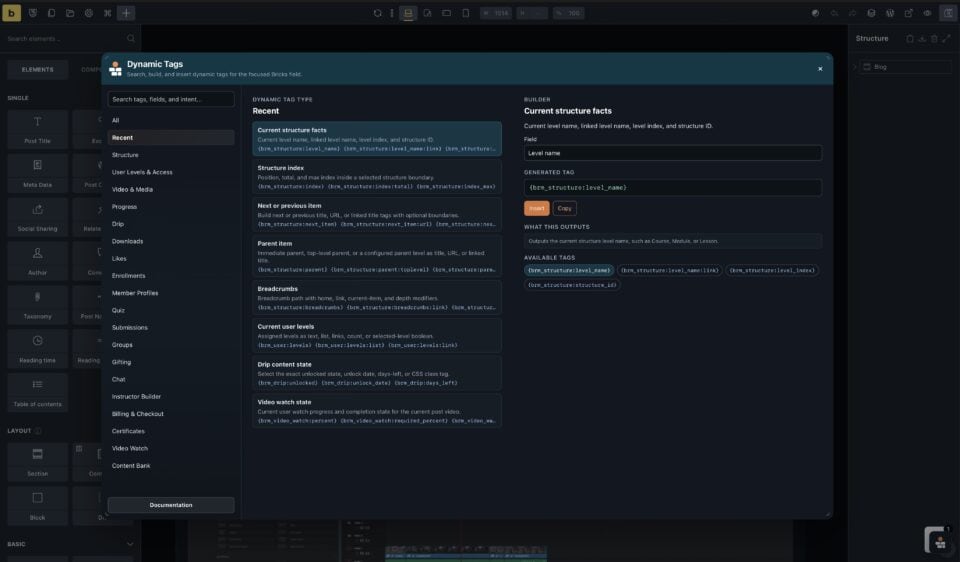
BricksMembers dynamic tags are powerful, but the catalog is large. There are more than 200 tags across progress, access, billing, downloads, quizzes, certificates, gifting, member profiles, instructor layouts, video tracking, and other modules. Remembering every tag name, modifier, loop context, and output type is not realistic when you are building in Bricks.
BricksMembers solves that with a builder-only Dynamic Tag Assistant inside Bricks. Use it as the practical starting point for this reference: it searches the BRM tag catalog, groups tags by feature, explains what each tag outputs, and helps you build the exact tag syntax you need instead of making you memorize or scan every possible tag.
The assistant is not just another long list of dynamic tags. It gives you a proper interface for finding the right tag, choosing the available options, and generating structured tags with the correct modifiers for the current use case.
To use it, open the Bricks builder on the page or template where the tag will be used. Click the floating BRM icon in the builder canvas, or use the keyboard shortcut Ctrl/Cmd + Shift + M. The same shortcut closes the assistant again when it is already open. Then search by feature, use case, or tag name. You can browse categories such as Progress, Downloads, Billing, Gifting, Instructor Builder, Certificates, Member Profiles, and Video Watch, choose the available options, and then insert or copy the generated tag into the Bricks field.
You can configure how the assistant opens from the BricksMembers settings page. Go to BricksMembers → Integrations → Bricks Builder to enable or disable the floating assistant button, choose the button corner and offset, enable or disable the keyboard shortcut, and change the shortcut modifier or letter if it conflicts with another builder extension.
The assistant only appears in the Bricks builder for users who can edit builder content. It is module-aware, so tags for downloads, quizzes, billing, gifting, instructor builder, member profiles, and other modules appear only when the related feature is available. It does not create new runtime behavior; the generated tag is still resolved by the normal dynamic tag system documented below.
It is especially useful for structured tags where a modifier matters, including progress boundaries, profile fields, protected downloads, checkout offers, quiz items, gift claim values, certificate placeholders, and video-watch values.
- For protected downloads, it can generate metadata tags such as
{brm_download:filename},{brm_download:size}, and{brm_download:file_type}. - For billing lists, it helps you pick item tags such as
{brm_billing:item:receipt_url}, provider{brm_billing:item:invoice_url}, or BRM PDF{brm_billing:item:invoice_download_url}. - For checkout pages, it includes checkout helper tags used around BRM Checkout Fields, such as
{brm_checkout:tax_b2b_toggle_label},{brm_checkout:tax_vat_id_hint}, and{brm_checkout:tax_reverse_charge_notice}. - For gifting and instructor layouts, it helps discover the available
{brm_gift:*},{brm_gift_transfer:*}, and{brm_instructor:*}tags that depend on the current loop or page context.
If a Bricks field expects a URL, choose a URL-style tag. If it expects plain text, choose a text tag. If it expects HTML, use only tags that intentionally output HTML, such as link or badge tags.
💡 Quick Tips: Hidden Gems
These small but powerful features make a huge difference in your designs:
Class Tags for Navigation & Styling
Perfect for query loops! Add these tags to the Style tab → CSS class field (not the General tab) to automatically style active, completed, or unlocked items.
{brm_active}, Highlights the current page AND its parents in navigation menus. Perfect for course/module/lesson sidebars where you want the active lesson AND its parent module highlighted.{brm_completed}, Addsbrm-completedclass when a user finishes a lesson. Use it to show checkmarks, change colors, or hide “Start” buttons on completed content.{brm_unlocked}, Addsbrm-unlockedclass when content is available. Perfect for graying out locked lessons or disabling links to locked content.
Example: In a lesson sidebar query loop, add to Style tab → CSS class: lesson-link {brm_active} {brm_completed} {brm_unlocked}
Then style with CSS:
.lesson-link.brm-active {
  background: #FF8C42;
  color: white;
}
.lesson-link.brm-completed::after {
  content: "✓";
  color: green;
}
.lesson-link:not(.brm-unlocked) {
  opacity: 0.5;
  pointer-events: none;
}
Other Useful Tags You Might Miss
{brm_user:has_level:5}, Returns1or0. Perfect for Bricks conditions to show/hide content based on specific level IDs.{brm_progress:completed}, Returns1if current post is completed,0if not. Great for conditions and styling.{brm_progress:continue}, Returns a link to the next uncompleted post after the last completed one. Perfect for “Continue Learning” buttons on course pages.{brm_progress:completed_item:last}, Returns a link to the exact tracking-level post the user most recently completed. Perfect for “Last watched” or “Recently completed” links.{brm_structure:parent}, Shows the parent level name (e.g., “Module 1” when viewing a lesson). Perfect for breadcrumbs or context headers.{brm_structure:parent:toplevel}, Shows the top-level name (e.g., “Course 1” when viewing any child). Great for course context headers.{brm_video:image}, Works with ALL Bricks image modifiers! Use{brm_video:image:large},{brm_video:image:url},{brm_video:image:alt}, etc. Just like native Bricks image tags.
Base Tags Overview
Core tag families registered by default:
{brm_user}– User levels and membership checks{brm_structure}– Navigation and breadcrumbs{brm_video}– Video metadata (URL, image, duration){brm_active}– Active item class for navigation{brm_post}– Post required access levels (in query loops)
Additional tag families or utility tags added when modules are enabled:
{brm_progress:*}and{brm_completed}– Progress data plus the completed CSS helper class (requires Progress module){brm_drip:*}and{brm_unlocked}– Drip timing data plus the unlocked CSS helper class (requires Drip module){brm_enrollment:*}and{brm_enrollments:*}– Enrollment status, dates, enroll/unenroll URLs, and user enrollment collections (requires Enrollments module){brm_download}– Protected downloads (requires Downloads module){brm_like:*}– Like system (requires Like module){brm_user:id},{brm_user:display_name},{brm_user:email},{brm_user:first_name},{brm_user:last_name},{brm_user:registered},{brm_user:avatar},{brm_user:last_login}, and{brm_user:field:*}– Account/profile user tags (requires Member Profiles module){brm_cf:*}and{brm_cf_loop:*}– Native post/page Content Fields and Content Field loop-row values (requires Content Fields module){brm_cert:*}– Certificates (requires Certificates module){brm_quiz_title},{brm_quiz_score_percent},{brm_quiz_attempts_remaining},{brm_quiz_q:*},{brm_quiz_a:*},{brm_quiz_pair:*}, and{brm_quiz_item:*}– Quiz and quiz-loop data (requires Quiz module){brm_group:*}and{brm_group_pool:*}– Groups, group members, and owner seat pools (requires Groups module){brm_gift:*}– Gift claim context (requires Gifting module, since 0.9.94){brm_submission:*}– Assignment submissions (requires Submissions module){brm_chat:*}– Member Chat room and message context (requires Member Chat module){brm_instructor:*}– Instructor dashboard, manager, and editor context (requires Instructor Frontend Builder module){brm_billing:*}– Billing and subscriptions (requires Payments module){brm_checkout:*}– Checkout-page offer context and checkout tax helper text (requires the Payments module and BRM Checkout Context){brm_bank_*}– Content Bank source and proxy context (requires Content Bank module){brm_video_watch:*}– Learner watch-state data (requires Video Tracking module){brm_event:*}and{brm_event_attendee:*}– Events and attendee row data (requires Events module)
Enrollment Tags
When the Enrollments module is enabled, BricksMembers adds enrollment-specific tags for the current effective enrollment anchor.
{brm_enrollment:status}, current effective status such asactiveorscheduled{brm_enrollment:is_active}and{brm_enrollment:is_scheduled}, return1or0{brm_enrollment:current_started_at},{brm_enrollment:scheduled_for}, and{brm_enrollment:expires_at}, enrollment timing fields{brm_enrollment:source}, the current effective source, ormultiplewhen more than one source is active{brm_enrollment:enroll_url}and{brm_enrollment:unenroll_url}, simple self-service URLs for normal Bricks buttons{brm_enrollments:count},{brm_enrollments:post_ids},{brm_enrollments:titles}, and{brm_enrollments:urls}, collection tags for the current user’s active enrollments
These tags are structure-aware. If the current post inherits its enrollment anchor from a course or parent item, the tags resolve against that effective anchor instead of blindly treating the current post as the enrolled item.
Checkout Tags
When you build checkout pages with BRM Checkout Context, BRM also exposes checkout-page tags that help you build one reusable checkout template.
{brm_checkout:url_offer_key}returns the active offer key when the checkout context is using the URL Parameter offer source. Use it for helper text, debugging, or headings on reusable checkout pages.- Checkout buttons on pricing cards should use either a BRM Billing Offers loop URL such as
/checkout/?offer={brm_billing:item:offer_key}, or a static URL with the known offer key such as/checkout/?offer=pro_monthly. BRM does not provide a separate dynamic tag that accepts an arbitrary offer ID and returns a checkout URL outside an offer context. - Checkout layouts can use localized helper tags around BRM Checkout Fields, such as
{brm_checkout:tax_label},{brm_checkout:total_label},{brm_checkout:tax_b2b_toggle_label},{brm_checkout:tax_vat_id_label},{brm_checkout:tax_vat_id_hint},{brm_checkout:tax_vat_id_valid},{brm_checkout:tax_vat_id_invalid},{brm_checkout:tax_vat_id_unavailable},{brm_checkout:tax_reverse_charge_notice},{brm_checkout:tax_address_incomplete}, and{brm_checkout:tax_previewing}. - Inside a BRM Checkout Context, offer-style
{brm_billing:item:*}tags resolve the active checkout offer before BRM falls back to a normal billing loop. That means you can print offer labels, descriptions, billing model data, enabled checkout providers, and the default provider directly inside the checkout layout.
1. User Tags
All User Tag Modifiers
User Account and Profile Tags (Member Profiles module)
Availability: Requires Member Profiles module
User Context Detection: BricksMembers uses a smart cascade to determine which user’s data to display:
- Bricks user query loop – The looped user is always used (highest priority)
- Author archive – On
/author/username/pages, the author is used - URL parameter or clean URL –
?user=123,/member/username/, or/profile/123/resolves that user - Current logged-in user – Default fallback
Configure which methods are active in BricksMembers → Settings → Profiles. This enables building public profile pages where all {brm_user:*} tags display the viewed user’s data, not the visitor’s. The Member Profiles module must already be enabled on BricksMembers → Modules.
Examples:
Welcome, {user_display_name}! You have {brm_user:levels_count} levels.
Your levels: {brm_user:levels}
{brm_user:levels:link:list}
Has Premium? {brm_user:has_level:5}
Last login: {brm_user:last_login}
Phone: {brm_user:field:phone_number}
Connected Content Tags
Availability: Requires Connected Content and a configured relation. These tags project an allowed post-scoped Bricks tag from the primary related post.
On structure descendants, the relation can fall back to the top-level course. Advanced tags always inherit source access. Aliases can be explicitly public only for reviewed marketing data. See Connected Content: Link Courses to Products for setup and Field Sync guidance.
Content Fields Tags
Availability: Requires Content Fields module. Dynamic tags are always available for defined Content Fields; you do not have to opt a field into Bricks filters or conditions for these tags to work.
Examples:
Duration: {brm_cf:course_duration}
Level value: {brm_cf:course_level}
Level label: {brm_cf:course_level:label}
Resource note: {brm_cf:resource_group.resource_note}
2. Progress Tags
Availability: Requires Progress Tracking module
User context: Progress tags use the current logged-in user by default. In Bricks user loops, including loops filtered by Users: Group Membership, and profile pages, read-only progress tags can resolve the loop/profile user instead. Cross-user progress only renders when the viewer passes the target user’s visibility and group-role permission checks.
All Progress Tag Modifiers
Format Modifiers:
Note: {brm_progress:completed} without a scope returns 1 if the current post is completed, 0 if not. With a scope (e.g., {brm_progress:completed:toplevel}), it returns the completed count. {brm_progress:total} and {brm_progress:percent} require a scope modifier (e.g., :toplevel, :structure, :parent).
Scope Modifiers (combine with format):
Direct Structure/Post ID Modifiers (for use on pages without post context):
Note: The structure_id modifier calculates progress across ALL courses in the specified structure (like :structure but without requiring post context). The post_id modifier shows progress for that specific post only (like :current but for a different post). Both work with all format modifiers (:percent, :completed, :total). To find the exact structure ID, open BricksMembers → Content & Structures and copy the Structure ID badge shown inside the structure card. The same badge also appears in the structure interface header after you open a structure. You can also copy the part after page=brm_structure_ from the browser URL exactly as shown.
Edge Cases:
- Invalid Post ID: If the post doesn’t exist or isn’t published, returns
0 - Post at/below tracking level: Progress is only tracked for posts ABOVE the tracking level (parent containers). If you specify a post at or below the tracking level, returns
0 - Post without structure: If the post isn’t part of a structure, returns
0 - Invalid Structure ID: If the structure doesn’t exist or progress tracking isn’t configured, returns
0
All Scope + Format Combinations:
Completion Date:
Continue (Next Post After Last Completed):
Automatically finds the last completed post within a boundary and returns a link to the next uncompleted post. Perfect for “Continue Learning” buttons on course overview pages or dashboards.
Continue with Boundary Modifiers:
Note: Without :url, :title, or :id modifiers, all continue tags return a complete HTML link. Add :url for just the URL, :title for just the title, or :id for just the post ID.
How It Works:
- Finds all posts within the specified boundary (or default scope)
- Identifies the last completed post by the current user
- Returns the next post after that completed one
- If no posts are completed, returns the first post in scope
- If all posts are completed, returns empty string
Use Cases:
- Course overview page: “Continue Learning” button that takes users to their next lesson
- Dashboard: Quick access to resume where they left off
- Module pages: Continue within the current module
Examples:
<!-- Dashboard page (no post context) - use structure_id -->
<a href="{brm_progress:continue:structure_id:YOUR_STRUCTURE_ID:url}">Continue Learning →</a>

<!-- Post page within structure - use structure to auto-detect -->
<!-- Complete HTML link across entire structure -->
{brm_progress:continue:structure}

<!-- URL only for custom button -->
<a href="{brm_progress:continue:structure:url}">Continue Learning →</a>

<!-- Complete HTML link within top-level -->
{brm_progress:continue:toplevel}

<!-- URL only for custom button -->
<a href="{brm_progress:continue:toplevel:url}">Continue Learning →</a>

<!-- Title only -->
Continue: {brm_progress:continue:parent:title}

<!-- Post ID only (useful for query filters, meta queries) -->
Next lesson ID: {brm_progress:continue:id}

<!-- Default scope (requires post context) -->
Next up: {brm_progress:continue}
Completed Item (Most Recently Completed Post):
Returns the exact tracking-level post the user most recently completed, ordered by the stored completion timestamp. Use this for “Last watched”, “Recently completed”, or “Reopen the video you just finished” cards. Use {brm_progress:continue} when you want the next uncompleted item instead.
Important: Version 1 supports only the last selector. Unsupported selectors such as {brm_progress:completed_item:first} intentionally return an empty string.
Examples:
Last completed: {brm_progress:completed_item:last}

<!-- Dashboard page without post context -->
<a href="{brm_progress:completed_item:last:structure_id:YOUR_STRUCTURE_ID:url}">Reopen last completed lesson</a>

<!-- Post page or query loop with structure context -->
Last completed title: {brm_progress:completed_item:last:toplevel:title}

<!-- Post ID only -->
Last completed ID: {brm_progress:completed_item:last:structure:id}
Max Flag (include inaccessible content):
Examples:
{brm_progress:percent:structure}% complete
{brm_progress:completed:toplevel} of {brm_progress:total:toplevel} lessons done
Is this post completed? {brm_progress:completed}
Completed on: {brm_progress:completion_date}
Continue: <a href="{brm_progress:continue:toplevel:url}">{brm_progress:continue:toplevel:title}</a>
Last completed: <a href="{brm_progress:completed_item:last:toplevel:url}">{brm_progress:completed_item:last:toplevel:title}</a>
Including inaccessible: {brm_progress:percent:toplevel:max}%
3. Drip Tags
Availability: Requires Drip Content module
These drip tags work with all current drip rule target modes: structured BRM content, hand-picked Selected Posts rules, broad Post Type rules, and per-post drip overrides from the BricksMembers meta box.
All Drip Tag Modifiers
Examples:
Unlocked? {brm_drip:unlocked}
Unlocks: {brm_drip:unlock_date}
Days left: {brm_drip:days_left}
Cost: {brm_drip:choice_cost|rule=drip_rule:lesson-choice}
Credits left after unlock: {brm_drip:choice_remaining_after_unlock|rule=drip_rule:lesson-choice}
Tip: If multiple drip rules could match a post, these tags use the same precedence as the drip engine itself. The most specific rule wins first, then the earliest unlock date inside that same specificity level.
Choice Unlock tip: Include the rule argument when a lesson can be in more than one Choice Unlock rule. If you omit it, BricksMembers uses the first active Choice Unlock rule whose pool contains the current post.
4. Post Level Tags
Context: Use inside post query loops (e.g., course catalog, lesson list) to display which membership level each post requires. Shows the required access level(s) for the current loop post.
All Post Level Tag Modifiers
Example: In a course catalog query loop, add a badge: {brm_post:level:first} to show “Premium”, “Advanced”, or “Free” for each course.
Post Reading Time Tags
Use these tags when you need text-based reading time in plain text, cards, dashboards, or course overview metadata. Since version 1.3.0, reading-time tags can include saved BRM video duration with the :with_video, :include_video, or :video modifier, and can output compact duration labels with :human, :duration, or :time.
Scope and format modifiers: {brm_post:reading_time} supports :current, :structure, :children, :descendants, :toplevel, :parent, :parentlevel, :level_N, and post type slugs. Use :minutes or :raw for a raw number, and :human, :duration, or :time for compact labels such as 29mins or 1hr 30min.
Video duration note: The :with_video modifier uses the saved BRM Video Duration field on each counted post. It does not fetch fresh duration data from YouTube, Vimeo, Bunny, or other video providers while the page renders.
5. Structure Tags
All Structure Tag Modifiers
Navigation Modifiers:
Level Name Modifiers:
Parent Modifiers:
Note: The breadcrumb separator is configurable in BricksMembers → Settings → General → Breadcrumb Separator (default: ›). Breadcrumbs work dynamically with any structure depth (2-6 levels). The :depth:N modifier limits display to the N closest ancestor levels (e.g., depth:1 shows only the immediate parent).
Boundary Modifiers (for navigation):
Boundary modifiers control where navigation searches for the next/previous item. All navigation tags support these boundaries:
Combined Modifiers:
Examples:
{brm_structure:breadcrumbs:link}
Next: {brm_structure:next_item:link}
Previous: {brm_structure:previous_item:link:parentlevel}
{brm_structure:index} of {brm_structure:index_max}
Parent: {brm_structure:parent:toplevel:link}
Level: {brm_structure:level_name}
6. Video Tags
All video tags support boundary modifiers to display parent post data without query loops.
Important: Video tags support boundary modifiers to get video data from parent posts (toplevel, parent, level_N), but NOT :structure (since there’s no specific parent post for “entire structure”). If a boundary cannot be resolved, the tag falls back to the current post’s video data.
BRM Video Tag – All Modifiers
Note: The native BRM Video element does not need a dynamic tag for its source. It reads the saved video source automatically and resolves the provider embed internally. {brm_video} returns the saved field value for custom code, including explicit Bunny video IDs. Bare Bunny video IDs resolve through the selected Bunny provider and saved Bunny Library ID; when Bunny is the only enabled and connected provider, BRM can resolve a bare Bunny ID without a saved provider hint. Use {brm_video:embed} when a regular Bricks URL field, Lightbox Video field, or iframe source needs the complete provider embed. Use {brm_video:title}, {brm_video:provider}, and {brm_video:source_id} for forms, marketing CTAs, and partial-refresh workflows that need video metadata.
If the native BRM Video element is inside a Bricks query loop, use its Video source context control. Current post keeps the normal lesson-template behavior. Current query loop item makes each loop card read and track the loop item’s own BRM Video source. Since version 1.3.0, playback is allowed by default for anyone who can see the element; use the element’s Playback Access controls only when the player itself should be blocked. Playback Access can use selected user levels chosen directly in the element or the required levels assigned to the video post.
Video Source Tag
Use the source tag when you need the resolved provider key instead of the raw video value.
Boundary modifiers: {brm_video:source} supports the same :toplevel, :parent, :parentlevel, and :level_N modifiers as {brm_video}.
Video Image Tag – All Modifiers
Basic Modifiers:
Size Modifiers:
Boundary Modifiers:
Combined Modifiers (Boundary + Size/Output):
Advanced Image Modifiers:
Video Duration Tag – All Modifiers
Format Modifiers:
Boundary Modifiers:
Combined Modifiers (Boundary + Format):
Examples:
{brm_video}
{brm_video:embed}
{brm_video:image:toplevel:large}
Duration: {brm_video:duration:mmss}
Course Duration: {brm_video:duration:toplevel:hms}
Module Duration: {brm_video:duration:parentlevel:mmss}
7. Download Tags
Availability: Only when Protected Downloads module is enabled
All Download Tag Modifiers
Basic:
Assignment scopes (since version 1.1.12):
Assignment modifiers work with url, link, filename, size, file_type, and image tags. Dynamic tags return one scalar value, so assignment-scope tags use the first assigned download in assignment order. Use the Protected Download element in list mode or a brm_download query loop when you need to display multiple files.
Image (Bricks Image element compatible):
Examples:
{brm_download:link}
{brm_download:filename}
{brm_download:size}
{brm_download:file_type}
{brm_download:image:large}
{brm_download:id=123:link}
{brm_download:image:@fallback:No thumbnail}
8. Like Tags
Availability: Only when Like System module is enabled
All Like Tag Modifiers
User List Modifiers:
Note: Like tags are available in the Bricks dynamic tag picker and the BricksMembers Dynamic Tag Assistant when the Like module is enabled.
Examples:
{brm_like:count} likes
Liked by: {brm_like:users}
Liked by (with links): {brm_like:users:link}
Has current user liked? {brm_like:status} (1 or 0)
9. Billing Tags
Availability: Requires Payments module
Billing tags display subscription, payment, offer, and invoice data. Outside loops, BricksMembers resolves subscription-style tags in this order: current subscription loop item, single actionable subscription when the user has exactly one, current active subscription, then latest subscription. If there is no matching subscription, the billing tags output empty strings, except {brm_billing:cancel_at_period_end}, which outputs 0. Inside BRM User Subscriptions, BRM User Payments, BRM User Invoices, or BRM Billing Offers query loops, use {brm_billing:item:*}.
Subscription Tags (outside loop)
Loop Item Tags (inside BRM User Subscriptions / Payments / Offers loops)
Inside BRM User Invoices loops: use {brm_billing:item:id}, {brm_billing:item:status}, {brm_billing:item:amount}, {brm_billing:item:currency}, {brm_billing:item:paid_at}, {brm_billing:item:invoice_number}, {brm_billing:item:invoice_date}, {brm_billing:item:invoice_due_date}, {brm_billing:item:invoice_subtotal}, {brm_billing:item:invoice_tax}, {brm_billing:item:invoice_total}, {brm_billing:item:invoice_download_url}, and {brm_billing:item:status_badge}. {brm_billing:item:invoice_url} resolves to the same BRM invoice download URL inside this loop.
For the most flexible invoice page, use a Bricks query loop with BRM User Invoices and build the row with normal Bricks text and button elements. The older {brm_billing:invoice_url} tag still exists for a simple account-level list in content text and renders the current user’s BRM invoice download links as HTML anchors, or nothing when there are no invoices. In single dynamic-tag fields, invoice-only pages should use the invoice loop tags because {brm_billing:invoice_url} still follows subscription resolution first.
See Payments Module and Billing for full details.
10. Content Bank Tags
Availability: Requires Content Bank module
Content Bank tags let you tell whether the current post is a proxy, identify its source, and output a little bit of library metadata inside Bricks.
A practical use case is small admin-facing or editor-facing labels in Bricks templates like “Shared from: {brm_bank_source_title}”.
11. Video Watch Tags
Availability: Requires Video Tracking module and is meant for logged-in learner contexts on tracked posts
User context: Video-watch tags use the current logged-in user by default. Since version 1.1.0, they can also read another user’s video progress inside user loops, including loops filtered by Users: Group Membership, and profile pages when the viewer is allowed to see that user’s video-progress category.
Video-watch tags read stored watch state. Logged-out visitors may be able to watch a visible BRM Video element, but BricksMembers does not save guest watch state, so the watch tags remain empty or at their default zero-style values for guests.
Video watch tags use the effective watch state for the current post context. In normal templates this is the current post; inside a Bricks post query loop, it can be the active loop item when the surrounding video element is configured for the loop item context.
Inside a post query loop, video-watch tags can resolve against the loop item context. For a loop card that also contains the native BRM Video element, set that element’s Video source context to Current query loop item when the player should track the same post represented by the card.
Since version 1.3.2, the summary modifier is available for structure pages, course/module headers, and playlist shells. It does not guess relationship fields. It reads video posts from the BRM structure below the current post. The default scope is descendants; add :children for direct children only, :current for the current video post, or anchor modifiers like :parentlevel, :toplevel, and :level_N. Example: {brm_video_watch:summary:completed_count:toplevel}.
See Video Tracking and the BRM Video Element for the full behavior details.
12. Certificate Tags
Availability: Only when Certificates module is enabled
User context: Certificate tags normally resolve from certificate context, such as a success page, verification page, display page, or BRM: User Certificates query loop. When brm_cert_hash is present, certificate tags resolve for logged-out visitors because the hash selects the exact issued public certificate. Since version 1.1.0, safe certificate summary output can also follow a resolved target user in user/profile/group-member contexts when the viewer has permission. Cross-user certificate download URLs and PDF URLs stay suppressed unless the template is already in an explicit certificate context.
Certificate tags display issued certificate data. They work on:
- Success page , page shown after earning a certificate (e.g. after passing a quiz)
- Verification page , custom Bricks page you set in template settings; visitors land there with
?brm_cert_hash=xxx - Certificate display pages , Bricks pages that embed or show the certificate
- BRM: User Certificates query loop , inside the loop, tags resolve from each certificate
Certificate tags are registered from the certificate placeholder registry. That means the tag list below matches the current runtime, and the Open Badges tags only exist when the Open Badges module is enabled.
All Certificate Tag Modifiers
Student:
Certificate:
Site:
Links (for buttons and images):
Open Badges (when Open Badges module is enabled):
Output note: Text-style certificate tags return escaped text. URL-style tags like {brm_cert:display_url} and {brm_cert:download_url} return URLs. Image-style tags such as {brm_cert:student_avatar_url}, {brm_cert:site_logo_url}, and {brm_cert:badge_image_url} also return URLs, so use them in link, image, or button URL fields rather than expecting a full HTML image tag.
Examples:
Congratulations, {brm_cert:student_name}!
Certificate #{brm_cert:number} for {brm_cert:scope_title}
<a href="{brm_cert:display_url}">View certificate</a>
<a href="{brm_cert:download_url}">Download PDF</a>
<img src="{brm_cert:qr_url}" alt="QR code" />
13. Quiz Tags
Availability: Only when Quiz module is enabled. Use on quiz pages, lesson pages with assigned quizzes, or inside brm_quiz_questions, brm_quiz_answers, brm_quiz_pairs, or brm_quiz_items query loops.
Quiz-level tags (use on quiz or lesson page):
Quiz conditions: Use brm_quiz_has_time_limit for timer badges and brm_quiz_has_attempt_limit for attempts-left badges so untimed or unlimited quizzes do not show empty status UI.
Question type coverage: BRM currently registers 11 question type slugs. Atomic quiz templates usually do not need 11 separate answer layouts. Use choice cards for choice, multiple_choice, multiple_answer, true_false, and image_choice; use text answers for fill_blank, short_answer, and essay; use matching for matching; use ordering for ordering and sorting.
Inside brm_quiz_questions loop , {brm_quiz_q:id}, {brm_quiz_q:text}, {brm_quiz_q:type}, {brm_quiz_q:points}, {brm_quiz_q:media}, {brm_quiz_q:index}, {brm_quiz_q:total}, {brm_quiz_q:explanation}, {brm_quiz_q:answer_count}, {brm_quiz_q:is_multiple}, {brm_quiz_q:is_text_input}, {brm_quiz_q:input_type}
Inside brm_quiz_answers loop , {brm_quiz_a:id}, {brm_quiz_a:text}, {brm_quiz_a:index}, {brm_quiz_a:total}, {brm_quiz_a:image}, {brm_quiz_a:image_id}, {brm_quiz_a:question_id}, {brm_quiz_a:is_correct}, {brm_quiz_a:input_name}, {brm_quiz_a:input_value}, {brm_quiz_a:input_type}, {brm_quiz_a:match_target}
Inside brm_quiz_pairs loop (matching questions) , {brm_quiz_pair:left}, {brm_quiz_pair:right}, {brm_quiz_pair:left_id}, {brm_quiz_pair:right_id}, {brm_quiz_pair:left_image}, {brm_quiz_pair:left_image_id}, {brm_quiz_pair:right_image}, {brm_quiz_pair:right_image_id}, {brm_quiz_pair:index}, {brm_quiz_pair:total}
Inside brm_quiz_items loop (ordering/sorting questions) , {brm_quiz_item:id}, {brm_quiz_item:text}, {brm_quiz_item:image}, {brm_quiz_item:image_id}, {brm_quiz_item:index}, {brm_quiz_item:total}
Example: Score: {brm_quiz_score_percent}%. You need {brm_quiz_passing_score}% to pass.
14. Group Tags
Availability: Only when Groups module is enabled. Most group tags resolve from the current BRM group context, which can come from a group query row, a dashboard link with group context, or the user’s matching active group for the current post. If the user has only one matching active group, dashboard tags can resolve even when the page is not a BRM query loop. The invite-claim tags below instead resolve from the current invitation-claim request state. {brm_group:invite_handoff_pending} returns 1 only while a logged-out request has a server-side invite handoff. Prefer the native brm_group_invite_handoff_pending Bricks condition for normal element visibility. Group member tags resolve inside a User loop filtered by Users: Group Membership. Group member row tags were added in 0.9.94.
Admin preview: To preview group dashboard layouts before real purchases or groups exist, admins can append ?brm_group_demo=owner to the dashboard URL. Available modes are owner, leader, member, full, and no_seats. Demo context is ignored for users without group-management admin permission.
15. Gift Claim Tags
Availability: Only when Gifting module is enabled. Gift-row tags resolve from the current native gift token in gift_token or brm_gift_token. Claim-result tags resolve from brm_gift_claim and brm_gift_claim_code query arguments. {brm_gift:claim_handoff_pending} returns 1 only while a logged-out request has a server-side gift claim handoff. Prefer the native brm_gift_claim_handoff_pending Bricks condition for normal element visibility. Gift-transfer tags resolve from brm_gift_source, brm_gift_object_type, and brm_gift_object_id query arguments. Added in 0.9.94; handoff pending was added in 0.9.95.
Gift transfer context:
16. Submission Tags
Availability: Only when Submissions module is enabled. Use on assignment pages (user’s latest submission) or inside a brm_submission query loop (each submission).
User context: Submission summary tags use the current user on assignment pages by default. Since version 1.1.0, safe submission summary data can resolve the loop/profile user inside user loops, including loops filtered by Users: Group Membership, and profile pages when the viewer can see that user’s submissions category. Private submission content, reviewer feedback, files, and upload/download URLs are not exposed through generic target-user context.
Example: Status: {brm_submission:status} , Feedback: {brm_submission:feedback}
For visibility logic, prefer native BricksMembers conditions over dynamic-tag comparisons: use brm_submission_has_response for text/URL response panels and brm_submission_has_attachments for attachment download buttons.
17. Member Chat Tags
Availability: Only when Member Chat is enabled. Room tags resolve from the current active room, and message tags resolve inside chat feed rows or any active message context. For the layout side of chat templates, see Member Chat & Community Rooms.
Room tags , {brm_chat:room_id}, {brm_chat:room_name}, {brm_chat:room_description}, {brm_chat:room_scope}, {brm_chat:room_kind}, {brm_chat:room_unread_count}, {brm_chat:room_member_count}, {brm_chat:room_can_write}
Message tags , {brm_chat:message_id}, {brm_chat:message_content}, {brm_chat:message_author_id}, {brm_chat:message_author_name}, {brm_chat:message_author_first_name}, {brm_chat:message_author_last_name}, {brm_chat:message_author_nickname}, {brm_chat:message_author_avatar_url}, {brm_chat:message_author_email}, {brm_chat:message_author_login}, {brm_chat:message_created_at}, {brm_chat:message_edited_at}, {brm_chat:message_status}, {brm_chat:message_is_mine}, {brm_chat:message_is_edited}, {brm_chat:message_is_deleted}, {brm_chat:message_can_manage}
Example: Room: {brm_chat:room_name} ({brm_chat:room_unread_count} unread)
Community-linked room tags , {brm_chat:community_context_type}, {brm_chat:community_context_id}, {brm_chat:community_context_url}, {brm_chat:has_community_context}. These resolve when the active Chat room is mapped to a Community context.
Community Tags
Availability: Only when Community is enabled. Tags resolve from BRM Community Area, Item/Reply/Collection loops, linked discussion context, Member Activity rows, or a direct Community Item URL that seeds Community render context. For setup, see Build Membership Communities with BricksMembers.
All Community tags use the {brm_community:field} form and live in the Bricks group BRM: Community. Prefer BRM Community conditions for gating; use these tags for labels, counts, URLs, and copy.
Item identity and content , {brm_community:item_id}, {brm_community:root_item_id}, {brm_community:parent_item_id}, {brm_community:item_type}, {brm_community:item_role}, {brm_community:role_label}, {brm_community:title}, {brm_community:body}, {brm_community:body_plain}, {brm_community:excerpt}, {brm_community:author_id}, {brm_community:author_name}, {brm_community:author_avatar_url}, {brm_community:depth}, {brm_community:status}, {brm_community:created_at}, {brm_community:updated_at}, {brm_community:last_activity_at}
URLs and permalinks , {brm_community:url}, {brm_community:permalink}, {brm_community:permalink:item}, {brm_community:permalink:container}, {brm_community:permalink:target}, {brm_community:target_permalink}, {brm_community:appears_in_feed}, {brm_community:has_context_page}, {brm_community:ancestor_chain}, {brm_community:reply_target}
Space (container) and Section , {brm_community:container_id}, {brm_community:container_name}, {brm_community:container_description}, {brm_community:container_url}, {brm_community:container_item_count}, {brm_community:container_member_count}, {brm_community:container_member_status}, {brm_community:container_member_role}, {brm_community:container_unread_count}, {brm_community:container_last_activity_at}, {brm_community:section_id}, {brm_community:section_name}, {brm_community:section_description}, {brm_community:section_space_count}, {brm_community:structure_id}, {brm_community:structure_name}
Connected and target context , {brm_community:target_scope}, {brm_community:current_post_id}, {brm_community:bank_source_id}, {brm_community:target_type}, {brm_community:target_id}, {brm_community:target_key}, {brm_community:target_hash}, {brm_community:access_target_type}, {brm_community:access_target_id}, {brm_community:access_target_key}, {brm_community:notification_target_type}, {brm_community:notification_target_id}, {brm_community:notification_target_key}, {brm_community:notification_unread_count}, {brm_community:target_content_url}, {brm_community:target_content_title}
Counts, engagement, and thread state , {brm_community:direct_child_count}, {brm_community:total_child_count}, {brm_community:reply_count}, {brm_community:reaction_count}, {brm_community:participant_count}, {brm_community:current_user_reaction}, {brm_community:has_reacted}, {brm_community:is_bookmarked}, {brm_community:is_subscribed}, {brm_community:is_pinned}, {brm_community:is_locked}, {brm_community:is_unread}, {brm_community:read_at}, {brm_community:is_open}, {brm_community:is_solved}, {brm_community:accepted_child_item_id}, {brm_community:is_accepted_child}, {brm_community:can_accept_child}
Reposts, quotes, and privacy , {brm_community:relation_type}, {brm_community:source_item_id}, {brm_community:source_item_title}, {brm_community:source_item_body}, {brm_community:source_item_url}, {brm_community:is_repost}, {brm_community:is_quote_post}, {brm_community:is_privacy_redacted}
Attachments and linked chat , {brm_community:attachment_count}, {brm_community:has_attachments}, {brm_community:attachment_names}, {brm_community:attachment_links}, {brm_community:first_attachment_url}, {brm_community:first_attachment_name}, {brm_community:first_attachment_kind}, {brm_community:first_attachment_status}, {brm_community:first_attachment_media_kind}, {brm_community:first_attachment_is_processing}, {brm_community:chat_room_id}, {brm_community:chat_room_url}, {brm_community:has_chat_room}, {brm_community:composer_relation_count}
Member activity profile counters , {brm_community:profile_item_count}, {brm_community:profile_reply_count}, {brm_community:profile_accepted_answer_count}, {brm_community:profile_reaction_received_count}, {brm_community:profile_last_activity_at}. These are activity counters, not scores or ranks.
Capability tags (prefer conditions for show/hide) , {brm_community:can_view_container}, {brm_community:can_view}, {brm_community:can_reply}, {brm_community:can_react}, {brm_community:can_bookmark}, {brm_community:can_subscribe}, {brm_community:can_receive_notifications}, {brm_community:can_upload_attachment}, {brm_community:can_edit}, {brm_community:can_delete}, {brm_community:can_report}, {brm_community:can_moderate}, {brm_community:can_create_root_item}, {brm_community:can_manage_container}, {brm_community:can_join_container}, {brm_community:can_request_container_access}, {brm_community:can_leave_container}, {brm_community:can_subscribe_to_container}, {brm_community:can_receive_container_notifications}
Protected attachment URLs and linked target metadata always repeat the current viewer access check. If Community access is revoked, those tags render unavailable instead of leaking titles, excerpts, filenames, or storage origins.
Example: {brm_community:author_name} · {brm_community:reply_count} replies · {brm_community:permalink}
Composer Relations Tags
Availability: Community or Member Chat with Mentions & References. Resolve only inside the nestable BRM Mentions & References element (or an authorized Composer Relations row). The children repeat once per relation the current viewer may still read.
Relation row tags , {brm_relation:id}, {brm_relation:kind}, {brm_relation:source_type}, {brm_relation:source_id}, {brm_relation:target_type}, {brm_relation:target_id}, {brm_relation:target_label}, {brm_relation:target_url}, {brm_relation:target_excerpt}, {brm_relation:target_image_url}, {brm_relation:presentation_context}, {brm_relation:presentation_mode}, {brm_relation:is_mention}, {brm_relation:is_reference}
Default link, Compact, and Card are policy presentation modes, not separate templates. Design native children once with these tags.
Event Tags
Availability: Only when Events is enabled. Event tags resolve from the current brm_event post, an event post query loop, the single event template, or a Bricks Popup opened from the BRM Event Calendar with event post context.
Event tags , {brm_event:id}, {brm_event:title}, {brm_event:excerpt}, {brm_event:content}, {brm_event:type}, {brm_event:type_label}, {brm_event:status}, {brm_event:start}, {brm_event:end}, {brm_event:date}, {brm_event:timezone}, {brm_event:provider}, {brm_event:capacity}, {brm_event:confirmed_count}, {brm_event:waitlisted_count}, {brm_event:remaining_seats}, {brm_event:registration_status}, {brm_event:join_url}, {brm_event:required_offer_key}, {brm_event:upsell_offer_key}, {brm_event:group_id}, and {brm_event:group_name}.
Attendee row tags , {brm_event_attendee:status}, {brm_event_attendee:registered_at}, and {brm_event_attendee:seat_count}. Use these inside user loops configured with Event Attendee settings.
18. Instructor Frontend Builder Tags
Availability: Only when Instructor Frontend Builder is enabled. These tags resolve from the active instructor dashboard, manager, editor, or row context. For the full frontend-builder flow, see Instructor Frontend Builder for Course Creators.
Core scope and item context , {brm_instructor:scope_id}, {brm_instructor:structure_id}, {brm_instructor:parent_id}, {brm_instructor:level_index}, {brm_instructor:item_id}
Editor and manager request context , {brm_instructor:editor_title}, {brm_instructor:editor_content}, {brm_instructor:editor_excerpt}, {brm_instructor:editor_featured_image_id}, {brm_instructor:editor_video_url}, {brm_instructor:editor_video_duration}, {brm_instructor:editor_video_image_id}, {brm_instructor:manager_url}, {brm_instructor:manager_recompute_url}, {brm_instructor:recompute_required}, {brm_instructor:recompute_notice_message}, {brm_instructor:recompute_notice_type}, {brm_instructor:editor_url}, {brm_instructor:dashboard_url}
Scope summary and actions , {brm_instructor:scope_title}, {brm_instructor:scope_status}, {brm_instructor:scope_status_label}, {brm_instructor:scope_edit_url}, {brm_instructor:scope_top_level_label}, {brm_instructor:scope_top_level_create_url}, {brm_instructor:scope_child_level_label}, {brm_instructor:scope_child_create_url}, {brm_instructor:scope_structure_name}, {brm_instructor:scope_item_count}, {brm_instructor:scope_draft_count}
Row and item helpers , {brm_instructor:item_title}, {brm_instructor:item_content}, {brm_instructor:item_excerpt}, {brm_instructor:item_featured_image_id}, {brm_instructor:item_video_url}, {brm_instructor:item_video_duration}, {brm_instructor:item_video_image_id}, {brm_instructor:item_level_label}, {brm_instructor:item_depth}, {brm_instructor:item_is_child}, {brm_instructor:item_depth_class}, {brm_instructor:item_children_count}, {brm_instructor:item_status}, {brm_instructor:item_status_label}, {brm_instructor:is_first_sibling}, {brm_instructor:is_last_sibling}, {brm_instructor:item_can_have_children}, {brm_instructor:child_level_label}, {brm_instructor:child_level_index}, {brm_instructor:row_manager_url}, {brm_instructor:row_edit_url}, {brm_instructor:row_child_create_url}
Enabled structure tags , {brm_instructor:enabled_structure_id}, {brm_instructor:enabled_structure_name}, {brm_instructor:enabled_structure_scope_label}, {brm_instructor:enabled_structure_levels_label}, {brm_instructor:enabled_structure_create_url}
Example: {brm_instructor:scope_title} , Edit item: {brm_instructor:row_edit_url}
19. Class Tags (for CSS styling)
These tags output a CSS class name or empty string. Add to Style tab → CSS class for automatic styling in query loops.
Active Item Tag Details
💡 One of the most useful tags for navigation menus! Highlights current page AND its parents.
{brm_active}
- Outputs
brm-activeif the loop item matches the current page/term/user being viewed - Also matches parent posts in content structures (e.g., highlights the module when viewing a lesson)
- Outputs empty string if not the current item or parent
- Works with post, term, and user query loops
- Perfect for navigation menus, breadcrumbs, taxonomy filters, and member directories
- Performance: Zero database queries – uses already-loaded WordPress query data
All Active Tag Modifiers
Matching Logic:
For Posts:
- Direct match: Loop post ID === Current post ID
- Parent match: Loop post ID is a parent of current post (from content structure)
For Terms & Users:
- Direct match only: Loop term/user ID === Current term/user ID
Use Cases:
1. Post Query Loops (Navigation Menus with Parent Highlighting)
Add this tag to the CSS class field of elements in a query loop:
{brm_active}Example in Bricks:
- Create a query loop showing course modules
- Set CSS class of the QL element in the Bricks element controls header:
module-item - Set CSS class in Bricks elements’ style tab:
{brm_active} - Style
.brm-activein your CSS:
.module-item.brm-active {
    background: var(--primary-color);
    font-weight: bold;
    border-left: 4px solid var(--accent-color);
}Result:
- When viewing a module page, that module will have the
brm-activeclass - When viewing a lesson page, the lesson’s parent module will also have the
brm-activeclass - Perfect for hierarchical navigation where you want to show which section the user is currently in
2. Term Query Loops (Category/Tag Filters)
- Create a query loop showing categories or tags
- Add a button element inside the loop
- Set CSS classes:
filter-button {brm_active} - Style the active filter:
.filter-button.brm-active {
    background: var(--primary-color);
    color: white;
}Result: When viewing a category archive, that category’s filter button will be highlighted.
3. User Query Loops (Member Directories)
- Create a query loop showing users
- Add a card element inside the loop
- Set CSS classes:
member-card {brm_active} - Style the current user’s card:
.member-card.brm-active {
    border: 2px solid var(--primary-color);
    box-shadow: 0 4px 12px rgba(0,0,0,0.1);
}Result: When viewing a user’s profile/author page, their card in the member directory will be highlighted.
Works With:
- Post loops: Course navigation, lesson lists, breadcrumbs
- Term loops: Category filters, tag clouds, taxonomy navigation
- User loops: Member directories, author lists, team pages
Tag Modifiers
Modifiers change how tags display data.
:link Modifier
Wraps output in a link.
Example:
{brm_structure:next_item:link}Output:
<a href="/next-lesson/">Next Lesson Title</a>Works with:
{brm_structure:next_item:link}{brm_structure:previous_item:link}{brm_download:link}
Scope Modifiers
What is “Scope”? Scope defines which content to calculate progress for. For example, :toplevel calculates progress within the top-level post (e.g., Course), :parent calculates within the parent post (e.g., Module), and :structure calculates across the entire structure. Use scope modifiers to show progress at different levels of your content hierarchy.
Define what content to include in calculations.
:structure – Current structure
{brm_progress:percent:structure}:toplevel – Top level of structure
{brm_progress:percent:toplevel}:parentlevel – Parent level of structure
{brm_progress:percent:parentlevel}Boundary Modifiers
What is “Boundary”? Boundary defines the navigation window, it limits where “next” and “previous” navigation can go. For example, :toplevel keeps navigation within the top-level post (e.g., Course), so navigating from a lesson won’t jump to the next course. :parentlevel keeps navigation within the parent (e.g., Module), so navigating from a lesson won’t jump to the next module. Use boundary modifiers to control navigation flow within your content structure.
Define navigation boundaries.
:toplevel – Navigate across entire structure
{brm_structure:next_item:toplevel}:parentlevel – Navigate within current parent
{brm_structure:next_item:parentlevel}:level_2, :level_3, etc. – Navigate within specific level
{brm_structure:next_item:level_2}Real-World Examples
Example 1: Welcome Message
Welcome back, {user_display_name}!

You're a {brm_user:levels} member.

You've completed {brm_progress:completed:toplevel} out of {brm_progress:total:toplevel} lessons ({brm_progress:percent:toplevel}%).
Output:
Welcome back, John Smith!

You're a Premium Member member.

You've completed 15 out of 20 lessons (75%).
Note: This example uses scope modifiers (:toplevel) to get progress within the top-level post (e.g., course). Without scope modifiers, {brm_progress:completed} returns 1 or 0 indicating if the current post is completed.
Example 2: Course Progress
Course Progress: {brm_progress:percent:structure}%

Completed: {brm_progress:completed:structure}/{brm_progress:total:structure}
Output:
Course Progress: 60%

Completed: 12/20
Example 3: Lesson Navigation
← {brm_structure:previous_item:parentlevel:link}

{brm_structure:next_item:parentlevel:link} →
Output:
← <a href="/lesson-1/">Lesson 1: Introduction</a>

<a href="/lesson-3/">Lesson 3: Advanced Topics</a> →
Example 4: Course Hero with Parent Video Data
Display course information on lesson pages without query loops:
<div class="lesson-hero" style="background-image: url({brm_video:image:toplevel:url});">
    <div class="hero-content">
        <h1>BRM Dynamic Tags Reference</h1>
        <p class="course-meta">
            Course: {brm_structure:parent:toplevel}
            Duration: {brm_video:duration:toplevel:hms}
        </p>
    </div>
</div>
Note: The example uses {brm_video:image:toplevel:url} to get the top-level parent’s video image URL, and {brm_structure:parent:toplevel} to get the top-level parent’s title.
Output on a lesson page:
<div class="lesson-hero" style="background-image: url(https://example.com/course-thumbnail.jpg);">
    <div class="hero-content">
        <h1>Lesson 3: Advanced Topics</h1>
        <p class="course-meta">
            Course: Complete WordPress Course
            Duration: 5:30:45
        </p>
    </div>
</div>
Note: The example uses {brm_video:image:toplevel:url} to get the top-level parent’s video image URL, and {brm_structure:parent:toplevel} to get the top-level parent’s title.
Why this is powerful:
- No query loops needed
- Zero extra database queries (uses Request Registry)
- Clean, simple syntax
- Perfect for displaying parent context on child pages
Example 5: Drip Status
{brm_drip:unlocked}If unlocked:
1If locked:
0Use with conditions to show different content:
[If unlocked] Watch the lesson now!
[If locked] This lesson unlocks on {brm_drip:unlock_date}
Example 5: Completion Status
{brm_progress:completed}If completed:
1If not completed:
0Use with conditions:
[If {brm_progress:completed} equals 1] ✓ You've completed this lesson
[If {brm_progress:completed} equals 0] Mark as complete when you're done
Note: {brm_completed} is a class tag (outputs brm-completed or empty string) for CSS styling in query loops, not a dynamic tag that returns 1/0. Use {brm_progress:completed} for conditions.
Using Tags in Bricks
In Text Elements
- Add a Text or Heading element
- Click the {x} icon to insert a dynamic tag
- Search for “brm” to see all BricksMembers tags
- Select a tag
- Add modifiers manually if needed (e.g., change
{brm_progress:percent}to{brm_progress:percent:structure})
In Buttons
- Add a Button element
- For button text: Use dynamic tags (e.g., “Next: {brm_structure:next_item}”)
- For button link: Use
{brm_structure:next_item:url}to get just the URL
Pro Tip: Use :url for button links (outputs just the URL), and :link for text fields (outputs a complete <a> tag).
In Conditions
Important: Dynamic tags are usually not needed in Bricks conditions because BricksMembers provides native conditions that are easier to use and more performant. Use the native BricksMembers conditions (found in the BricksMembers group) for common scenarios like checking user access, progress completion, and drip unlock status.
Dynamic tags in conditions should only be used for specific cases not covered by native BricksMembers conditions, such as custom comparisons or advanced logic that requires numeric values or specific tag outputs.
Using dynamic tags in conditions:
- Add any element
- Go to Conditions
- Add a condition: Dynamic Tag
- Enter a BricksMembers tag (e.g.,
{brm_progress}) - Set the comparison (e.g., “> 50”)
Example: Show an “Almost Done!” badge only if the course is more than 50% completed.
In Query Loops
Dynamic tags work in query loop templates.
Example: Show progress for each course in a query loop.
- Create a query loop of courses
- Inside the loop template, add: “Progress: {brm_progress:percent:toplevel}%” (or use
:structureor:parentas needed) - Use
{brm_progress:completed_item:last:toplevel:id}when a query filter or condition needs the user’s most recently completed tracking item ID - Each course card shows its own progress
Tag Availability
Some tags are only available when specific modules are enabled.
Always available:
{brm_user:*}membership-level tags such as{brm_user:levels}and{brm_user:levels_count}; account/profile tags such as{brm_user:id},{brm_user:display_name},{brm_user:email},{brm_user:first_name},{brm_user:last_name},{brm_user:registered}, avatar, last-login, and custom-field tags require Member Profiles context{brm_structure:*}{brm_video:*}{brm_active}(class tag){brm_post:level},{brm_post:level:first},{brm_post:level:ids:*}(post query loops)
Requires Member Profiles module: {brm_user:id}, {brm_user:display_name}, {brm_user:email}, {brm_user:first_name}, {brm_user:last_name}, {brm_user:registered}, {brm_user:avatar}, {brm_user:last_login}, {brm_user:field:*}
Requires Content Fields module: {brm_cf:*}, {brm_cf:group.subfield}, and {brm_cf_loop:*}
Requires Connected Content module: {brm_connected:alias_key} and {brm_connected:connection_type:endpoint:inner_bricks_tag}
Requires Enrollments module:
{brm_enrollment:*},{brm_enrollments:*}
Requires Progress Tracking module:
{brm_progress:*}{brm_completed}(class tag for CSS styling)
Requires Drip Content module:
{brm_drip:*}{brm_drip:choice_cost|rule=drip_rule:...},{brm_drip:choice_balance|rule=drip_rule:...},{brm_drip:choice_remaining_after_unlock|rule=drip_rule:...}, and{brm_drip:choice_can_afford|rule=drip_rule:...}{brm_unlocked}(class tag for CSS styling)
Requires Protected Downloads module:
{brm_download}
Requires Like System module:
{brm_like:*}
Requires Certificates module:
{brm_cert:*}
Requires Quiz module:
- Top-level underscore tags such as
{brm_quiz_title},{brm_quiz_score_percent}, and{brm_quiz_attempts_remaining}, plus loop-context families{brm_quiz_q:*},{brm_quiz_a:*},{brm_quiz_pair:*}, and{brm_quiz_item:*}
Requires Groups module:
{brm_group:*}
Requires Gifting module:
{brm_gift:*}
Requires Payments module:
{brm_billing:*},{brm_checkout:*}
Requires Submissions module:
{brm_submission:*}
Requires Member Chat module:
{brm_chat:*}
Requires Instructor Frontend Builder module:
{brm_instructor:*}
Requires Content Bank module:
{brm_bank_*}
Requires Video Tracking module:
{brm_video_watch:*}
If a tag shows empty output, check that the required module or integration is enabled in the correct admin area, usually BricksMembers → Modules or BricksMembers → Integrations.
Common Questions
Q: Can I use tags outside of Bricks? A: No. These are Bricks-specific dynamic tags. BricksMembers only works with Bricks Builder!
Q: Can I combine multiple tags? A: Yes! Use as many tags as you want in a single text field.
Q: Can I use tags in custom HTML? A: Yes! Tags work in the Code element.
Q: Why is my tag showing empty output?
A: Check that:
- The user is logged in (for user-specific tags), or a user is identified via URL parameter / author archive (when profile page detection is enabled)
- The post is in a structure (for structure tags)
- The tag syntax is correct (no typos)
- The output of the tag matches the conditions (correct post type of template, etc.)
Q: Can I format tag output (e.g., add a % sign)? A: Yes! Just add it manually: {brm_progress:percent}%
Q: Can I use tags in ACF fields? A: Not directly. ACF fields don’t process Bricks dynamic tags. Use Bricks elements to display ACF data with BricksMembers tags.
