You can build a complete registration flow using Bricks Form and BricksMembers , no webhooks or payment plugins required. New users sign up, receive membership levels immediately, and can access protected content. This guide walks you through setting it up from scratch.
What you’ll learn:
- Create a registration form with Bricks Form
- Use Bricks Create User and Assign BRM User Levels actions together
- Optionally log users in and collect custom profile fields at signup
- Redirect new members and troubleshoot common issues
Prerequisites: Bricks Builder, BricksMembers installed, and at least one membership level created.
When to Use Bricks Form Registration
Bricks form registration is ideal for:
- Free membership sites , Associations, communities, course platforms with free tiers
- Simple paid flows , When you sell access via WooCommerce, FluentCart, Stripe, etc., those integrations handle user creation and level assignment. Use form registration only for free signups.
- Invite-only or manual approval , Combine with Action Triggers or custom logic to gate access
For paid memberships, see the integration guides (WooCommerce, FluentCart, Stripe) or webhook field mapping.
Step 1: Create the Registration Form
Add a Bricks Form element to a page (e.g. a “Register” or “Sign Up” page). Include at least these fields:
- Email , Required. Set field ID to
email(or any ID you’ll map in actions) - Password , Required for Create User. Use a Bricks Password field. Set ID to
password - Username , Optional if your Create User action uses email as username. Otherwise add a Text field with ID
username - First Name / Last Name , Optional. Create User can map these for user meta
- Submit button
Important: Give each field a clear ID in the Bricks form field settings. You’ll use these IDs when mapping form actions.
Step 2: Add Form Actions
Open the form’s Content tab and find the Actions section. Add actions in this order:
Action 1: Create User (Bricks)
Bricks’ built-in action creates the WordPress user. Configure:
- Username , Map to your username field, or use the email field so users log in with email
- Email , Map to your email field
- Password , Map to your password field
- First Name / Last Name , Map if you have those fields
- Role , Typically
subscriber
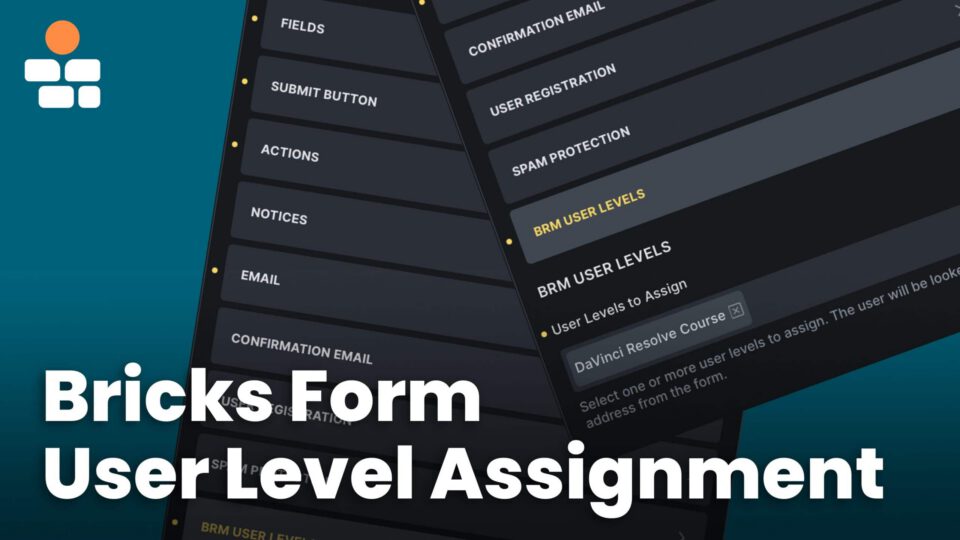
Action 2: Assign BRM User Levels (BricksMembers)
BricksMembers’ action assigns membership levels to the new user. It finds the user by email from the form, so the email field must be present and submitted.
- Add the action Assign BRM User Levels
- In the User Levels to Assign dropdown, select one or more levels (e.g. “Free Member”)
- No field mapping needed, the action automatically detects the email field in the form
Actions run in sequence: Create User runs first, so the user exists before Assign BRM User Levels looks them up by email and assigns levels.
Action 3: Login (Bricks) , Optional
Add Bricks’ Login action if you want users to be logged in immediately after registration. Map the username/email and password fields to match your form. This lets them land on a member area without manually signing in.
Action 4: Redirect , Optional
Add a Redirect action to send users to a thank-you page, member dashboard, or course start after successful registration. Use a URL like /dashboard or /welcome.
Step 3: Optional , Custom Profile Fields at Signup
If you want to collect custom profile fields (e.g. phone, job title) during registration:
- Add the fields to your form
- Ensure Login runs before any BricksMembers profile actions (BRM Update Profile, BRM Update Custom Fields), those require a logged-in user
- Add BRM Update Custom Fields and map your form fields to the custom profile fields
Action order: Create User → Login → BRM Update Custom Fields → Assign BRM User Levels → Redirect.
See User Profiles Features Doc for defining and mapping profile fields.
Optional – Updating Post Content Fields from a Form
BRM Update Content Fields is different from BRM Update Custom Fields. Custom Fields in the profile module belong to the logged-in user. Content Fields belong to a post, page, lesson, course, resource, event, or other content item.
Use BRM Update Content Fields when a Bricks form should update native BricksMembers Content Fields for the current post or for a specific post ID. For example, an instructor-facing form could update a lesson summary, resource note, course level, estimated duration, or internal content status.
- Add the fields to your Bricks form.
- Add the BRM Update Content Fields action.
- Leave Post ID empty to update the current post, or enter a post ID when the form should update a specific content item.
- Map each form field to the matching Content Field.
The user submitting the form must be allowed to edit the target post. Required Content Fields are validated on the server, so a required field cannot be skipped by hiding or changing the browser form.
For Instructor Frontend Builder editor pages or manager popups, add a hidden Post ID field to the Bricks form and map that field in the BRM Update Content Fields action. This lets the form update the lesson, module, course, or other instructor item instead of the frontend editor page itself. The same scoped instructor edit permission is accepted, so the instructor does not need broader wp-admin access to every post.
Complete Action Order Example
For a typical free registration with auto-login and redirect:
- Create User
- Assign BRM User Levels
- Login
- Redirect (e.g. to /dashboard)
Troubleshooting
User is created but has no level
- Check that Assign BRM User Levels is added and at least one level is selected
- Ensure the form has an Email field (type: email) and it’s submitted, BRM finds the user by email
- Create User must run before Assign BRM User Levels so the user exists
“Email already registered” or Create User fails
WordPress prevents duplicate emails. Use a separate login form for existing users, or add conditional logic to show login vs. registration based on whether the user is logged in.
BRM Update Profile / Custom Fields fails
Those actions require a logged-in user. Add the Login action before them and ensure it runs successfully (correct username/email and password mapping).
