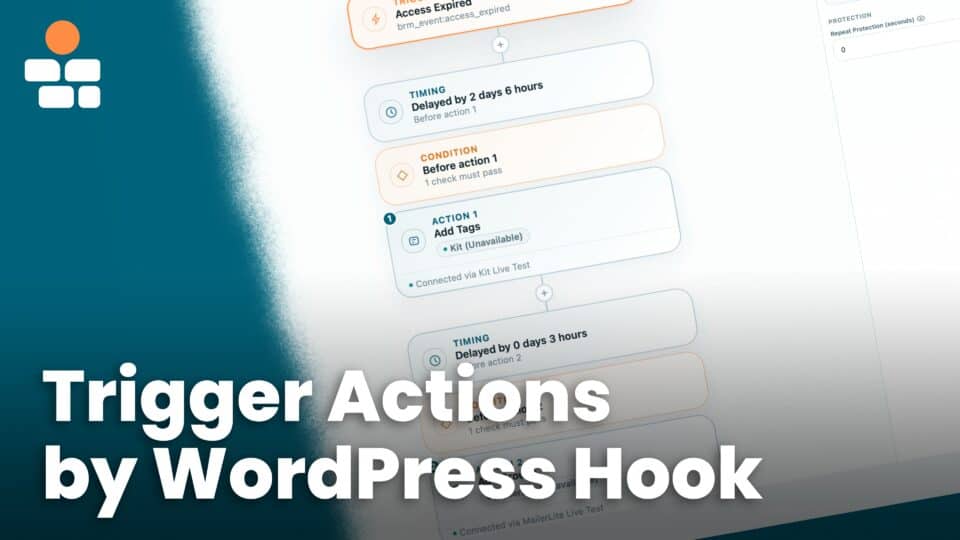
Action Triggers are now authored through the shared BricksMembers → Automations hub. Use them when an automation event starts inside WordPress and you want BricksMembers to react without sending a webhook request back into your own site.
The older Action Triggers screen has been replaced by the Automations builder. Existing legacy rows are treated as migration input; new workflows should be created and maintained in Automations.
When to Use Action Trigger Workflows
- Add a level when a user registers or a form action completes
- Remove a level when a role, subscription, or custom WordPress event changes
- Enroll a user in a course or other post after an on-site event
- Cancel a post enrollment status when a matching event says access should stop
- Add or remove a user from a membership group after a membership event
Step 1: Enable the Module
- Go to BricksMembers → Modules
- Enable Action Triggers
- Go to BricksMembers → Automations
Step 2: Create a Workflow
- Open the Automations builder.
- Choose the WordPress, plugin, or BricksMembers event that should start the workflow.
- Choose how BricksMembers should resolve the user for the workflow.
- Add one or more BRM actions.
- Save and enable the workflow.
Current BRM Actions
- Add Level assigns a selected membership level to the resolved user.
- Remove Level removes a selected membership level from the resolved user.
- Enroll in Post creates a post enrollment for the resolved user.
- Cancel Post Enrollment cancels the selected enrollment source.
- Add to Group adds the resolved user to a selected group.
- Remove from Group removes the resolved user from a selected group.
How This Differs From Webhooks
Use webhooks when the event comes from an external platform. Use Automations and Action Trigger style workflows when the event already happens inside WordPress, such as a form action, role change, plugin hook, BRM access event, or course milestone.
Testing a Workflow
- Create a temporary test level, enrollment, or group target.
- Build the workflow against that test target.
- Perform the event that should trigger the workflow.
- Check the Automations jobs/logs and the user record to confirm the action ran.
Troubleshooting
- Confirm the Action Triggers module is active.
- Confirm the workflow is enabled.
- Check whether the trigger actually fires for the event you tested.
- Check whether BricksMembers can resolve a user from the trigger context.
- Inspect the Automations job log for validation or permission errors.
