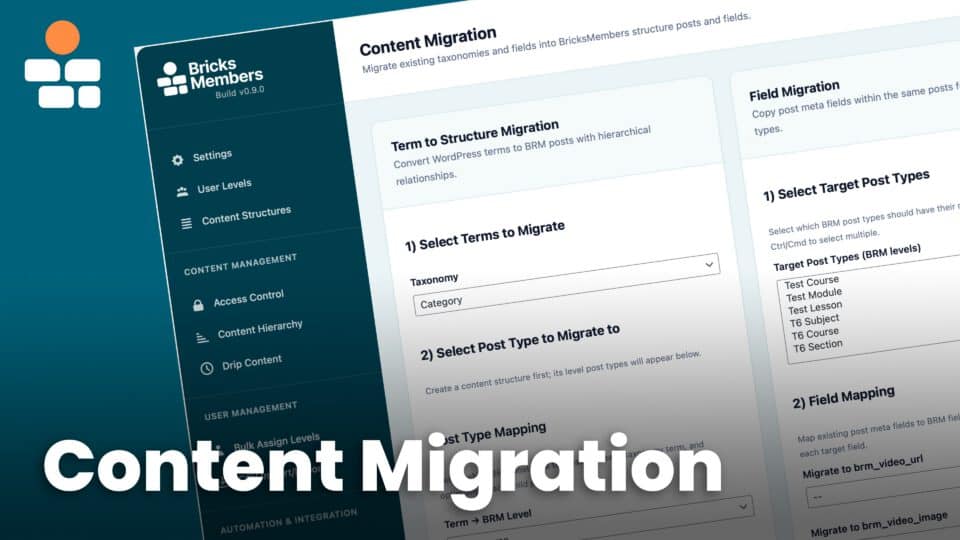
This guide covers the full migration story in BricksMembers today: importing into BRM, exporting out of BRM, moving between BRM sites, syncing production data into staging, and keeping a clean exit path if you ever want to leave later.
The main screen for all of this is BricksMembers → Migration Center. The current Migration Center combines a guided import/export assistant with the older transfer and repair tools, so you can handle content moves, export packages, user-runtime snapshots, and manual cleanup from one place.
Important: Migration Center is for moving content and data between systems. The older one-time internal storage upgrade flow for legacy BRM installs was retired in BricksMembers 1.1.12.
Upgrading from Members for Bricks Builder Free is different from a Migration Center import. Free-edition levels, assignments, protected-content rules, and Stripe EasySync data use a paid-compatible storage contract. Install BricksMembers on the same site and let the upgrade bridge keep that data in place. Use the dedicated Free upgrade guide instead of exporting and re-importing the site through Migration Center.
What the Migration Center Covers
- Import Into BRM, for current-site WordPress imports and uploaded package imports
- Export From BRM, for direct same-site exports and downloadable export packages
- Site Transfer, for BRM table exports/imports when moving servers or syncing production to staging
- Advanced Tools, for term migration, field migration, and relationship-based parent assignment
The new guided assistant is used on the Import Into BRM and Export From BRM tabs. The Site Transfer and Advanced Tools tabs keep the older focused utilities available for cases where you want a more manual workflow.
Before You Start
- Make a full site backup before any live migration work.
- Decide whether you are moving content, user/runtime data, or a whole site. Those are different flows in BRM.
- If you are switching from another WordPress plugin, keep that plugin active until you have validated the BRM result.
- If you plan to import user data into another BRM site or a staging site, make sure the WordPress users already exist there first. The user-data import restores BRM rows against existing WordPress users.
- If long-term portability matters to you, decide up front which exit path you want to keep: same-site export, a hosted-platform rebuild pack, a generic CSV bundle, or the Site Transfer JSON exports.
How the Guided Assistant Works, Step by Step
The assistant is built to ask the fewest questions possible. It scans the environment first, suggests a source or target when it can, autosaves your answers on the server, and lets you resume later.
- Open either Import Into BRM or Export From BRM.
- Choose where the source or target lives now.
Current import choices are Current Site or Upload Hosted-Platform Export or CSV Bundle.
Current export choices are Current Site or Download Export Package. - Let BRM scan the site or analyze the uploaded file.
For current-site flows, BRM scans active plugins, public post types, taxonomies, hierarchy depth, parent relationships, field availability, media patterns, and existing BRM structures.
For upload flows, BRM accepts.zip,.csv, and.jsonfiles and analyzes the datasets inside them. - Accept the recommended source or target if BRM detects one with high confidence, or choose another manually.
- Choose the scope.
When relevant, you can migrate everything detected or limit the run to selected top-level items only. - Choose where the result should go.
On import, that means creating a new BRM structure or mapping into an existing one.
On export, that means choosing the BRM structure you want to export and the type of package or target you want BRM to prepare. - Review the structure or package setup.
On import, BRM can show structure name, level labels, post-type slugs, and progress-tracking level.
On hosted or CSV export, BRM shows the package scope and the generated file set that matches that scope. - Work through the level-fit step when source depth and target depth do not match.
This is important. BRM does not hide the decision.
You can map each source level to a target level or leave a level out.
If you leave a level out, BRM asks what should happen to that omitted level’s titles, body content, videos, images, files, and extra meta. - Review the dry run before writing anything.
The dry run shows the planned structure summary, field mappings, level mapping summary, warnings, and for hosted exports also the generated files and platform limits. - Run the migration, then use Verify and your own spot checks before you consider the job done.
If the run created BRM structures, imported posts, or created same-site target objects, BRM also keeps rollback metadata so you can reverse the run from the assistant if needed.
Drafts are saved server-side from the first answer onward. If you close the page, BRM can restore the draft later. Uploaded files stay attached to that draft, and if the site changed since the draft was created, BRM warns you before resuming.

Importing Into BricksMembers
Current-Site WordPress Imports
Use Current Site when the content you want to migrate already lives on the same WordPress install as BricksMembers.
The assistant includes dedicated current-site import loaders today for these built-in WordPress LMS targets:
- LearnDash
- Tutor LMS
- LifterLMS
- Sensei LMS
- LearnPress
- MasterStudy LMS
- Masteriyo
If your content does not fit one of those dedicated loaders, choose Custom WordPress or Mixed WordPress. Those custom flows are for setups built around custom post types, hierarchical taxonomies, relationship fields, or a mix of different content models on the same site.
For imports, BRM can either:
- Create a new BRM structure and import into it
- Map into an existing BRM structure if you already built the destination structure yourself
On custom and upload-based imports, BRM also shows a field-review step. This lets you inspect or adjust how source columns map into BRM fields before the import runs.
Current uploaded-field mappings can target:
- WordPress title, slug, content, excerpt, and status
- Featured image URL
- BRM video fields like
brm_video_imageandbrm_video_duration - ACF fields
- BricksMembers Content Fields when the Content Fields module is enabled
- Regular post meta
If you are replacing Advanced Custom Fields with BricksMembers Content Fields, use the Content Fields migration flow. It analyzes ACF field groups, maps supported fields to native Content Fields, runs a dry run, and imports values into BRM-owned postmeta only after you review the manifest. BricksMembers does not pretend to be ACF after migration; the destination fields belong to the Content Fields module.
Upload Imports
Use Upload Hosted-Platform Export or CSV Bundle when the source is not on the current site, or when you have a file export from another platform or another BRM site.
The assistant accepts .zip, .csv, and .json files. It analyzes the upload, groups detected datasets, and shows the suggested field mappings before the import continues.
This upload path is designed for:
- Generic CSV bundles created by BRM
- Compatible JSON or ZIP migration bundles
- CSV-style exports from hosted platforms such as Kajabi, Thinkific, Teachable, and Podia
- People-only or runtime-only BRM bundle parts when you need to restore users, completions, assignments, unlocks, or progress rows
Important: Hosted manual rebuild packs generated by BRM are export-only. You can use those packs to rebuild content in Kajabi, Thinkific, Teachable, or Podia, but you cannot upload that same manual rebuild ZIP back into BRM as a restore source.
If the uploaded bundle only contains user or runtime datasets, BRM can restore those compatible rows without forcing you to create a new BRM structure first.
Exporting From BricksMembers
Current-Site Exports
Use Current Site when the destination is another content model that already exists on the same WordPress install.
When the destination plugins are present on the same site, current-site export can target built-in WordPress plugin presets such as:
- LearnDash
- Tutor LMS
- LifterLMS
- Sensei LMS
- LearnPress
- MemberPress Courses
- WP Courseware
- MasterStudy LMS
- Masteriyo
For same-site exports, choose the BRM structure you want to export, review how the BRM levels map into the target structure, and then run the dry run before you write anything.
If the source depth and target depth do not line up, BRM shows the Map Into step. That step matters because it controls which levels stay, which levels shift, and which levels are omitted. If you omit a level, BRM asks how that removed level’s titles, body content, videos, images, files, and custom fields should be preserved.
If BRM cannot safely do a direct same-site export for the selected target, it falls back to preparing a downloadable package instead of pretending the target supports a direct write.
Download Export Package
Use Download Export Package when the destination is a hosted platform or when you want a portable bundle rather than a direct same-site write.
There are two very different package types here:
- Hosted-platform manual rebuild packs for Kajabi, Thinkific, Teachable, and Podia
- Generic CSV bundle for unsupported systems, custom migrations, and round-trip BRM portability
Hosted packs are deliberately described as manual rebuild packs, because that is the honest workflow on those platforms. BRM prepares the structure worksheets, content HTML files, media references, people CSV companions where the platform supports them, and a checklist. It does not pretend to run a one-click import that the platform itself does not actually support.
Choose the Right Export Package
Generic CSV Bundle
This is the best choice when your main concern is portability and reversibility. The generic CSV bundle is both exportable and importable back into BRM.
- It can include normalized content hierarchy rows
- Content HTML files
- Asset manifests
- Content-meta snapshots
- Post-access rows
- User rows and user-level assignments
- User-post completion rows
- User-progress rows
- User-unlock rows
- A manifest and import checklist
One important detail here: the exported progress CSV is an audit and backup snapshot. During import, BRM restores compatible completion rows and then rebuilds aggregate progress from those restored completions, rather than trusting a stale aggregate progress snapshot as the source of truth.
Kajabi
BRM prepares a Kajabi manual rebuild pack with a product worksheet, post manifest, media-reference CSV, generated HTML files, checklist, and optionally a contacts CSV companion. Kajabi contact import is separate from content rebuild, and full portable course import is not available as a native Kajabi package.
Thinkific
BRM prepares a Thinkific course worksheet, lesson manifest, media-reference CSV, generated HTML files, checklist, and optionally a users CSV companion. Thinkific user import is separate from course rebuilding and may depend on your plan.
Teachable
BRM prepares a Teachable lecture worksheet, media-reference CSV, generated HTML files, checklist, and optionally a students CSV companion. Teachable’s own Import content flow copies from another Teachable course. It does not ingest the BRM package directly.
Podia
BRM prepares a Podia product worksheet, lesson manifest, media-reference CSV, generated HTML files, checklist, and optionally a contacts CSV companion. Podia audience/customer CSV import is separate from product migration, and product migration is still a manual rebuild or a separate Podia migration-team service.
For all hosted-platform packages, BRM also gives you package scopes such as Worksheet + Checklist, Content + Media References, or Everything BRM Can Prepare. The dry run shows the exact file list for the scope you choose.
Site Transfer and Staging Sync
The Site Transfer tab is separate from the guided assistant. It is for BRM-specific table exports and imports when you are moving servers, recovering derived BRM tables, or syncing production data into staging.
Database Table Export/Import
This tool exports the BRM post projection and related post-access rows as JSON. It is especially useful when you move a BRM site between different database engines or versions and want a clean BRM-side restore path for derived content data.
The JSON export includes:
- Writable rows from
brm_post_data - Post-level requirement rows from
brm_post_level_requirements
This does not replace a full WordPress migration tool. It does not export all WordPress posts, media, themes, plugins, or the whole database. Think of it as the BRM-specific recovery export for post projection and access rows.
You can import that JSON back in merge mode or with Replace existing data turned on.
User Data Export/Import
This tool exports the normalized BRM user/runtime tables you care about when learners are actively progressing on a live site.
The JSON export includes:
brm_user_level_assignmentsbrm_user_post_completionsbrm_user_progressbrm_user_unlocks, when that table exists
User-data import works in two modes:
- Merge, which updates existing matching rows and adds missing ones
- Replace all user data, which clears the BRM user-data tables first
The safest staging workflow is:
- Make your structure and content changes on staging
- Sync WordPress users from production into staging
- Export BRM user data from production
- Import that BRM user data into staging
- Test with real learning states before going live
Advanced Tools Inside Migration Center
The Advanced Tools tab remains important for migrations that need manual cleanup or one focused transformation after the main assistant run.
Term to Structure Migration
Use this when your existing hierarchy lives in WordPress taxonomies and you want to convert those terms into BRM posts with parent-child structure. You can map taxonomy depth to BRM levels, optionally attach existing child posts, run a dry run first, and optionally remove the old terms afterward.
Field Migration
Use this when your content already exists in the right posts but the key fields still live in old meta keys. The tool can copy those old fields into BRM’s expected fields like video URL, video image, video duration, post content, or featured image.
Assign Parent Based on Relationship Field
Use this when the posts already exist but their BRM parent relationships are missing. The tool detects relationship fields that can point to a single parent and then writes the BRM parent relationship from that field. Fields that may return multiple parents are shown as unavailable so you do not accidentally create ambiguous hierarchy data.
How to Validate a Migration Before You Switch Off the Old System
- Check the BRM structure itself, especially level names, slugs, and parent ordering
- Open a sample of top-level, middle-level, and lowest-level items to confirm body content, featured images, and important custom fields
- Test protected content with a real member account to confirm access rules still behave as expected
- Test user progress, direct completions, and drip unlocks if you imported user/runtime data
- For hosted-platform exports, download the package, open the worksheet, open a few generated HTML files, and review the checklist before you start rebuilding
- Only deactivate the old plugin or commit to the new platform after those checks pass
Can You Leave BricksMembers Later?
Yes. That is exactly why the new migration system matters.
If you want a practical exit path later, BricksMembers gives you multiple layers of portability:
- Direct same-site export for supported WordPress targets that already exist on the current site
- Hosted-platform rebuild packs for Kajabi, Thinkific, Teachable, and Podia
- Generic CSV bundle export, which is the best round-trip and future-proof option when you want a system-neutral package that BRM can also import again later
- Site Transfer JSON exports for BRM projection tables and BRM user/runtime tables
The most important distinction is this:
- Hosted manual rebuild packs are for leaving BRM and rebuilding elsewhere. They are not BRM restore packages.
- Generic CSV bundles are the portable package format you can also bring back into BRM later.
If your biggest worry is, “What if BRM is not for me later?”, export a generic CSV bundle and keep it with your normal site backups. That is the cleanest built-in safety net in the current migration system.
