
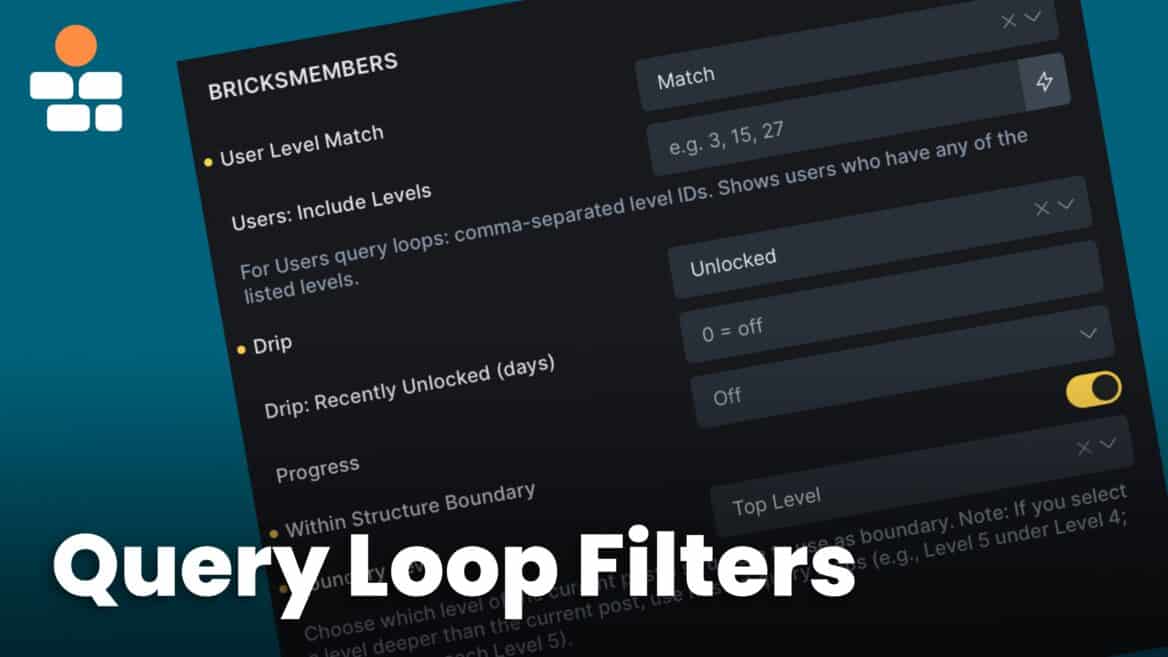

Query loops are the foundation of dynamic membership sites. They let you show different content to different users based on their membership levels, progress, likes, and access. This tutorial covers all BricksMembers query loop filters and how to combine them for powerful personalization.
What you’ll learn:
- How query loops work in Bricks Builder
- All BricksMembers query loop filters explained
- Combining multiple filters for precise control
- Real-world examples and use cases
- Common patterns and best practices
- Troubleshooting query loop issues
Prerequisites:
- Bricks Builder installed and activated
- BricksMembers installed with at least one user level
- Basic understanding of Bricks Builder
- Some content created with required levels
Part 1: Understanding Query Loops
Before diving into filters, let’s understand how query loops work.
What is a Query Loop?
A query loop fetches content from your database and displays it using a template. Think of it as:
“Show me all [posts/courses/lessons] where [conditions] and display each one using [this design].”
Example:
- “Show me all lessons where the user has access and display each one using a card with title and button.”
How to Create a Query Loop
- Add a Div, Block, Container, or Section element in Bricks
- In the Content tab, enable Use query loop
- Configure the query (post type, filters, order)
- Add child elements inside the div (these repeat for each post)
The child elements become the template – they repeat for every post in the query results.
Basic Query Settings
Post Type: What type of content to fetch (posts, pages, courses, lessons, etc.)
Posts per page: How many to show (use -1 for all)
Order by: How to sort (date, title, menu order, etc.) – for BricksMembers content structure content, always select Menu Order as this is the order we use in the content structures
Order: Ascending (A-Z, oldest first) or Descending (Z-A, newest first)
Offset: Skip the first X posts (useful for pagination)
Part 2: BricksMembers Query Filters
BricksMembers adds powerful filters to Bricks query loops. You don’t find them in the Query Loop popup though, but on the Content Tab, when you scroll down after activating Query Loop on the element. Let’s explore each one.
Filter 1: User Level Match
What it does: Filters posts based on whether the user has access.
Location: In the query loop settings, scroll to BricksMembers → User Level Match
Options:
| Option | What it shows |
|---|---|
| Off | All posts (no filtering) |
| Match | Only posts the user has access to |
| Match + Empty | Posts the user has access to + posts with no required levels |
| No Match | Only posts the user does NOT have access to |
| No Match + Empty | Posts the user doesn’t have access to + posts with no required levels |
Use cases:
Show accessible content:
User Level Match: MatchResult: User sees only content they can access.
Show locked content (upsell):
User Level Match: No MatchResult: User sees content they can’t access (great for upgrade pages).
Show everything the user can see (accessible + public):
User Level Match: Match + EmptyResult: User sees their accessible content plus all public content.
Filter 2: Drip Filter
What it does: Filters posts based on drip content status (requires Drip Content module enabled).
Location: BricksMembers Query Filters → Drip Filter
Options:
| Option | What it shows |
|---|---|
| Off | All posts (no drip filtering) |
| Unlocked | Only posts that are unlocked for the user |
| Locked | Only posts that are locked (not yet available) |
| Time Ready | Posts where the time condition is met (but may still be locked by prerequisites) |
| Time Not Ready | Posts where the time condition is NOT met |
| Prerequisites Ready | Posts where prerequisites are met (but may still be locked by time) |
| Prerequisites Not Ready | Posts where prerequisites are NOT met |
How it works:
- Checks the
brm_user_unlockstable for each post - Unlocked = row exists with
unlocked = 1 - Locked = no row exists or
unlocked = 0 - Time Ready = current date/time is past the unlock date
- Prerequisites Ready = all prerequisite posts are completed
Use cases:
Show available lessons:
Drip Filter: UnlockedResult: Only lessons the user can access AND are unlocked.
Show upcoming lessons:
Drip Filter: LockedResult: Lessons the user will get access to in the future.
Show lessons ready to unlock:
Drip Filter: Time ReadyResult: Lessons where the time delay has passed, but the user still needs to complete prerequisite posts.
Filter 3: Progress Filter
What it does: Filters posts based on completion status (requires Progress Tracking module enabled).
Location: BricksMembers Query Filters → Progress
Options:
| Option | What it shows |
|---|---|
| Off | All posts (no completion filtering) |
| Completed | Only posts the user has marked as complete |
| Not Completed | Only posts the user has NOT completed |
How it works:
- Checks the
brm_user_datatable for completion data - Completed =
completed_postsJSON contains this post ID - Not Completed = post ID not in
completed_posts
Use cases:
Show completed lessons:
Progress: CompletedResult: All lessons the user has finished.
Show incomplete lessons:
Drip Filter: Unlocked
Progress: Not Completed
Result: Lessons the user can access, are unlocked, but haven’t completed yet (perfect for “Continue Learning” sections).
Show next lesson to complete:
Drip Filter: Unlocked
Progress: Not Completed
Posts per page: 1
Order by: Menu Order
Order: ASC
Result: The very next lesson the user should complete.
Filter 4: Structure Boundary
What it does: Limits the query to posts within a specific structure scope.
Location: BricksMembers Query Filters → Structure Boundary
Options:
| Option | What it shows |
|---|---|
| Off | All posts (no boundary filtering) |
| Top Level | Only posts within the top level post of the structure (eg. Course) |
| Parent Level | Only posts that share the same direct parent as the current post |
| Current | Only children of the current post — either direct or indirect |
| Level 2, 3, 4, 5 | Posts at specific structure levels |
Use cases:
Show all lessons within the current Course (top level):
Structure Boundary: Top LevelResult: Only posts with the same top-level post show up (lessons within the current course).
Show lessons in the current module:
Structure Boundary: Parent LevelResult: When viewing a lesson, shows all lessons in the same module.
Show modules in the current course:
Structure Boundary: Parent Level
Post Type: module
Result: When viewing a module, shows all modules in the same course.
Filter 5: Order By
What it does: Orders query results by completion or unlock dates (requires Progress Tracking or Drip Content module enabled).
Location: BricksMembers Query Filters → Order By
Options:
| Option | What it shows |
|---|---|
| Default | Uses Bricks’ native ordering (date, title, menu order, etc.) |
| Progress Completed (Oldest First) | Orders by completion date, oldest completed first |
| Progress Completed (Recent First) | Orders by completion date, most recently completed first |
| Drip Unlocked (Oldest First) | Orders by unlock date, oldest unlocked first |
| Drip Unlocked (Recent First) | Orders by unlock date, most recently unlocked first |
| Drip Will Unlock (Next First) | Orders by future unlock date, soonest to unlock first |
| Drip Will Unlock (Last First) | Orders by future unlock date, latest to unlock first |
How it works:
- Uses timestamps from
brm_user_data(completion) orbrm_user_unlocks(unlock dates) - For “Will Unlock” options, prioritizes time-based rules over menu order
- Important: This overrides Bricks’ native ordering when enabled
Use cases:
Show recently completed lessons:
Progress: Completed
Order By: Progress Completed (Recent First)
Result: Most recently completed lessons appear first.
Show recently unlocked content:
Drip Filter: Unlocked
Order By: Drip Unlocked (Recent First)
Result: Content that was most recently unlocked appears first.
Show upcoming content:
Drip Filter: Locked
Order By: Drip Will Unlock (Next First)
Result: Content that will unlock soonest appears first.
Filter 6: Posts – Filter by Required Level
What it does: Shows only posts that require any of the selected levels. Use for course catalogs or content lists filtered by membership tier.
Location: BricksMembers Query Filters → Posts: Filter by Required Level (Posts query loops only)
Options: Select one or more levels. Posts requiring at least one of those levels are shown.
Dynamic filtering: Add a Bricks Filter – Select, Radio, or Checkbox element. Set Source to “BricksMembers: Posts – Required Level” and URL parameter to any name you prefer (e.g. level, tier, or anything else — it’s completely up to you). Link the filter to your Post loop. Users can then filter posts by level via dropdown or checkboxes; counts in brackets show posts per level.
Filter 7: Users – Include Levels
What it does: Shows only users who have any of the selected levels. Use for member directories or team lists filtered by membership.
Location: BricksMembers Query Filters → Users: Include Levels (Users query loops only)
Options: Select one or more levels. Users with at least one of those levels are shown.
Dynamic filtering: Add a Bricks Filter – Select, Radio, or Checkbox element. Set Source to “BricksMembers: Users – Level” and URL parameter to any name you prefer (e.g. level, membership, or anything else — it’s completely up to you). Link the filter to your User loop. Visitors can then filter users by level; counts in brackets show users per level.
Filter 8: Like Status
What it does: Filters posts based on whether the current user has liked them (requires Like System module enabled).
Location: BricksMembers Query Filters → Like Status (Post query loops only)
Options:
| Option | What it shows |
|---|---|
| Off | All posts (no like filtering) |
| Liked by User | Only posts the current user has liked |
| Not Liked by User | Only posts the current user has not liked |
Use case: “Favorites” or “Saved” sections — show only posts the user has liked. Or show unliked posts to encourage engagement.
Filter 9: Minimum Likes
What it does: Shows only posts that have at least X likes from any users (requires Like System module enabled).
Location: BricksMembers Query Filters → Minimum Likes (Post query loops only)
Options: Enter a number (e.g. 5). Only posts with that many or more likes are shown.
Use case: “Popular” or “Trending” content — e.g. set to 10 to show only highly liked posts.
Filter 10: Respect Profile Visibility
What it does: When enabled, excludes users with private profiles from the directory. Members-only profiles are hidden from logged-out visitors (requires Member Profiles module and User query loops only).
Location: BricksMembers Query Filters → Profile Visibility → Respect Profile Visibility
Options: Checkbox. When checked, users who have set their profile visibility to private are excluded. Per-field visibility (Public, Members Only, Private) on custom fields is separate.
Use case: Member directories — enable this so users with private profiles don’t appear in listings. See User Profiles, Custom Fields & Member Directories for setup.
Refinement Filters
Two additional filters refine the Drip and Progress filters:
Recently Unlocked (days):
- Appears when Drip Filter: Unlocked is selected
- Shows only content unlocked within the last X days
- Example: Set to “7” to show content unlocked in the last week
Recently Completed (days):
- Appears when Progress: Completed is selected
- Shows only content completed within the last X days
- Example: Set to “30” to show content completed in the last month
Part 3: Combining Filters
The real power comes from combining multiple filters. Here are common patterns.
Pattern 1: Accessible, Unlocked, Incomplete Lessons
Use case: “Continue Learning” section on a dashboard.
Filters:
User Level Match: Match
Drip Filter: Unlocked
Progress: Not Completed
Posts per page: 5
Order by: Menu Order
Order: ASC
Result: The next 5 lessons the user should complete.
Pattern 2: Recently Unlocked Content
Use case: “New Content Available” section.
Filters:
User Level Match: Match
Drip Filter: Unlocked
Order By: Drip Unlocked (Recent First)
Posts per page: 5
Result: The 5 most recently unlocked posts, ordered by actual unlock date.
Note: The Order By filter overrides Bricks’ native ordering when enabled.
Pattern 3: Completed Lessons in Current Course
Use case: Show progress within a specific course.
Filters:
Structure Boundary: Top Level (or Parent Level)
Progress: Completed
Order by: Menu Order
Order: ASC
Result: All completed lessons in the current course, in order.
Part 4: Real-World Examples
Let’s build some real-world query loops.
Example 1: Course Catalog with Progress
Goal: Show all courses the user has access to, with progress bars.
Steps:
- Add a Div element
- Enable Query Loop
- Query settings:
- Post type: course
- Posts per page: -1 (show all)
- Order by: Title
- Order: ASC
- BricksMembers filters:
- User Level Match: Match
- Inside the loop, add:
- Featured Image
- Heading (H3):
{post_title} - Text:
{post_excerpt} - BRM Progress Bar (Progress Mode: Auto (Smart Detection) & Top Level)
- Button: “View Course” →
{post_url}
- Style the loop:
- Display: Grid
- Grid template columns:
repeat(auto-fill, minmax(300px, 1fr)) - Gap: 30px
Result: A grid of course cards with progress bars.
Example 2: Upcoming Lessons with Unlock Dates
Goal: Show locked lessons with their unlock dates.
Steps:
- Add a Div with Query Loop
- Query settings:
- Post type: lesson
- Posts per page: 5
- BricksMembers filters:
- User Level Match: Match
- Drip Filter: Locked
- Order by: Drip Will Unlock (Next First)
- Inside the loop:
- Icon (lock icon)
- Heading (H4):
{post_title} - Text: “Unlocks on {brm_drip:unlock_date}”
- Text: “{brm_drip:days_left} days remaining”
Result: A list of upcoming lessons with countdown.
Example 3: Completed Lessons Timeline
Goal: Show a timeline of completed lessons.
Steps:
- Add a Div with Query Loop
- Query settings:
- Post type: lesson
- Posts per page: 10
- BricksMembers filters:
- Progress: Completed
- Order by: Progress Completed (Recent First)
- Inside the loop:
- Icon (checkmark)
- Heading (H4):
{post_title} - Text: “Completed on {brm_progress:completion-date}”
- Button: “Review” →
{post_url}
Result: A timeline of completed lessons.
Example 4: Module Lessons (Scoped to Current Module)
Goal: On a module page, show all lessons in that module.
Steps:
- Create a template for the “module” post type
- Add a Div with Query Loop
- Query settings:
- Post type: lesson
- Posts per page: -1 (all)
- Order by: Menu Order
- Order: ASC
- BricksMembers filters:
- Structure Boundary: Current
- Inside the loop:
- Heading (H4):
{post_title} - BRM Progress Checkbox (shows completion status)
- Text: “{brm_drip:status}” (shows “Unlocked” or “Locked”)
- Button: “Start Lesson” →
{post_url}
- Heading (H4):
Result: A list of all lessons in the current module.
Part 5: Advanced Techniques
Technique 1: Conditional Query Loops
Show different query loops based on user levels.
Steps:
- Add a Container
- Go to Conditions tab
- Add condition: BricksMembers → Has Access To Level(s)
- Select “Premium Member”
- Inside this container, add a query loop showing premium content
- Add another Container (outside the first)
- Add condition: BricksMembers → Has Access To Level(s) → Select “Free Member”
- Inside, add a query loop showing free content
Result: Premium members see premium content, free members see free content.
Technique 2: Conditional Elements Inside Query Loops
Show different elements based on each post’s status (completed, locked, unlocked).
Use case: In a lesson list, show different icons and buttons based on lesson status.
Steps:
- Create a query loop for lessons
- Inside the loop, add multiple elements:
- Icon element with checkmark (for completed)
- Icon element with lock (for locked)
- Icon element with play button (for unlocked)
- Button: “Start Lesson”
- Button: “Continue”
- Text: “Unlocks on {brm_drip:unlock_date}”
- Add conditions to each element:
- Checkmark icon: Condition → BricksMembers → Progress → is → Completed
- Lock icon: Condition → BricksMembers → Drip → is → Locked
- Play icon: Conditions → BricksMembers → Drip → is → Unlocked AND BricksMembers → Progress → is → Not Completed
- “Start Lesson” button: Condition → BricksMembers → Progress → is → Not Completed
- “Continue” button: Condition → BricksMembers → Progress → is → Completed
- Unlock date text: Condition → BricksMembers → Drip → is → Locked
Result: Each lesson card dynamically shows the appropriate icon and button based on its current status for the viewing user.
Technique 3: Conditional Elements + CSS :has()
Combine Bricks conditions with CSS :has() to style cards based on conditionally visible elements.
Use case: Highlight “Featured” lessons with a special badge and styling, using a custom field or category to determine which lessons are featured.
Steps:
- In your lesson post type, add a custom field
is_featured(checkbox via ACF/Metabox) or use a “Featured” category - Create a query loop for lessons with class
lesson-cardon each card - Inside each card, add a Text element with “⭐ Featured” and class
featured-badge - On the Text element, add condition: Post Meta →
is_featured→ equals →1(or use Post Term → Category → in → Featured) - Select the query loop container, go to Style tab → CSS, add:
%root%:has(.featured-badge) {
  background: linear-gradient(135deg, #fef3c7 0%, #fde68a 100%);
  border: 2px solid #f59e0b;
  box-shadow: 0 4px 12px rgba(245, 158, 11, 0.2);
}

%root% .featured-badge {
  position: absolute;
  top: -10px;
  right: 20px;
  background: #f59e0b;
  color: white;
  padding: 6px 16px;
  border-radius: 20px;
  font-size: 13px;
  font-weight: 700;
  box-shadow: 0 2px 8px rgba(0,0,0,0.15);
}
Result: Only featured lessons (determined by custom field or category) show the badge, and those cards are automatically highlighted with gradient background and shadow.
Why this works: The badge only renders for specific lessons (via Bricks condition on custom field/category). CSS :has() detects its presence and styles the parent card accordingly – no need to add dynamic classes to every card.
Part 6: Troubleshooting
Issue 1: No Posts Appear
Cause: Filters are too restrictive or user has no access.
Solution:
- Temporarily set all filters to “Off” to see if posts appear
- Add filters back one at a time to identify which is causing the issue
- Check that the user has the required levels assigned
- Check that content has required levels assigned
Issue 2: Wrong Posts Appear
Cause: Post type mismatch or incorrect boundary.
Solution:
- Verify Post Type matches your content (course, lesson, etc.)
- Check Structure Boundary
- Review your content’s parent relationships in BricksMembers → Content Structures
Issue 3: Progress Filter Not Working
Cause: Progress tracking not enabled or no completions recorded.
Solution:
- Go to BricksMembers → Settings
- Enable Progress Tracking
- Ensure the post type is on a progress tracking level under BricksMembers → Content Structures
- Mark at least one post as complete to test
Issue 5: Drip Filter Shows Nothing
Cause: Drip module not enabled or no unlocks computed.
Solution:
- Enable Drip Content in BricksMembers → Settings
- Create at least one drip rule
- Go to BricksMembers → Maintenance
- Click Backfill Drip Unlocks
- Wait for the process to complete
Part 7: Best Practices
Practice 1: Start Simple, Add Filters Gradually
Don’t apply all filters at once. Start with:
- Basic query (post type, order)
- Add User Level Match filter
- Test
- Add drip filter
- Test
- Add progress filter
- Test
Practice 2: Use “Match + Empty” for Public Sites
If you have both public and member content, use:
User Level Match: Match + EmptyThis shows members their content plus all public content.
Practice 3: Don’t Combine Drip and Progress for single “Continue Learning” element
The best way to use “Continue Learning” is to use the {brm_progress:continue} dynamic tag as it’s much simpler and more efficient than combining progress and drip in a query loop just to show one continue element. Read more about that in our Dynamic Tag Reference.
Practice 4: Use Structure Boundaries for Scoped Lists
When showing lessons on a module page, always use:
Structure Boundary: Parent Level / Level 2 for Module, or Top Level for CourseThis ensures you only show lessons from the current module or course.
Practice 5: Add No Results Messages
Always add a fallback message for empty queries:
"No lessons available yet."
"You've completed all lessons!"
"Upgrade to access more content."
Summary
You’ve learned how to:
- ✅ Understand how query loops work in Bricks Builder
- ✅ Use all BricksMembers query loop filters
- ✅ Combine filters for precise content control
- ✅ Build real-world query loops (course catalogs, dashboards, timelines)
- ✅ Use advanced techniques (custom PHP queries, conditional loops, pagination)
- ✅ Troubleshoot common query loop issues
- ✅ Follow best practices for query loop design
You can now create highly personalized, dynamic membership sites with Bricks Builder and BricksMembers!


