
Selling digital products, course materials, or member-only resources requires secure file delivery. BricksMembers’ Protected Downloads system ensures only authorized members can access your files, with comprehensive security features and easy integration with Bricks Builder.
What you’ll learn:
- How protected downloads work (security architecture)
- Creating and managing protected downloads
- Adding download buttons to your pages
- Displaying download lists with query loops
- Tracking download activity
- Best practices for file security
- Troubleshooting common issues
Prerequisites:
- Bricks Builder installed and activated
- BricksMembers installed and activated
- Protected Downloads module enabled
- At least one user level created
Part 1: Understanding Protected Downloads
How It Works
Traditional WordPress file uploads are publicly accessible. Anyone with the URL can download the file, even if they’re not logged in.
Example of insecure file:
https://yoursite.com/wp-content/uploads/2025/01/premium-ebook.pdfAnyone can access this URL directly.
BricksMembers Protected Downloads:
- Files are stored in a protected directory (
/wp-content/uploads/brm-protected/) - The directory has
.htaccessprotection that blocks all direct access - Files are served through PHP verification that checks user access
- Nonce verification prevents unauthorized link sharing
Example of protected file:
https://yoursite.com/?brm_download=123&nonce=abc123def456This URL includes nonce verification and only works for authorized users.
Security Features
1. .htaccess Protection
- Automatically created in
/brm-protected/directory - Blocks all direct HTTP requests
- Prevents directory listing
- Forces all downloads through PHP
2. Access Verification
- Checks if user is logged in
- Verifies user has required levels
- Checks download post status (must be published)
- Validates nonce for security
3. File Type Restrictions
Allowed file types:
- Documents: PDF, DOC, DOCX, XLS, XLSX, PPT, PPTX, TXT, RTF, CSV
- Images: JPG, JPEG, PNG, GIF, WEBP
- Audio: MP3, WAV, OGG, M4A
- Video: MP4, AVI, MOV, WMV, FLV
- Archives: ZIP, RAR, 7Z, TAR, GZ
4. File Size Limit
- Maximum file size: Configurable (default: 100 MB)
- Set in BricksMembers → Protected Downloads → Download Settings
- Prevents server overload and abuse
5. Filename Sanitization
- Removes path traversal attempts (
../,./) - Sanitizes special characters
- Generates unique filenames to prevent conflicts
Part 2: Enabling Protected Downloads
Step 1: Enable the Module
- Go to BricksMembers → Settings
- Find Protected Downloads
- Toggle it ON
- Click Save Settings
Result: The Protected Downloads module is now active.
Step 1.5: Configure Download Settings (Optional)
Customize download behavior:
- Go to BricksMembers → Protected Downloads
- Scroll to the Download Settings card
- Maximum File Size (MB): Set your preferred limit (default: 100 MB, max: 500 MB)
- Enable Download Logs: Choose whether to track download activity in the database (enabled by default)
- Access Denied Redirect URL: (Optional) Set where unauthorized users are redirected
- Click Save Settings
Tip: Be mindful of your server’s PHP upload limits. If you set a high max file size, you may also need to increase upload_max_filesize and post_max_size in your server’s PHP configuration.
Step 2: Verify Directory Protection
The protected directory is created automatically, but let’s verify:
- Go to your WordPress uploads folder via FTP or file manager
- Navigate to
/wp-content/uploads/ - You should see a folder called
brm-protected/ - Inside, there should be a
.htaccessfile
Contents of .htaccess:
# BricksMembers Protected Downloads
Options -Indexes
deny from all
If the directory doesn’t exist: Upload a file (next section) and it will be created automatically.
Part 3: Creating Protected Downloads
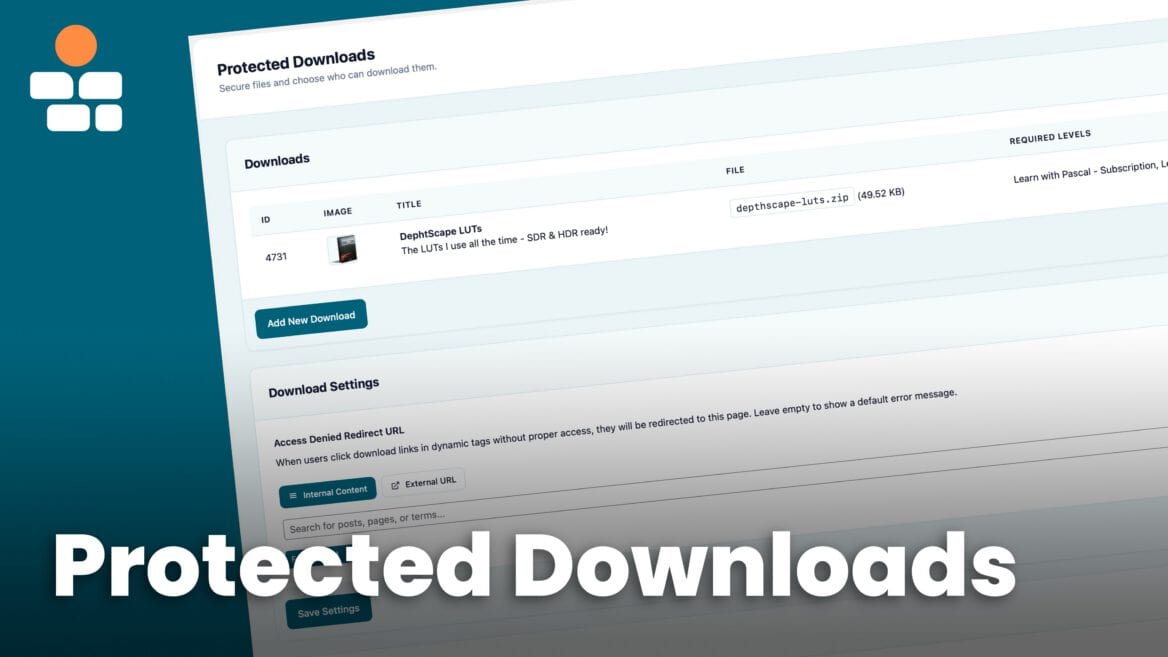
Create protected downloads using the admin interface:
Creating a Download
- Go to BricksMembers → Protected Downloads
- Click Add New Download
- Fill in the details:
- Title: “Premium Course Workbook”
- Description: “A comprehensive workbook for the premium course.”
- File: Click Choose File and select your PDF/ZIP/etc.
- Download Image: (Optional) Choose an image
- Required User Levels: Check “Premium Member”
- Click Create Download
Result: The file is uploaded to the protected directory and a download post is created.
Tip: For large files that might timeout during browser uploads, you may need to increase your server’s PHP upload limits (see troubleshooting section below).
Understanding Download Metadata
Each download stores:
- Title: Display name
- Description: Optional description
- File Path: Relative path in
/brm-protected/ - File Name: Original filename
- File Size: Automatically calculated
- Download Key: Unique 32-character key for secure URLs
- Required Levels: User levels needed to access
- Download Image: Optional thumbnail
Part 4: Adding Download Buttons to Pages
Now let’s add download buttons to your pages using Bricks Builder.
Method 1: Single Download Button
Use case: Add a download button to a lesson page.
Steps:
- Edit your page/template with Bricks
- Add a BRM Protected Download element
- Configure:
- Display Mode: Single
- Download: Select the download from the dropdown
- Button/Link Text: “Download Workbook”
- Show Download Image: Yes (optional)
- Show Filename: Yes
- Show File Size: Yes
- Layout Style: Horizontal (image on left, content on right)
- Style the element as needed
Result: A download button that only works for users with the required levels.
Method 2: Dynamic Download (Current Post)
Use case: Create a “brm_download” post type template where the download is the current post.
Steps:
- Go to Bricks → Templates
- Create a new Single template
- Conditions: Post Type → brm_download
- Add a BRM Protected Download element
- Display Mode: Single
- Download: Leave empty (uses current post)
- Add other elements as needed (heading with
{post_title}, text with{post_content}, etc.)
Result: A template for all download pages.
Method 3: Download List
Use case: Show all available downloads on a “Resources” page.
Steps:
- Create a new page: “Member Resources”
- Edit with Bricks
- Add a BRM Protected Download element
- Configure:
- Display Mode: List
- Number of Downloads: 10
- Filter by User Level: Yes (only show downloads the user can access)
- Show Download Image: Yes
- Show Filename: Yes
- Show File Size: Yes
- Style the element as needed
Result: A list of all downloads the user has access to.
Part 5: Advanced Download Displays
Using Query Loops for Custom Layouts
For complete control over the layout, use a query loop instead of the BRM Protected Download element.
Steps:
- Add a Div element
- Enable Use query loop
- Configure query:
- Query type: Posts
- Post type: Protected Download
- Posts per page: 10
- Order by: Title
- Order: ASC
- Scroll to BricksMembers Query Filters:
- User Level Match: Match (only show accessible downloads)
- Inside the loop, add:
- Image element: Source →
{brm_download:image} - Heading (H3):
{post_title} - Text:
{post_content} - Text: “File size: {brm_download:size}”
- Button: “Download” → Link:
{brm_download:url}
- Image element: Source →
Result: A fully customized download grid.
Conditional Download Access
Show different content based on whether the user has access.
Steps:
- Add a Container
- Add a BRM Protected Download element or a Query Loop like above inside
- Add another Container (outside the first)
- Inside the second container, add a Text element: “Upgrade to Premium to access this download”
- Add a Button: “Upgrade Now”
- Go to Conditions tab on the second container
- Add condition: BricksMembers → User level match → is → No
- Do the same for the first container with BricksMembers → User level match → is → Yes
Result: Users with access see the download button. Users without access see an upgrade message.
Part 6: Download Tracking
BricksMembers can track download counts and log download activity for each protected file.
Viewing Download Statistics
- Go to BricksMembers → Protected Downloads
- Each download shows a Downloads column with the total download count
What’s tracked:
- Total Downloads: How many times the file has been downloaded (stored in post meta
_brm_download_count) - Download logs (Optional): If enabled in settings, each download is logged to the
brm_download_logsdatabase table with user ID, download ID, timestamp, IP address, and user agent
Enable/Disable Logging:
- Go to BricksMembers → Protected Downloads
- Scroll to Download Settings
- Toggle Enable Download Logs on or off
- Click Save Settings
Note: The total download count is always tracked. The optional logging adds detailed records (user, IP, timestamp) for compliance or analytics. Disable it if you don’t need this data or want to reduce database usage.
Use cases:
- Identify popular resources
- Measure content engagement
- Justify content creation efforts
Part 7: Best Practices
Practice 1: Use Descriptive Filenames
Bad: file1.pdf, document.zip
Good: wordpress-beginners-workbook.pdf, premium-course-templates.zip
Why: Users know what they’re downloading, and it’s easier to manage.
Practice 2: Compress Large Files
Before uploading:
- Compress files to zips to save space
- ZIP multiple files together
- Optimize images before including in PDFs
Benefits:
- Faster downloads for users
- Less server bandwidth usage
- Stays under your configured file size limit
Practice 3: Add Thumbnails
Always add a download image:
- Makes the download list more visually appealing
- Helps users identify content quickly
- Increases perceived value
Practice 4: Test Download Links
After creating a download:
- Log out
- Log in as a test user with the required level
- Click the download button
- Verify the file downloads correctly
- Log in as a user WITHOUT the required level
- Verify they see an access denied message
Part 8: Common Issues and Solutions
Issue 1: Download Returns 404 Error
Cause: Rewrite rules not flushed.
Solution:
- Go to Downloads → Download Troubleshooting → Flush Rewrite Rules button
- This flushes rewrite rules
- Try the download again
Issue 2: File Not Found Error
Cause: File doesn’t exist in the protected directory.
Solution:
- Go to BricksMembers → Protected Downloads
- Edit the download
- Re-upload the file
Issue 3: Access Denied for Authorized Users
Cause: User doesn’t have the required level, or level assignment is incorrect.
Solution:
- Go to Users → All Users in WordPress
- Find the user and verify they have the required level
- Go to BricksMembers → Protected Downloads
- Edit the download and verify the Required Levels are correct
Issue 4: Direct URL Access Works (Security Breach)
Cause: .htaccess file missing or not working.
Solution:
- Check if your server uses Apache (
.htaccessonly works on Apache) - If using Nginx, add this to your server config:
location ~ /wp-content/uploads/brm-protected/ {
    deny all;
    return 403;
}- If using Apache, verify
.htaccessexists in/brm-protected/ - Check file permissions (should be 644)
Issue 5: Large Files Timeout During Upload
Cause: PHP upload limits or execution time limits.
Solution: Increase PHP Limits
Add to wp-config.php:
@ini_set('upload_max_filesize', '100M');
@ini_set('post_max_size', '100M');
@ini_set('max_execution_time', '300');
Issue 6: Download Button Shows for Unauthorized Users
Cause: Conditions not set correctly.
Solution:
- If using the BRM Protected Download element, it automatically hides for unauthorized users
- If using a custom button, add condition: BricksMembers → User level match → is → Yes
- Or use the
{brm_download:url}dynamic tag with a condition that checks if it’s not empty
Part 9: Advanced Use Cases
Use Case 1: Integration with Progress Tracking
Add downloads to lesson pages that users can access after completing the lesson.
Steps:
- Add a BRM Progress Checkbox element to the lesson page
- Add a BRM Protected Download element below it
- Users mark the lesson complete, then download the workbook
Use Case 2: Integration with Webhooks
Automatically grant access to downloads when users purchase.
Steps:
- Create a user level: “Course Buyer”
- Assign this level to all course downloads
- Set up a webhook from your payment processor
- Map the product to the “Course Buyer” level
Result: When users purchase, they automatically get access to all downloads.
Summary
You’ve learned how to:
- ✅ Understand how protected downloads work (security architecture)
- ✅ Enable and configure the Protected Downloads module
- ✅ Create and manage protected downloads
- ✅ Add download buttons and lists to pages with Bricks Builder
- ✅ Use query loops for custom download displays
- ✅ Track download activity
- ✅ Follow best practices for file security
- ✅ Troubleshoot common download issues
- ✅ Implement advanced use cases (drip releases, bundles)
- ✅ Integrate downloads with other BricksMembers features
Your digital products and member resources are now secure and accessible only to authorized members!