One of the most powerful features of BricksMembers is progress tracking. Learners can mark lessons as complete, see their progress bars fill up, and track their journey through your courses.
This guide covers everything you need to know about setting up and using progress tracking.
What Is Progress Tracking?
Progress tracking lets users mark content as complete and see their overall progress.
For learners:
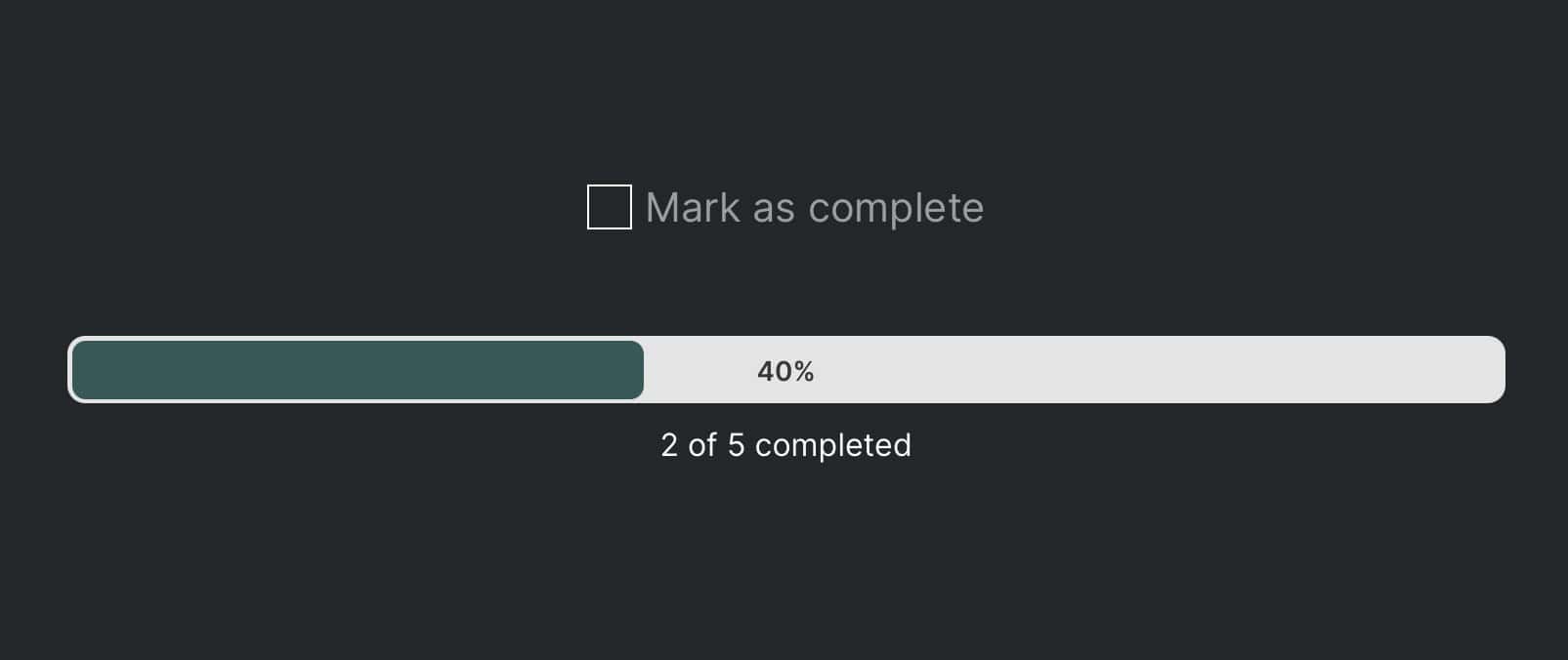
- Mark lessons as complete with a checkbox
- See progress bars showing completion percentage
- Track progress per course or module
For admins (coming in a future update):
- View which users have completed which content
- Track engagement and completion rates
- Identify users who need help
- Reset user progress
For course creators:
- Use completion as a prerequisite for drip content
- Award certificates when users complete courses (coming soon)
- Gamify learning with progress bars and achievements
Enabling Progress Tracking
Progress tracking is an optional module. Here’s how to enable it:
- Go to BricksMembers → Settings → Modules
- Find the Progress Tracking Module section
- Toggle it ON
- Click Save Settings
That’s it. Progress tracking is now active.
What happens when you enable it:
- The Progress Checkbox element becomes available in Bricks
- The progress tracking level can be set for Content Structures
- Progress dynamic tags become available
- The
brm_user_progressdatabase table starts tracking completions - Users can start marking content as complete
Important: Set Progress Tracking Level in Your Content Structures
Progress tracking requires BricksMembers content structures. Before configuring progress tracking, review our content structures guide to ensure your course is properly structured.
The most critical step is defining which level in your content hierarchy should track progress. You can set this when creating a new structure or adjust it later using the tracking level selector in your content structures table.
For typical course hierarchies, progress tracking works best at the lesson level (usually Level 3). However, you can choose whichever level makes sense for your specific content organization.
Why does this matter? The system needs to know exactly which content type to monitor. Without a defined tracking level, users could mark posts at any hierarchy level as complete, creating confusion in your progress data. This is also the level where you’ll integrate the completion checkboxes that allow users to mark content as finished.
Once configured, you can display progress in multiple ways — as percentages or completed item counts — scoped to any parent level above your tracking level. For example, if you set progress tracking at the lesson level, you can show overall course completion percentages, module-specific progress, or any other parent-level metric that suits your needs.
Adding Completion Checkboxes
To let users mark content as complete, you need to add a Progress Checkbox element to your Bricks posts template (Bricks → Templates). Usually, that’s the single lesson template. if you don’t have one yet, create one.
Using the Progress Checkbox Element
- Open the Bricks Template
- Add the BricksMembers Progress Checkbox Bricks element (usually at the bottom of the content)
- Configure the element:
- Label: “Mark as complete” (or “I’ve finished this lesson”)
- Checked Label: “Completed ✓” (or “Done!”)
- Style: Customize colors, fonts, spacing, or display as a button
- Optional for buttons: Set buttons style to AutomaticCSS to use ACSS utility classes for button styling.
- Save the post template
Now when users click the checkbox, the post is marked as complete.
Checkbox Behavior
When unchecked:
- Shows the label (e.g., “Mark as complete”)
- Clicking it marks the post as complete
- Progress is updated immediately
When checked:
- Shows the checked label (e.g., “Completed ✓”)
- Clicking it again unchecks (marks as incomplete)
- Progress is updated immediately
Persistence:
- Completion status is saved per user
- If a user leaves and comes back, the checkbox remembers their state
- Progress data persists even if the user loses access to the content
Where to Place Checkboxes
Recommended: At the bottom of the lesson content
- Users see it after reading/watching
- Natural completion point
Pro Tip: Use Bricks conditions to show the checkbox only if the post is not yet completed unless you want users to be able to revert their completion.
Displaying Progress
Once users start marking content as complete, you’ll want to show their progress.
Progress Dynamic Tags
BricksMembers provides dynamic tags for displaying progress. These tags auto-detect the progress scope based on the current post’s structure:
{brm_progress:percent} – Completion percentage (e.g., “75”)
{brm_progress:completed} – Number of completed items (e.g., “15”)
{brm_progress:total} – Total number of items (e.g., “20”)
Optional scope modifiers:
:structure– Progress for the entire structure:parent– Progress within the immediate parent (e.g., module):toplevel– Progress for the top-level item (e.g., course):current– Treat current post as the scope
Examples:
You've completed {brm_progress:completed} out of {brm_progress:total} lessons. That's {brm_progress:percent}% complete!Course progress: {brm_progress:toplevel:percent}%
Module progress: {brm_progress:parent:completed}/{brm_progress:parent:total}Progress Bar Element
For a visual progress bar, use the BricksMembers Progress Bar element (or create your own with dynamic tags):
- Edit the post template or a member dashboard or listing in Bricks
- Add the BricksMembers Progress Bar element wherever you want
- Configure it:
- Progress Calculation Mode: Auto (Smart Detection) or Manual (Content ID)
- Progress Level (Auto mode): Choose which level to show progress for:
- Structure: Shows average progress across all top-level posts in the structure. Use this for overall structure-wide progress on dashboard pages.
- Top Level: Shows progress for the top-level post (usually the course). Use this when you want to display overall course progress, even if you’re on a lesson or module page. If you’re already on a top-level post, it will show that post’s progress (same as Current Level).
- Parent Level: Shows progress for the direct parent of the current post (e.g., current module if you’re on a lesson post that’s a child of a module post). Use this to show module progress when viewing a lesson, or course progress when viewing a module.
- Current Level: Shows progress for the current post itself. Use this when viewing a post that has children (e.g., a course or module page) to display progress for that specific post. Perfect for showing course progress when on a course page, or module progress when on a module page. If you’re on a toplevel post and select “Top Level”, it will show the same result.
- Level 2, Level 3, etc.: Shows progress at a specific level. Select the level you want to show progress for, which may be different from the current post’s level. If you’re already on a post of that level, it will show that post’s progress (same as Current Level).
- Content ID (Manual mode): Enter a specific post ID to track progress for that scope
- Display options: Show progress text, show progress details (“X of Y completed”)
- Styling: Bar height, colors, borders, gradients, typography
- Save the page
The progress bar automatically updates as users complete content.
When to Choose Which Progress Level
Understanding when to use each progress level helps you display the right information to your learners:
- Structure: Use on dashboard pages or overview pages where you want to show overall progress across all courses in a structure. Shows the average progress percentage.
- Top Level: Use when you want to show course-level progress regardless of which page the user is on. For example, show course progress in the header of all lesson pages. If the user is already on a course page, this will show that course’s progress (same as Current Level).
- Parent Level: Use when you want to show the immediate parent’s progress. For example, show module progress when viewing a lesson, or course progress when viewing a module. This is perfect for showing “how far along in this module” when on a lesson page.
- Current Level: Use when viewing a post that has children (like a course or module page) to show progress specifically for that post. Perfect for course pages showing course progress, or module pages showing module progress. If you’re on a top-level post and select “Top Level”, it will show the same result.
- Level 2, Level 3, etc.: Use when you need to show progress at a specific level that may be different from the current post’s level. For example, always show Level 2 progress even if you’re on a Level 3 post. If you’re already on a post of that level, it will show that post’s progress (same as Current Level).
Example: Course Dashboard
Let’s build a simple course dashboard showing progress:
- Create a new page: “My Progress”
- Edit with Bricks
- Add a Section
- Add a Heading: “Your Progress”
- Add a Text element: “You’ve completed {brm_progress:completed} out of {brm_progress:total} lessons”
- Add a BricksMembers Progress Bar element:
- Set Progress Calculation Mode to “Auto (Smart Detection)”
- Set Progress Level to “Top Level”
- Enable “Show Progress Text” and “Show Progress Details”
- Style the bar colors, height, and text to match your design
- Add a Query Loop showing incomplete lessons (use BricksMembers filter: Progress → Not Completed)
- Save and publish
Users now have a Course dashboard showing their progress and remaining lessons.
Progress and Drip Content
Progress tracking works seamlessly with drip content.
Example: Unlock next lesson after completing previous
- Enable both Progress Tracking and Drip Content modules
- Create a drip rule:
- Scope: Your course structure
- Prerequisites: “Require previous item”
- Boundary: “Parent Level” (within the same module)
- Save the rule
Now lessons unlock only after users complete the previous lesson.
How it works:
- User completes Lesson 1 (clicks checkbox)
- BricksMembers recomputes drip unlocks for that user
- Lesson 2 becomes unlocked immediately
- User can access Lesson 2
Admin: Viewing and Managing User Progress
Currently, there is no dedicated admin UI for viewing individual user progress. Progress data is stored in the brm_user_progress and brm_user_data database tables.
Coming in a future update:
- Progress overview on user edit screens
- Completion rates analytics
- Progress export (CSV)
Current workaround: You can build your own user listings in Bricks Builder using query loops and restrict the page content with Bricks conditional logic to only administrators.
Progress and User Levels
Progress is tracked per user, not per level.
What this means:
- If a user has “Free” level and completes 5 lessons, then upgrades to “Premium,” their progress is preserved
- If a user loses a level, their completion data remains (but they eventually can’t access the content anymore if the user level they lost was required)
- If a user regains the level, their progress comes back
Use case: Subscription cancellations
- User cancels subscription → Level is removed
- User can’t access content anymore
- But their progress is saved
- User resubscribes → Level is reassigned
- User sees their progress exactly where they left off
Progress Totals and Versioning
BricksMembers uses a “totals version” system to keep progress accurate.
How it works:
- Each structure has a
totals_versionnumber - Each user’s progress has a
totals_versionnumber - When the structure changes (posts added/removed/reordered), the structure’s version increments
- If a user’s version doesn’t match the structure’s version, their totals are recomputed
What this means for you:
- Progress percentages are always accurate
- Adding new lessons doesn’t break existing progress
- Removing lessons updates progress automatically
You don’t need to do anything—this happens automatically.
Best Practices
Checkbox Placement
Do:
- Place checkboxes at the bottom of content
- Use clear labels (“Mark as complete”)
- Style them to match your design
Don’t:
- Use confusing labels (“Click here”)
- Place them in the middle of content
Progress Display
Do:
- Show progress on dashboards and course overview pages
- Use progress bars for visual feedback
- Show both percentage and fraction (e.g., “15/20 (75%)”)
Don’t:
- Show progress on every single page (it’s distracting)
- Use only percentages (users want to know “15 out of how many?”)
- Forget to update progress when content changes
Gamification
Do:
- Celebrate milestones (e.g., “You’re halfway there!”)
- Show progress bars filling up
- Award badges or certificates at 100% (coming soon)
Don’t:
- Overwhelm users with too many progress indicators
- Make progress tracking mandatory by combining with drip (some users don’t care)
- Penalize users for not completing content
Common Questions
Q: Can users mark content as complete without actually viewing it?
A: Yes. The checkbox is just a button—it doesn’t verify the user actually read/watched the content. This is intentional (some users want to skip content they already know). There will be a functionality to mark posts as completed based on finish watching videos in a future version of BricksMembers.
Q: What happens if I delete a post that users have marked as complete?
A: The completion data is no longer counted toward progress (since the post doesn’t exist) and will be removed when the recomputations happen.
Q: Can I export progress data?
A: Not currently. This is planned for a future update (CSV export of all user progress).
Q: Does progress tracking work with custom post types?
A: No. Only post types within BricksMembers content structures work.
Q: Can I track progress for things other than posts (e.g., watching a video to completion)?
A: Not currently. Progress tracking is post-based. Video completion tracking is planned as a future update.
Q: What if I change the required levels for a post? Does progress reset?
A: No. Progress is independent of access levels. Users keep their completion status even if they lose access.
Next Steps
Now that you understand progress tracking, you’re ready to:
- Set up drip content – Unlock lessons based on completion
- Build a member dashboard – Show progress and remaining lessons
- Use dynamic tags – Display progress throughout your site