
Your BricksMembers license is your key to updates, support, and full plugin functionality. This guide explains everything you need to know about managing your license, from initial activation to renewal and troubleshooting.
Understanding BricksMembers Licenses
BricksMembers uses a secure licensing system to ensure you receive updates and support. Your license is tied to your purchase and determines:
- Plugin updates – Access to new features, bug fixes, and security patches
- Support access – Ability to submit support tickets
- Site activations – Number of sites where you can use the plugin
License Types
BricksMembers offers several license types to fit different needs:
Subscription Licenses:
- Creator – Use on 1 website, renews annually
- Studio – Use on up to 3 websites, renews annually
- Agency – Use on 100 websites, renews annually
Lifetime Licenses:
- Ultimate – Use on up to 100 websites, lifetime updates
What’s included:
- All license types include plugin updates
- Subscription licenses include support while active
- Lifetime licenses include 1 year of support (renewable separately at $97/y)
First-Time License Activation
When you first install BricksMembers, you’ll need to activate your license before you can use the plugin.
Step 1: Get Your License Key
After purchasing BricksMembers, you’ll receive an email with your license key. It looks like this:
XXXX-XXXX-XXXX-XXXX-XXXX-XXXX-XXXX-XXXXKeep this key safe! You’ll need it to activate the plugin on your site. You can also retrieve it with you email address on LemonSqueezy or in our login area.
Step 2: Activate Your License
- Log in to your WordPress admin dashboard
- Go to BricksMembers → License in the admin menu
- In the “Activate License” card, enter your license key in the License Key field
- Click the Activate License button (blue button)
- You’ll see a success message: “License activated successfully”
- The “License Status” card will now show “Active” (green badge)
That’s it! Your plugin is now fully activated and you can start using all features.
What Happens During Activation?
When you activate your license:
- BricksMembers securely connects to the licensing server via HTTPS
- Your license key is validated
- Your site’s root domain is registered to your license (one activation covers all subdomains as well)
- License status and support expiration date are stored locally
- You receive a success message: “License activated successfully”
Understanding Root Domain Activation
BricksMembers uses a smart activation system based on root domains:
- One activation covers your entire root domain – This includes all subdomains and paths
- Example: Activating on
example.comautomatically covers:staging.example.comdev.example.comexample.com/subfolder- Any other subdomain or path on
example.com
- Site limits: A 1-site license = 1 root domain. A 3-site license = 3 different root domains.
- We do that as you might have development or staging sites running on the same domain.
- Local development sites: Sites running on local or private networks require a valid license but don’t use up an activation slot as they’re counted as development sites.
Security: All communication with the licensing server is encrypted using HTTPS and HMAC-SHA256 signatures. Your license key is stored encrypted in your database.
Managing Your License
Once activated, you can view and manage your license from the License page.
Viewing License Status
Go to BricksMembers → License to see:
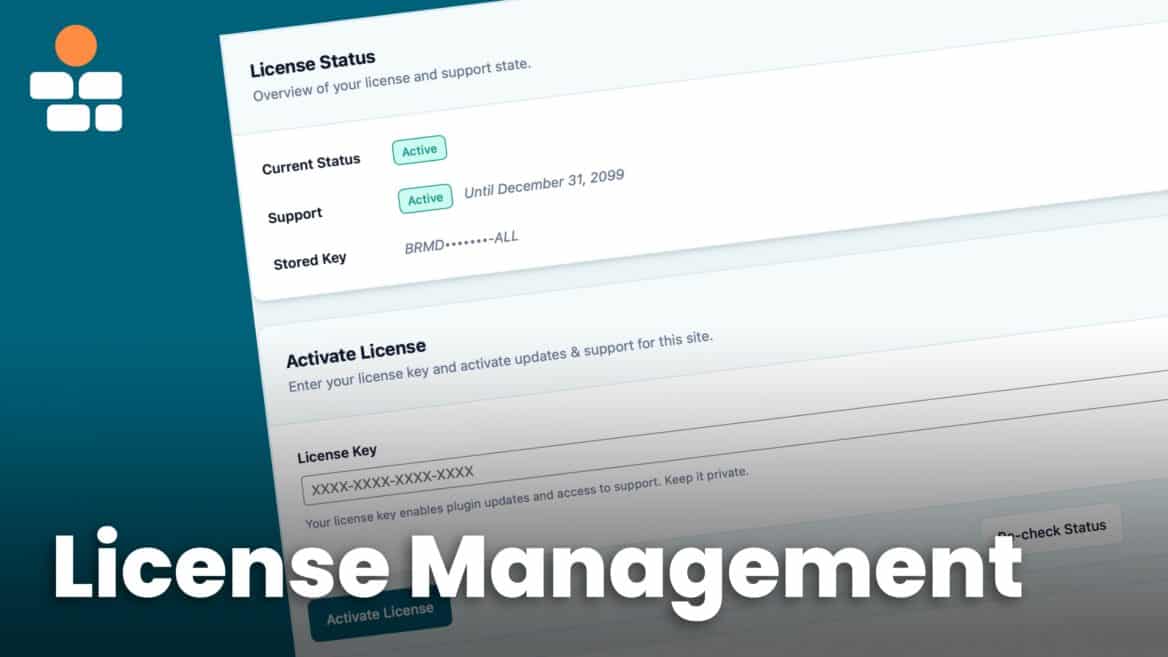
License Status Card shows:
- Current Status – Badge showing “Active” (green) or “Inactive” (orange)
- Support – Badge showing “Active” (green), “Expired” (red), or “Site Not Activated” (orange) with expiration date
- Stored Key – Your key (partially masked for security, e.g., “XXXX-XXXX-XXXX-1234”)
Available Actions:
- Activate License – Activates a new license key on this site
- Re-check Status – Refreshes your license status from the server (only shown if a key is stored)
- Remove Key – Removes the license key from this WordPress installation only (does not deactivate the root domain)
- Manage Activations – Opens your account dashboard at bricksmembers.com where you can view all activations
License Status Badges:
- Active (green badge) – License is valid, you receive updates
- Inactive (orange badge) – License expired, cancelled, or not activated
Support Status Badges:
- Active (green badge) – You can submit support tickets
- Expired (red badge) – Support access has ended
- Site Not Activated (orange badge) – Your site’s root domain isn’t activated yet
Note: The plugin continues to work even if your license becomes inactive, but you won’t receive plugin updates or support access.
Removing Your License Key
The Remove Key button removes the license key from your current WordPress installation only. It does NOT deactivate your root domain on the licensing server.
Important: Since one activation covers your entire root domain (including all subdomains), removing the key from one WordPress installation will not affect other installations on the same root domain. They will continue to work normally.
- Go to BricksMembers → License
- Scroll to the “Activate License” card
- Click the Remove Key button (gray button on the right)
- Confirm the removal when prompted
What happens when you remove a license key:
- The license key is deleted from this WordPress installation only
- Other WordPress installations on the same root domain continue working
- The root domain activation remains active on the licensing server
- No activation slot is freed up
- This installation will not receive updates or support until you re-enter the key
When to remove your license key:
- Cleaning up a test/development WordPress installation
- Temporarily disabling updates on a specific installation
- Removing BricksMembers from one site while keeping it on others with the same root domain
Deactivating a Root Domain (Freeing Up an Activation Slot)
To actually free up an activation slot and use it on a different root domain, you must manually deactivate through your account dashboard:
- Visit bricksmembers.com/login (or LemonSqueezy)
- Log in to your account
- Find your license and view activations
- Click “Deactivate” next to the root domain you want to remove
- The activation slot is now free to use on a different root domain
⚠️ Warning: Deactivating a root domain through your account dashboard will affect ALL WordPress installations on that root domain and its subdomains. Only do this if you want to move your license to a completely different domain.
Example: If you deactivate example.com, it will affect www.example.com, staging.example.com, dev.example.com, and all other subdomains.
Checking and Refreshing Your License Status
BricksMembers automatically checks your license status periodically, but you can manually refresh it at any time.
To manually refresh your license status:
- Go to BricksMembers → License
- Click the Re-check Status button (gray button below the license key field)
- The plugin will contact the licensing server and update your local status
- You’ll see a success message: “License checked and refreshed”
When to refresh your license status:
- After renewing your subscription
- After upgrading your license
- When the status card shows outdated information
- If you’ve made changes to your license through your account dashboard
Note: The “Re-check Status” button only appears if you already have a license key stored. If you removed your key, you’ll need to enter and activate it again using the license key field.
License Renewal
Subscription Licenses
Subscription licenses renew automatically through your payment method on file.
Before renewal:
- You can cancel anytime from your account dashboard
After renewal:
- Your license automatically extends for another year
- Support access is renewed
- No action needed on your WordPress site
If renewal fails:
- You’ll receive an email notification
- Your license status changes to “Expired”
- Plugin continues to work, but no updates or support
- Update your payment method and renew manually
Lifetime Licenses
Lifetime licenses include lifetime updates but only 1 year of support.
After 1 year:
- Updates continue forever (no renewal needed)
- Support access expires
- You can renew support separately if needed
To renew support:
- Visit your account dashboard
- Look for support renewal options for your license
- Purchase another year of support
- After payment, go to BricksMembers → License and click Re-check Status to refresh
Troubleshooting License Issues
“Activation failed” or Error Messages
If you see an error message when trying to activate your license:
Common error messages:
- “Please enter a license key” – You submitted the form with an empty key field
- “Activation failed” – Generic error (check below for causes)
- Network error messages – Connection to licensing server failed
Possible causes:
- Invalid license key (typo or incorrect key)
- License already activated on maximum number of root domains
- License expired or cancelled
- Network/firewall blocking connection to licensing server
- Server cannot make outbound HTTPS requests
Solutions:
- Double-check your license key – copy/paste it directly from your purchase email
- Visit your account dashboard to check how many root domains you’ve activated
- Remove activations from old sites to free up slots (via dashboard or by clicking “Remove Key” on those sites)
- Check that your server can make HTTPS requests to
https://bricksmembers.com - Contact your hosting provider to ensure outbound HTTPS connections are allowed
- Contact support if the issue persists
“License inactive” or “Site Not Activated”
If you see an “Inactive” badge or “Site Not Activated” warning on the License page:
Possible causes:
- License expired (subscription not renewed)
- License cancelled or refunded
- License key stored but root domain not activated (you’ll see a yellow warning card)
- License key removed from this site
Solutions:
- Go to BricksMembers → License
- If you see a “Site Not Activated” warning, click Activate This Site
- If the status is “Inactive”, click Re-check Status to refresh from the server
- If still inactive after checking, your subscription may have expired – renew it
- If cancelled or refunded, purchase again or contact us if there’s an issue with your payment
Connection Errors
If you receive network or connection errors when activating or checking your license:
Possible causes:
- Server firewall blocking outbound HTTPS requests
- DNS issues preventing connection to
https:// bricksmembers.com - Hosting provider blocking external API calls
- Temporary server or network downtime
- SSL/TLS certificate validation issues
Solutions:
- Check your server’s firewall settings with your hosting provider
- Ensure your server can make outbound HTTPS requests
- Ask your hosting provider to whitelist
bricksmembers.comandhttps://bricksmembers.com/wp-json/brm/v1/* - Verify your server has up-to-date SSL certificates and can connect to HTTPS sites
- Try again in a few minutes (error may be temporary)
- Test from a different server or hosting environment to isolate the issue
- Contact support with details about your hosting environment if the issue persists
Status Not Updating After Changes
If you’ve activated your license or made changes but the License Status card shows old information:
Possible causes:
- Browser cache showing old page
- Page loaded before changes took effect
- Database connection or write issue
Solutions:
- Click the Re-check Status button to manually refresh from the server
- Refresh the page with a hard reload (Ctrl+F5 or Cmd+Shift+R)
- Clear your browser cache and reload
- Check WordPress database connection (should show errors in WordPress if there’s an issue)
- If issue persists, remove and re-enter the license key
Site Migration and License Transfer
Moving to a New Domain
If you’re moving your site to a new domain:
On the old domain (to free up the activation slot):
- Log in to your account dashboard
- Find your license and view activations
- Click “Deactivate” next to the old root domain
On the new site:
- Install and activate BricksMembers
- Go to BricksMembers → License
- Enter your license key in the License Key field
- Click Activate License
- You’ll see “License activated successfully”
Note: The “Remove Key” button in WordPress only removes the key from that specific installation. To actually free up an activation slot for a different root domain, you must deactivate through your account dashboard as shown above.
Staging and Production Sites
Understanding how activations work with staging and production environments:
Same Root Domain (staging.yoursite.com + yoursite.com):
- Only uses 1 activation – Subdomains on the same root domain are automatically covered
- Works with ANY license type (including single-site)
- No need to remove the key when pushing from staging to production
- Example:
staging.example.comandexample.comuse only 1 activation
Different Root Domains (staging-site.com + production-site.com):
- Uses 2 activations – Different root domains require separate activations
- Requires a multi-site license (3-site, or 100-site)
- Single-site licenses: Must remove key from one domain before activating on another
Local Development Sites (localhost, 127.0.0.1, *.local, private IPs):
- Don’t use activations – Local sites require a valid license but don’t count toward your activation limit
- Works with ANY license type
- Perfect for development without worrying about activation limits
Best Practices
Keep Your License Active
- Set up automatic renewal for subscription licenses
- Keep your payment method up to date
Secure Your License Key
- Don’t share your license key publicly
- Don’t commit it to public Git repositories
- Store it securely (password manager, encrypted notes)
Monitor Your Activations
- Periodically review active sites in your account dashboard
- Deactivate old/unused sites to free up slots
- Remove test sites before they count toward your limit
Stay Updated
- Keep BricksMembers updated to the latest version
- Check for updates at least monthly
- Read release notes before updating
Getting Help
If you’re having trouble with your license:
- Check this guide – Most license issues are covered above
- View your account dashboard – Visit bricksmembers.com/login to view all activations and license status
- Check license status locally – Go to BricksMembers → License and click Re-check Status
- Contact support – Submit a ticket through your account dashboard or within BricksMembers plugin → Support (requires active support)
Information to have ready when contacting support:
- Your site URL (the exact URL where you’re trying to activate)
- The exact error message you’re seeing
- Screenshots of the License page showing the issue
- Your hosting provider name (if experiencing connection errors)
Quick Reference
- Activate license: BricksMembers → License → Enter key → Click “Activate License”
- Remove license key: BricksMembers → License → Click “Remove Key” → Confirm (only removes from this installation)
- Deactivate root domain: Visit account dashboard → Manage activations → Deactivate domain
- Refresh license status: BricksMembers → License → Click “Re-check Status”
- View license status: BricksMembers → License → See “License Status” card
- Manage activations online: BricksMembers → License → Click “Manage Activations” or visit bricksmembers.com/login
- Renew subscription: Automatic renewal (or update payment method in your account dashboard)
- Renew support (lifetime): Contact support or check your account dashboard
Your license is the foundation of your BricksMembers experience. Keep it active, keep it secure, and you’ll always have access to the latest features and expert support when you need it.