
Getting BricksMembers up and running is straightforward. There’s no setup wizard, no complicated configuration. Just install, activate, and you’re ready to create your first membership level.
This guide walks you through the entire process, from uploading the plugin to creating your first protected post.
Before You Begin
Make sure you have:
- WordPress 6.5 or higher installed
- Bricks Builder 2.0 or higher activated
- Admin access to your WordPress site
- The BricksMembers plugin file (
.zip) - Your BricksMembers license key (you’ll need this immediately after activation)
Time required: 10–15 minutes
Step 1: Install the Plugin
Upload Method
Log in to your WordPress admin dashboard and go to Plugins → Add New. Click the Upload Plugin button at the top, then click Choose File and select the bricksmembers-x.y.z.zip file from your computer.
Click Install Now and wait for WordPress to upload and install the plugin. When the installation completes, click Activate Plugin.
That’s it. BricksMembers is now active on your site.
What Happens During Installation?
When you activate BricksMembers, the plugin automatically creates a few core database tables (using your WordPress table prefix):
brm_user_data– User levels and completion trackingbrm_post_data– Post access rules and structure pathsbrm_levels– Level definitions
It also registers custom post meta fields, adds admin menu items, and loads default settings so you can start using the plugin immediately.
Note: Two additional tables are created when you enable optional modules:
brm_user_progress– Created when the Progress Tracking module is enabledbrm_user_unlocks– Created when the Drip Content module is enabled
You don’t need to run any setup wizard or click through configuration screens.
Step 2: Activate Your License Key
Important: You must activate your license key before you can fully use BricksMembers.
After activation, you’ll see an admin notice prompting you to enter your license key. Click BricksMembers → License (or click the notice), enter your license key into the field, and click Activate License. You’ll see a success message when the license is activated.
What if I don’t activate my license? Most plugin features will be blocked, you’ll see admin notices reminding you to activate, and you won’t receive plugin updates.
What if my license becomes invalid later? The plugin continues to work (no blocking to avoid downtime), but you’ll see admin notices and you won’t receive updates until you reactivate your license.
Need help with licensing? See the complete License Management guide for detailed information about license types, renewal, troubleshooting, and site migration.
Step 3: Access BricksMembers Settings
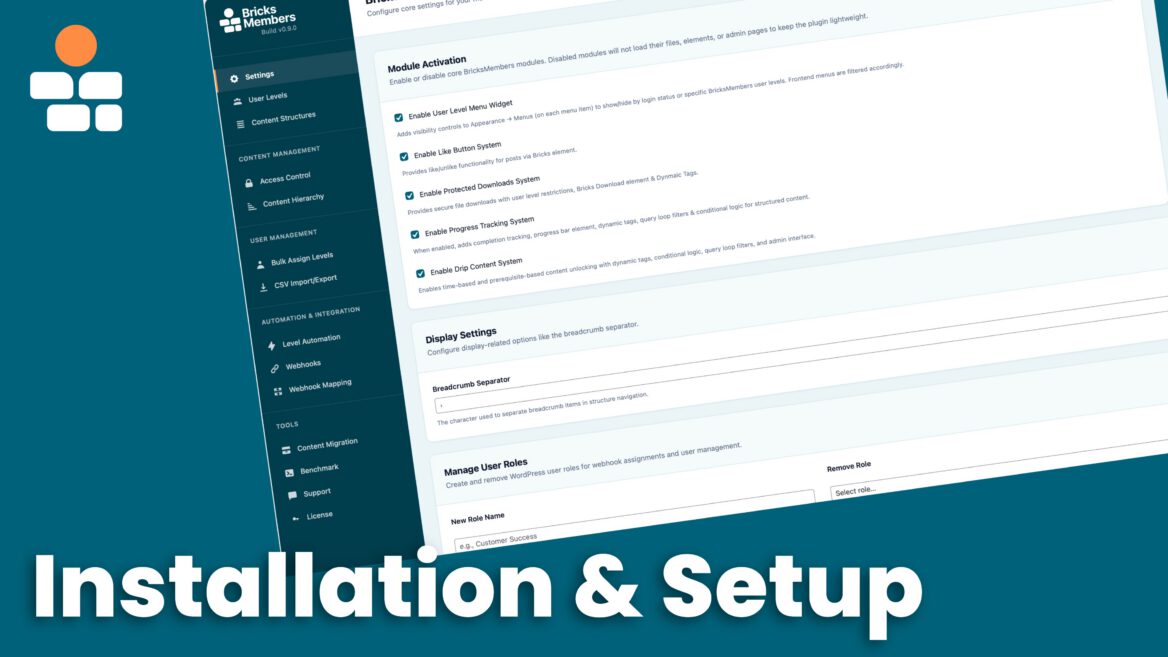
In your WordPress admin menu, click BricksMembers. This opens the main BricksMembers interface with a custom sidebar that groups all tools and settings.
Core Setup: Use the Settings page to configure modules and global options, the User Levels page to manage membership levels, and the Content Structures page to create content structures to organize your courses and content hierarchically.
Content Management: Use Access Control for bulk protecting or unprotecting content, Content Hierarchy to manage parent–child relationships in bulk (only needed if you have existing content you want to integrate into a structure – refer to our Migrating to BricksMembers Doc to learn more), and Drip Content to set up time-based content release rules (when enabled).
Depending on the content structures you create on the Content Structures page, WP admin pages appear in the WordPress sidebar (ex. Courses). Click on those for a user interface to create, organize and populate your content hierarchically.
User Management: Use Bulk Assign Levels to assign or remove levels for multiple users at once and CSV Import/Export to import or export user levels and related data via CSV.
Automation & Integration: Use Level Automation to automatically assign user levels based on rules,
Webhooks to receive events from payment providers, and Webhook Mapping to map incoming webhook data from payment providers to specific user levels and actions.
Tools: Use Content Migration to migrate from other membership plugins, Benchmark to test website & host performance, Support to submit support tickets, and License to manage your license key.
Let’s configure the basics.
Step 3: Create Your Content First
Important: Before enabling modules, create your content structure and user levels first.
The Progress Tracking and Drip Content modules trigger heavier computations when enabled. It’s much more efficient to create your user levels, create your content structures, and protect your content first—and then enable the modules.
This way, the modules only compute data for your actual content, not empty data.
We’ll cover modules in Step 6 (after you’ve set up your content).
Step 4: Configure Basic Settings (Optional)
Click BricksMembers to access the settings page. Most settings can stay at their defaults, but you might want to configure access redirects and basic admin access behavior.
Access Control Settings (Optional)
Note: Access redirects are optional. The recommended approach is to use Bricks conditional logic to show or hide content (covered in the “Protecting Your Content” guide). Redirects are a simpler but less flexible alternative.
Logged-Out User Redirect: Decide whether non-logged-in users should be redirected to the login page automatically. If you enable this, add exception pages that should be available to all users. Authentication pages, such as the login page, are always excluded to prevent you from locking yourself out. You can set custom login and other authentication pages in the Bricks Builder settings.
Admin Access Restrictions: Here you can define which WordPress user roles should see certain admin area elements, such as the top bar. This is helpful if you want members to have a cleaner interface without admin distractions.
You can create your own user roles on the BricksMembers → Settings page under “Manage User Roles” (for example, a “Student” role for an LMS site). You can adjust these access controls at any time.
Step 5: Create Your First User Level
Now let’s create a user level.
Remember: User levels can represent anything—membership and subscription tiers, course names, download access, or any combination. For this tutorial, we’ll create a simple membership tier.
Go to BricksMembers → User Levels. If this is a fresh install, the list will likely be empty. Click Add New Level at the top and fill in the level details: a Level Name such as “Premium Member”, an optional description like “Monthly subscription tier” for your own reference, and an optional Link Target (you can leave this blank for now). The link target lets you link users from the level name to a specific page, for example a course overview.
Click Create Level. Your first user level is now created.
Pro Tip: User levels are flexible. You can create tiers like “Free”, “Pro”, and “Premium”, use course names like “DaVinci Resolve Course” or “Final Cut Pro Course”, define download access such as “Photography Presets” or “Videography LUTs”, or mix all of the above in whatever way fits your business.
See the “Understanding User Levels” guide for more details.
Step 6: Assign a Level to Yourself
Before you start protecting content, assign a level to your own user account so you can test access like a member.
Click on your user account in the top-right corner of the WordPress admin bar to open your profile. Scroll down to the BricksMembers section, check the box next to the level you just created (for example “Premium Member”), and click Update User.
You now have the “Premium Member” level assigned to your account. You can assign multiple levels to a single user, which is useful for members who have access to multiple courses, downloads, or membership tiers.
Step 7: Protect Your First Post
Let’s protect a piece of content so only users with the “Premium Member” level can access it.
Go to Posts → All Posts (or Pages, or any custom post type). Edit an existing post or create a new one. In the post editor, scroll down to the BricksMembers meta box and, under Required User Levels, check the box next to “Premium Member”. Click Update or Publish to save your changes.
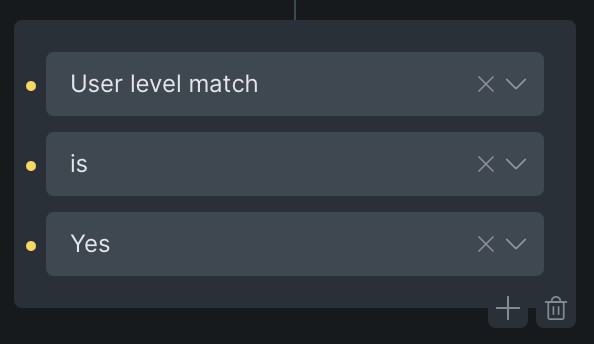
That post is now protected. To ensure that only users with the correct user level can see it, use conditional logic with user level matching in your Bricks Builder post template to show specific content (such as post content) only to users with access.
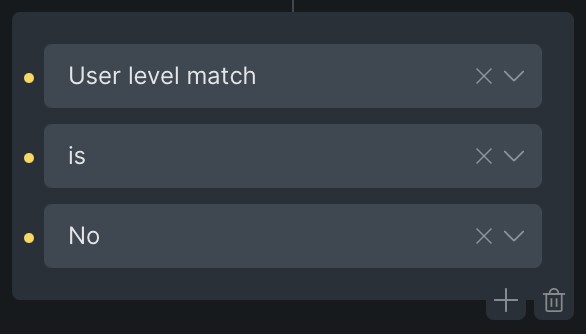
A great tip is to show a message to users who don’t have access, explaining what they’re missing and where they can purchase access. That’s an easy way to upsell to existing members. You can do this by using the user level match conditional logic set to “no”.
If you don’t want to use conditional logic, you can also create a page that tells the user they don’t have access and redirect them to that page by creating rules on the Access Control page.
Step 8: Bulk Assign Required Levels (Optional)
If you have many posts to protect, BricksMembers provides two powerful ways to assign required levels in bulk.
Method 1: Bulk Level Assignment Page
The dedicated Bulk Level Assignment page provides 5 powerful ways to assign levels to multiple posts, terms, or users at once. Go to BricksMembers → Bulk Level Assignment to access these tools:
1. Assign to Posts by Structure Parents
Perfect for hierarchical content structures (courses, modules, lessons).
- Select your Content Structure (e.g., “Online Course”)
- Choose the Target Level (e.g., “Lesson” – the level you want to assign to)
- Posts are automatically grouped by their parent (e.g., all lessons grouped under each module)
- Expand parent groups and select the posts you want
- Choose the user level(s) to assign
- Click Add User Level(s) or Remove User Level(s)
Example: Assign “Premium Member” level to all lessons in Module 2, while leaving Module 1 lessons free.
2. Assign to Posts by Term
Assign levels to posts based on categories, tags, or custom taxonomies.
- Select a Post Type (e.g., “Posts”)
- Choose a taxonomy and term (e.g., Category: “Premium Content”)
- Click Load Posts
- Select the posts you want to protect
- Choose the user level(s) to assign
- Click Add User Level(s)
Example: Protect all posts in the “Advanced Tutorials” category with “Pro Member” level.
3. Assign to Terms
Protect entire taxonomy terms (categories, tags) themselves.
- Select a Taxonomy (e.g., “Categories”)
- Click Load Terms
- Select the terms you want to protect
- Choose the user level(s) to assign
- Click Add User Level(s)
Example: Protect the “VIP Resources” category so only VIP members can see posts in that category.
4. Assign to Posts by Relationship
Assign levels based on post relationships (parent-child connections).
- Select a Post Type
- Choose a relationship field
- Click Load Posts
- Select posts and assign levels
5. Assign to Posts by Related Taxonomy
Assign levels to posts based on their taxonomy relationships.
- Select a Post Type
- Choose a taxonomy and term
- Click Load Posts
- Select posts and assign levels
Pro Tip: All sections support both adding and removing levels in bulk.
Method 2: Structure Admin UI (Recommended for Hierarchies)
When working with content structures, the structure pages (ex.: Courses) that appear in the WP sidebar on the left after creating content structures offers smart automation options.
Option A: Inherit from Parent (When Creating New Posts)
- Go to a structure page
- Create a new course or any other top level post and set the required user levels, or use the quick edit button to add levels to existing posts.
- Click + Add New (e.g., “+ Lesson”) on any parent item
- In the Quick Add dialog, check “Inherit required levels from parent”
- The new post will automatically copy the parent’s required levels
Option B: Apply to All Children (When Editing Existing Posts with child posts)
- Click Quick Edit on any parent post
- Change the required levels
- Check “Apply level changes to all child posts”
- Click Save
All child posts (lessons, modules, etc.) will now have the same required levels as the parent.
Example: You have a course with 50 lessons. Instead of editing each lesson individually, just Quick Edit the course, select “Premium Member” level, check “Apply level changes to all child posts”, and all 50 lessons are instantly protected. That also works across multiple levels. Like all modules and all lessons would automatically be updated with the levels from the course post they’re part of.
Step 9: Enable Modules (After Content Setup)
Now that you’ve created your content structure and user levels, you can enable modules if needed.
Go to BricksMembers → Settings and enable the modules you want.
User Level Menu Widget: This enables the protection of WordPress menu items. To use this feature, edit a WordPress menu and in each item you find the visibility setting, where you can assign user levels to each menu item.
Like Button System: this enables the like button element and related dynamic tags, condition logic, and query loop filters. So users can like posts with the like button element, and you can show like counts, and display content dynamically depending on likes in Bricks Builder.
Progress Tracking System: Turn this on if you want learners to mark content as complete and show progress stats. This enables the progress bar element, the Progress Checkbox element and progress-related conditions, query loop filters, and dynamic tags. It’s recommended for course platforms, onboarding sequences, and challenges. When first enabled, it creates the brm_user_progress table.
Drip Content System: Turn this on if you want to release content over time. This enables time-based unlocking, prerequisites, and cohort releases. Ideal for courses with weekly lessons or membership sites with scheduled content. When first enabled, it creates the brm_user_unlocks table.
Protected Downloads: Turn this on if you want to protect files (PDFs, LUTs, templates etc.). This enables the Downloads page I the WordPress sidebar, where you can upload and protect files. This is great to sell digital products securely, for resource libraries, client deliverables, and course materials.
Why enable modules last? Some of these modules (drip & progress) trigger heavy computations in the WordPress admin backend when you do certain changes, for example to content structures. By setting up your content and levels first, the computations won’t happen after every change, saving you time.
Tip: BricksMembers does have a “No Recompute” option on the structure pages. When you activate edit mode and hover over the save edits button, another button appears below saying “No Recompute”. When you click that, it will only save the changes without any heavy computations. This is good if you have to do many changes on existing content structures, for example when you add a new course to existing courses. But you should trigger recomputations before you go live or even design in bricks, because otherwise you might face issues with features not behaving correctly.
Common First-Time Questions
Q: Do I need to configure anything in Bricks Builder?
A: No. BricksMembers elements, dynamic tags, and conditions are automatically available in Bricks after you activate the plugin and certain modules.
Q: Can I use BricksMembers with other page builders?
A: No. BricksMembers is built specifically for Bricks Builder and won’t work with Elementor, Divi, or other builders.
Q: What happens if I deactivate a module later?
A: Your data is preserved. If you disable Progress Tracking, for example, all completion data stays in the database. Re-enable the module and everything comes back.
Q: Can I delete the plugin without losing data?
A: Deactivating the plugin preserves all data. Deleting the plugin removes the database tables and all BricksMembers data. Always make a backup first.
Q: How do I assign levels when users purchase?
A: Use webhooks from your payment provider (Gumroad, LemonSqueezy, Stripe, PayPal, etc.). BricksMembers has built-in webhook support that automatically assigns or removes levels based on purchases, subscriptions, cancellations, and other events.
Q: What if my license key expires?
A: The plugin continues to work normally. You’ll see admin notices and won’t receive updates until you renew and reactivate your license.