
Need help with BricksMembers? We’re here to help. This guide explains how to get support, what to include in your support request, and how to get the fastest response.
Support Eligibility
Support access depends on your license plan:
Subscription Plans (Creator, Studio, Agency):
- Support included while your subscription is active
- Renews automatically with your annual subscription
- Updates included while subscription is active
Ultimate Plan (Lifetime):
- Includes 1 year of support from purchase date
- Support renewable annually after the first year
- Lifetime updates included (never expires)
Check your support status:
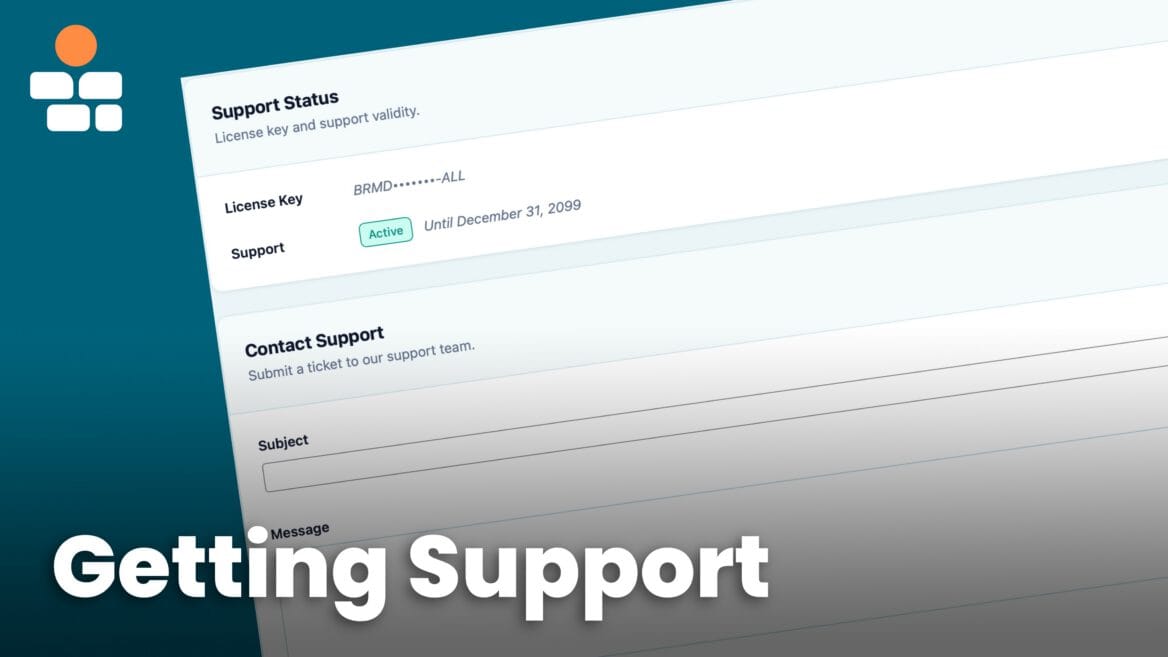
- Go to BricksMembers → Support in your WordPress admin
- You’ll see your support expiration date at the top
How to Submit a Support Ticket
Step 1: Access the Support Page
- Log in to your WordPress admin dashboard
- Go to BricksMembers → Support in the admin menu
- You’ll see the support ticket form
If support is expired:
- You’ll see a “Renew Support” button instead of the form
- Click the button to purchase another year of support
- After renewal, refresh the page to access the form
Step 2: Fill Out the Ticket Form
The support form has three fields:
Subject (required): Brief description of your issue. Be specific.
- Good: “Drip content not unlocking after completion”
- Bad: “It’s broken”
Message (required): Detailed description including:
- What you were trying to do
- What happened instead
- What you’ve already tried
- Any error messages you saw
Include system info (checkbox): Always check this box – it helps us diagnose issues faster.
Step 3: Submit Your Ticket
- Review your ticket for clarity
- Make sure you checked “Include system info”
- Click Send Ticket
- You’ll see a success message
- You’ll receive an email confirmation
What happens next:
- Your ticket is created in our support system
- Our support team is notified
- You’ll receive a response within max 48 hours during workdays (usually much faster)
- All communication happens via email
Check Common Issues First
Before submitting a support ticket, check if your issue is already covered in our comprehensive troubleshooting guide:
Common Issues and Solutions — Find solutions for progress tracking, drip content, access control, dynamic tags, and more.
Getting the Fastest Response
Do this:
- ✅ Check documentation first
- ✅ Include system info
- ✅ Describe what you’ve already tried
- ✅ Include screenshots or videos
- ✅ Be specific about the issue
Avoid this:
- ❌ Creating multiple tickets for the same issue
- ❌ Vague descriptions (“it doesn’t work”)
- ❌ Including sensitive data in tickets
We’re here to help you succeed with BricksMembers. Don’t hesitate to reach out—that’s what support is for!